
This integration is currently in beta. Additional functionality is available via API.
Enrich tracking from DHL
The DHL Shipment Tracking API is used to provide up-to-the-minute shipment status reports by retrieving tracking information for shipments, identifying DHL service providers, and verifying DHL delivery addresses. DHL is a beta integration which requires a slightly more involved setup process than our native integrations. Following the guidance in this document should help even those without technical experience pull data from DHL. If you run into any questions, shoot our team an email at support@parabola.io.Use Cases
🤝 DHL | Integration configuration
DHL Reference docs:
DHL Authentication doc links:
Instructions
1
Click My Apps on the portal website.
2
Click the + Add App button.
3
The “Add App” form appears.
4
Complete the Add App form.
5
You can select the APIs you want to access.
6
When you have completed the form, click the Add App button.
7
From the My Apps screen, click on the name of your app. The Details screen appears.
8
If you have access to more than one API, click the name of the relevant API.
9
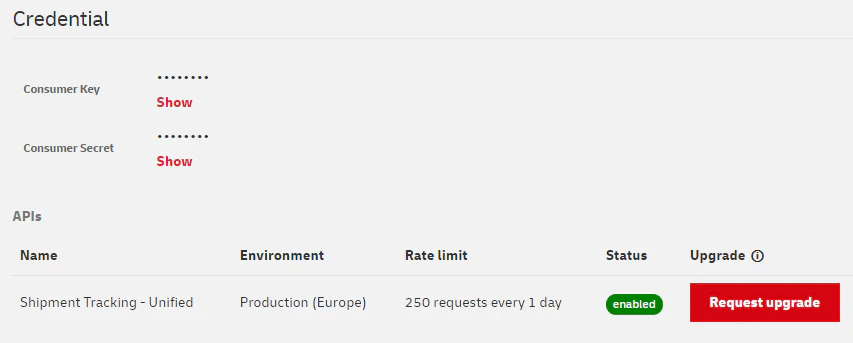
Click the Show link below the asterisk that is hiding the Consumer Key*.*
🔐 Prowork | Authentication configuration
1
Add an Enrich tracking from DHL step template to your canvas.
2
Click into the Enrich with API: DHL Tracking step to configure your authentication.
3
Under the Authentication Type, select None.
4
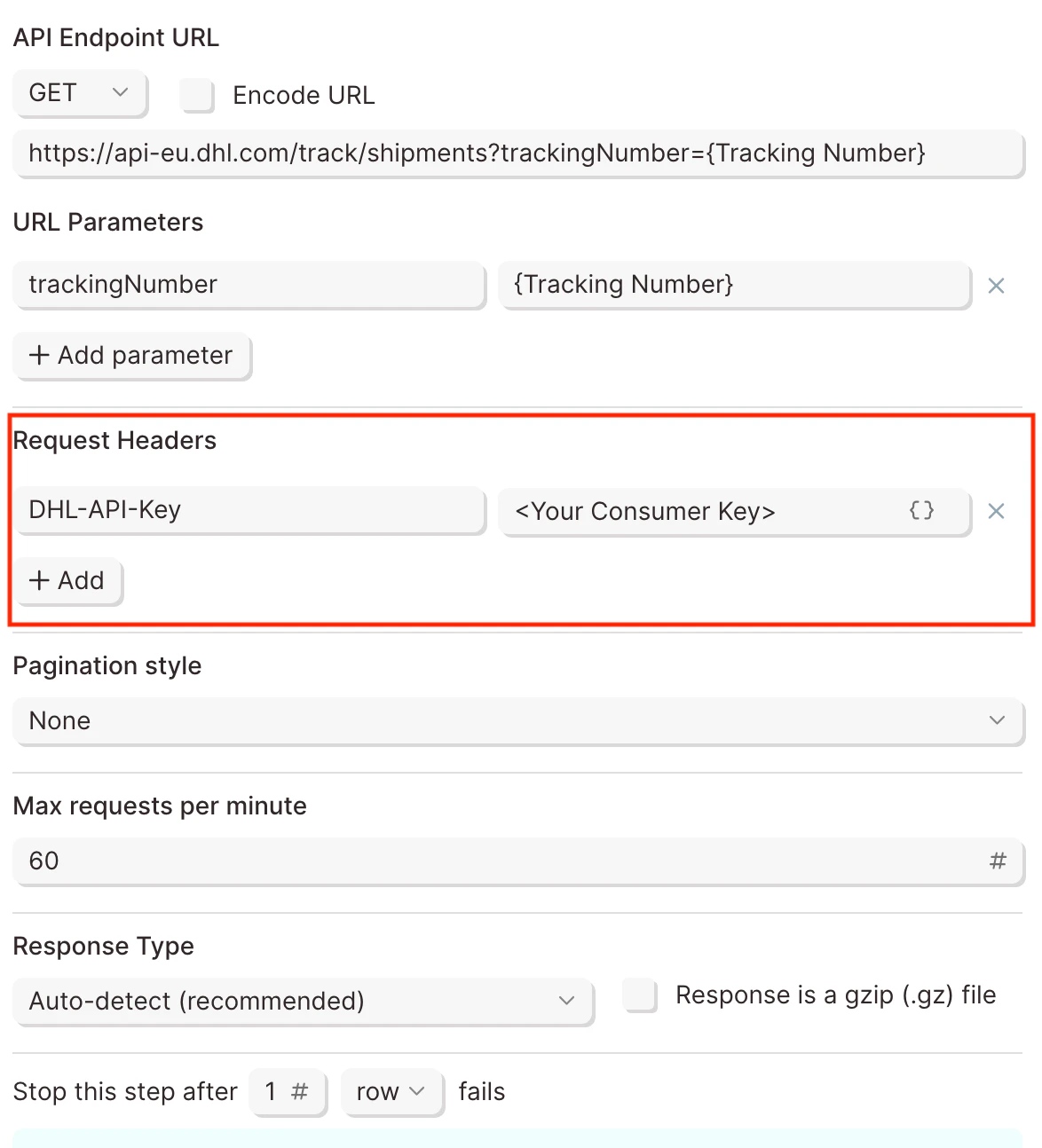
Click into the Request Settings to configure your request using the format below:
Request Headers
Example Screenshot
🌐 DHL | Sample API Requests
Track DHL Shipment Statuses by tracking number
Get started with this template. Test URLhttps://api-test.dhl.com/track/
Production URL
https://api-eu.dhl.com/track/
1
Add a Use sample data step to your flow. You can also import a dataset with tracking numbers into your flow. (Pull from Excel File, Pull from Google Drive, Pull from API, Use sample data, etc.)Connect it to the Enrich with API: DHL Tracking step.
2
Under Authentication Type, select None.
3
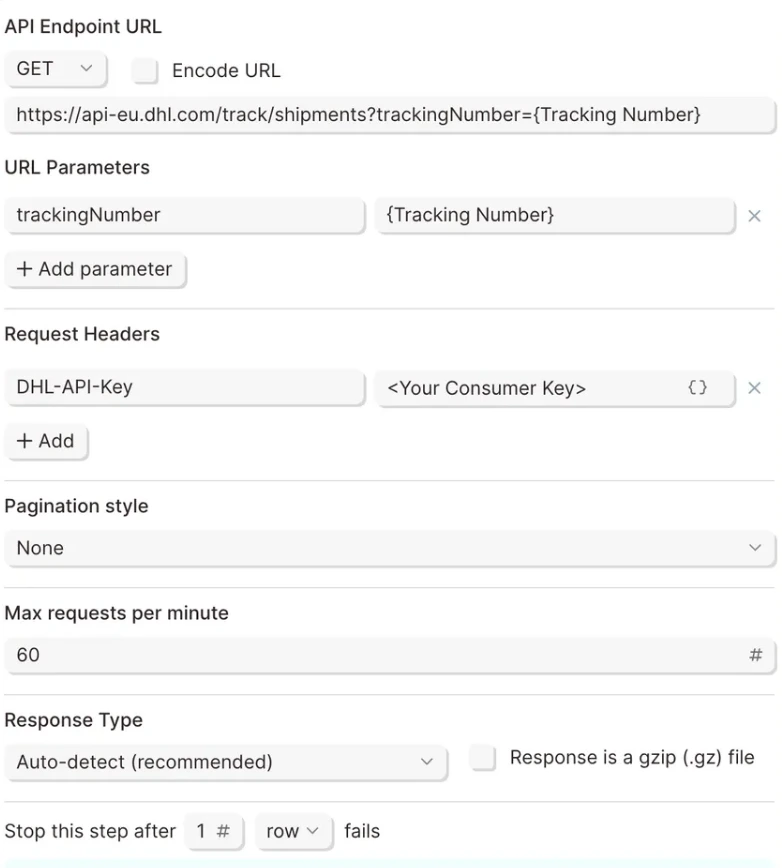
Click into the Request Settings to configure your request using the format below:
API Endpoint URL
Request Headers
1
Click Refresh data to display the results.
Example Screenshot
📣 Callouts