

Pull from ShipHero
The Pull from ShipHero step pulls data from ShipHero’s GraphQL API. It ships with five pre-built snippets (Shipments, Orders, Returns, Purchase Orders, Products) so you can drop them onto the canvas, point them at a date range, and get clean tabular data back without writing the query yourself.This integration is currently in beta. The pre-built snippets cover the most common pulls; for anything else, you can edit the underlying GraphQL query or use a generic Pull from an API step against ShipHero’s endpoint.
How to authenticate
ShipHero uses OAuth 2.0 with an expiring access token that the step refreshes for you using your ShipHero username and password.1
Add a Pull from ShipHero step to your flow. When you drop it on the canvas, a card with five snippets appears (Shipments, Orders, Returns, Purchase Orders, Products). Copy a snippet and paste it onto the canvas (how to paste a snippet).
2
Open the step’s Authentication section and choose Expiring Access Token.
3
Set the Access Token Request URL to:
https://public-api.shiphero.com/auth/token4
In Request Body Parameters, add 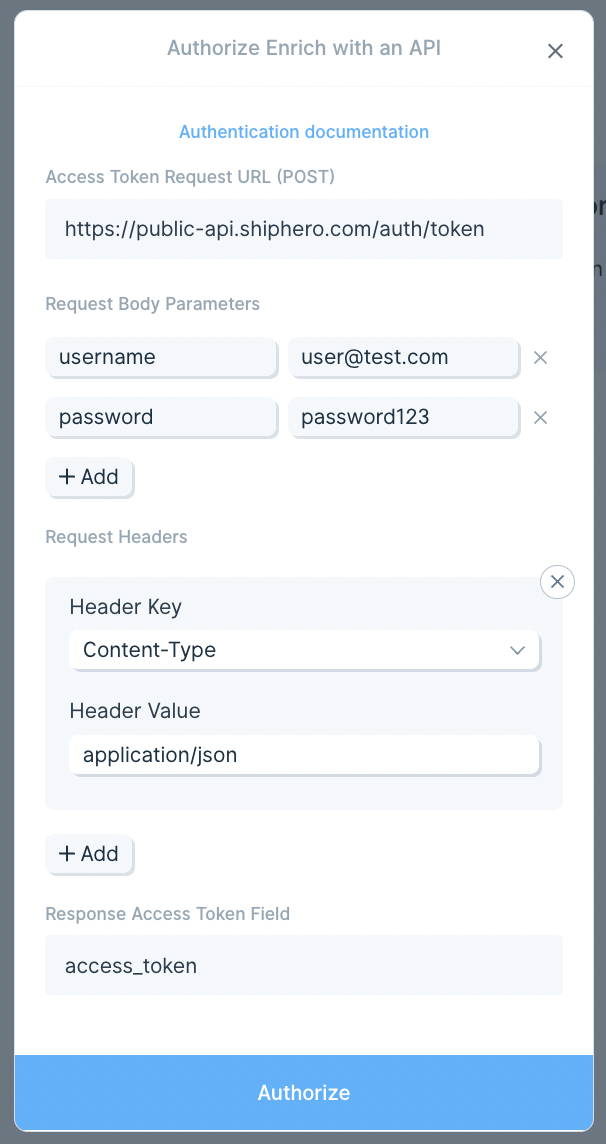
username and password and enter your ShipHero login credentials. If a default Accept header exists, you can delete it.Configure your settings
Each snippet starts with a couple of step that defines a dynamic date range, so you can pull “last full day,” “last 7 days,” or anything else without editing the query each run.- Start Date / End Date: relative offsets in days.
-2and-1pulls the previous full day;-8and-1pulls the last week. - GraphQL Query: the body of the request. Edit this if you need fields not included in the snippet, or to add mutations. ShipHero’s GraphQL Primer is the best reference.
- Maximum pages to fetch: under Rate Limiting. Defaults to 20 pages (about 2,000 records). Raise this for larger date ranges or higher-volume warehouses.
Available data
The five snippets cover the most common ShipHero pulls. The underlying GraphQL API exposes more, including kits, replenishments, and warehouse-level data.- Orders: order number, customer info, line items (SKU, quantity, price), shipping and billing addresses, fulfillment status, channel, and timestamps.
- Shipments: shipment ID, tracking number, carrier, service level, ship date, label cost, weight, and the order(s) it covers.
- Products: full SKU catalog with barcodes, dimensions, weight, warehouse-level inventory, kit components, and vendor mappings.
- Returns: RMA ID, original order, returned line items, reason codes, condition on receipt, and refund or restock status.
- Purchase Orders: PO number, vendor, expected vs. received quantities, line-item costs, and warehouse destination.
- Inventory snapshots: on-hand, allocated, and available counts per SKU per warehouse, useful for reconciliation against your sales channels.
Common use cases
- Reconcile 3PL shipments to carrier invoices: Join ShipHero shipment records with billing data from UPS, FedEx, DHL, or EasyPost to catch overcharges, surcharges, and missing tracking numbers before paying.
- Sync inventory across channels: Pull ShipHero on-hand and available counts and push them to Shopify, Amazon Seller Central, or Walmart so listings reflect what’s actually in the warehouse.
- Build cross-channel order reports: Join ShipHero orders with Shopify and Amazon Seller Central data to see channel mix, fulfillment SLAs, and shipping costs in one rollup.
- Push fulfillment data to accounting: Send ShipHero shipment and return records into NetSuite or QuickBooks Online for clean revenue, COGS, and refund reporting at month close.
- Track PO receipts and supplier performance: Join ShipHero purchase orders with vendor acknowledgments to monitor lead times, on-time receipt, and short ships, with reminders going to suppliers via email or Slack.
- Trigger ops alerts: Send a Slack message when a high-priority order is unfulfilled past its SLA, when a return spikes for a specific SKU, or when inventory drops below a threshold in any warehouse.
Tips for using Prowork with ShipHero
- Start from a snippet, then trim. The pre-built snippets pull more fields than most reports need. Delete the columns you don’t use in the GraphQL body to keep query complexity down and reduce the chance of a “Calculation error” from ShipHero.
- Use date offsets in the snippet, not hardcoded dates. Set Start/End Date as relative day offsets so the same flow works on every scheduled run. ShipHero’s optimization guide explains how date filtering affects query cost.
- Raise Maximum pages for bigger pulls. The default 20 pages caps results at around 2,000 records. If you’re missing data on a large warehouse, increase it under Rate Limiting until the full set comes back.
- Watch for Calculation errors. ShipHero rejects overly complex GraphQL queries. If you see this error intermittently, your query is on the edge of the limit, results may be inconsistent. Strip unused fields and split into multiple steps if needed.
- Match cadence to use case. Hourly for ops dashboards and SLA alerts, daily for inventory sync and carrier audits, weekly for finance reconciliation and supplier reviews.
- Add a generic Pull from an API for unsupported queries. Anything not covered by the snippets, kits, replenishments, custom fields, can be hit directly with Pull from an API using the same auth pattern.
FAQ
Can I push data back into ShipHero?
The native step is read-only. ShipHero’s GraphQL API supports mutations (creating orders, updating inventory, marking shipments), so you can write back using a generic Send to an API step pointed at the same endpoint with your token.Why am I getting a “Calculation error”?
ShipHero scores each GraphQL query for complexity and rejects queries that score too high. Remove unused fields from the query body, narrow the date range, or split a single pull into multiple steps. Their query optimization guide has details.How do I pull from multiple ShipHero accounts?
Add a separate Pull from ShipHero step for each account and authenticate each with its own credentials. You can then union the outputs downstream.With ShipHero and Prowork connected, the daily inventory sync, carrier invoice audit, and channel rollup that used to live in spreadsheets run themselves on a schedule, with output landing in the systems where your team actually works.