

Pull from Looker
The Pull from Looker step runs a saved Look against your Looker instance and pulls the results into your flow. Use it to bring governed BI metrics into Prowork, then transform, join, or route them downstream.How to authenticate
To connect to Looker, you’ll enter your Looker Client ID and your Looker API Host URL before authenticating.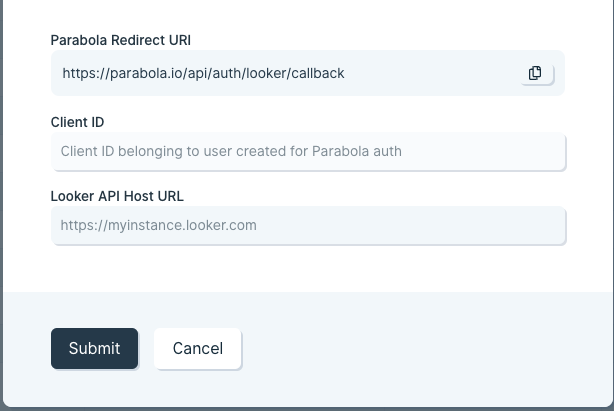
1
Create a new user in Looker dedicated to authenticating with Prowork, or use an existing user. The user needs User or Admin permissions to find and run Looks.
2
Click the Edit button next to the user, then click Edit Keys next to the API3 Keys header to generate credentials.
3
Copy the Client ID, then go to the API Explorer under Applications in your Looker sidebar.
4
In the API Explorer, find Register OAuth App, click Run it, and submit a body that looks like this (replacing the Client ID with yours):
5
Run the call. A 200 OK response confirms the OAuth app is registered.
6
Paste your Client ID into the modal in Prowork.
7
Paste your Looker API Host URL into Prowork, for example
https://company.cloud.looker.com.8
Click Submit. A pop-up prompts you to log in to Looker and authorize the connection to Prowork.
Configure your settings
Once the step is connected, pick the Look to run from the Run this Look dropdown.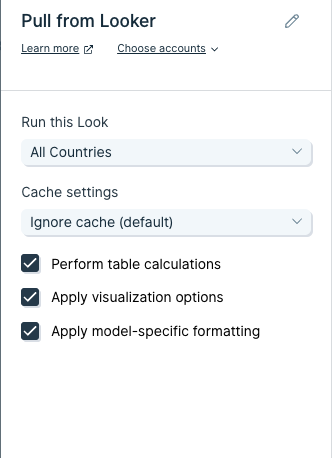
Cache settings
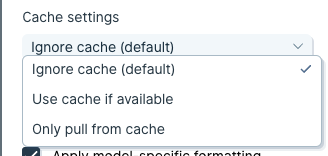
- Ignore cache (default): bypass the Looker cache and request fresh data on every run.
- Use cache if available: Looker checks freshness; if the cache is recent enough, it returns cached data, otherwise it re-runs the Look.
- Only pull from cache: return cached data only, even if it’s stale.
Additional settings
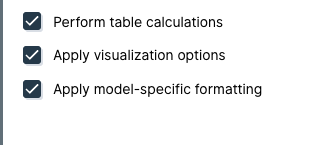
- Perform table calculations: runs the Excel-style calculations defined in the Look. Off by default at the API layer; flip on if your Look depends on them.
- Apply visualization options: uses the column names defined in the Look instead of the underlying source-column names.
- Apply model-specific formatting: respects formatting rules defined in the model, such as date and number formats.
Available data
The Pull from Looker step exposes any Look the authenticated Looker user can access:- Looks: saved queries with their full result set, filters, and any visualization-driven column naming applied.
- Table calculations: calculated columns defined in the Look (when Perform table calculations is on).
- Model formatting: date, currency, and number formats from LookML (when Apply model-specific formatting is on).
Common use cases
- Combine Looker BI metrics with operational data: Pull a Look that summarizes sales or pipeline, join with Shopify orders or HubSpot deals, and post the result to Slack every Monday morning.
- Automate the weekly metrics email: Run a roster of Looks on a schedule, format the result, and drop it in Google Drive or Smartsheet for a recurring exec review.
- Move Looker output into spreadsheets and BI tools: Pull Looks into Prowork and write them to a Snowflake, BigQuery, or Redshift reporting table that other tools can consume.
- Trigger alerts on Looker thresholds: Run a Look that returns a single metric (refund rate, NPS, signups), then fire a Slack message when the value crosses a threshold.
- Feed Looker segments into marketing tools: Pull a Look that defines a customer segment and push the audience into Klaviyo, Mailchimp, or HubSpot for activation.
- Reconcile Looker numbers against source systems: Compare a Look’s totals with raw data from NetSuite, QuickBooks Online, or Fulfil to catch BI drift before it shows up in a board deck.
Tips for using Prowork with Looker
- Run Looks against the production model. A 404 from the Pull step usually means the Look isn’t in production yet. Push the LookML changes to production and re-run.
- Match permissions deliberately. Prowork sees what the connected Looker user sees. Use a dedicated service user with the exact dataset access you want, so flows don’t break when individual employees leave.
- Pick the right cache mode. Use Ignore cache for finance and reconciliation flows that need fresh data. Use Use cache if available for dashboards where stale-by-an-hour is fine and you want to limit warehouse spend.
- Turn on table calculations when needed. Looks that depend on Excel-style table calcs return raw columns by default through the API. Flip the toggle on so Prowork sees the same numbers a viewer sees in Looker.
- Save complex Explores as Looks. Prowork pulls Looks, not ad-hoc Explores. If a flow keeps regenerating, save the underlying query as a Look first.
- Match cadence to use case. Hourly for ops alerts, daily for reporting, weekly for board prep. Run Looks tied to expensive warehouse queries less frequently.
FAQ
Why am I getting a 404 from the Pull from Looker step?
Three common causes:- The Look only exists in development and hasn’t been pushed to production.
- The connected user doesn’t have permission to run that Look or read the underlying model.
- The Look was deleted or its ID changed.
Can Prowork pull from Looker Dashboards or Explores?
The native step pulls Looks. To bring a Dashboard or Explore in, save its underlying query as a Look. For more advanced API-driven workflows, use a generic Pull from an API step against the Looker API.Does Prowork support Looker Studio (formerly Data Studio)?
No, this integration is for Looker (the BI platform formerly known as Looker, now part of Google Cloud). Looker Studio is a separate Google product.Can I push data back into Looker?
Looker is read-only from Prowork’s perspective; the underlying warehouse is where you’d write data. Push transformed data into Snowflake, BigQuery, or Redshift and let Looker model on top.How do I pass parameters or filters to a Look at runtime?
The native step runs a Look with its saved filters. For dynamic filters, build the same query as a generic API call against Looker’s Run Inline Query endpoint via a Pull from an API step.With Looker and Prowork connected, the dashboards your team already trusts become inputs to flows that run on a schedule, blend Looker results with the rest of the business, and land output where everyone actually works.