

Pull from Dropbox
The Pull from Dropbox step reads a CSV or Excel file from your Dropbox account and brings the rows into your flow. It works with both personal and team folders, so you can ingest a vendor’s weekly drop, a finance reference file, or a manually maintained spreadsheet without anyone uploading anything.Send to Dropbox
The Send to Dropbox step writes the output of your flow to Dropbox as a CSV. You can overwrite an existing file, create a brand-new file, or generate a new timestamped file every run.How to authenticate
1
Add a Pull from Dropbox or Send to Dropbox step to your flow.
2
Click Authorize and sign in with your Dropbox credentials.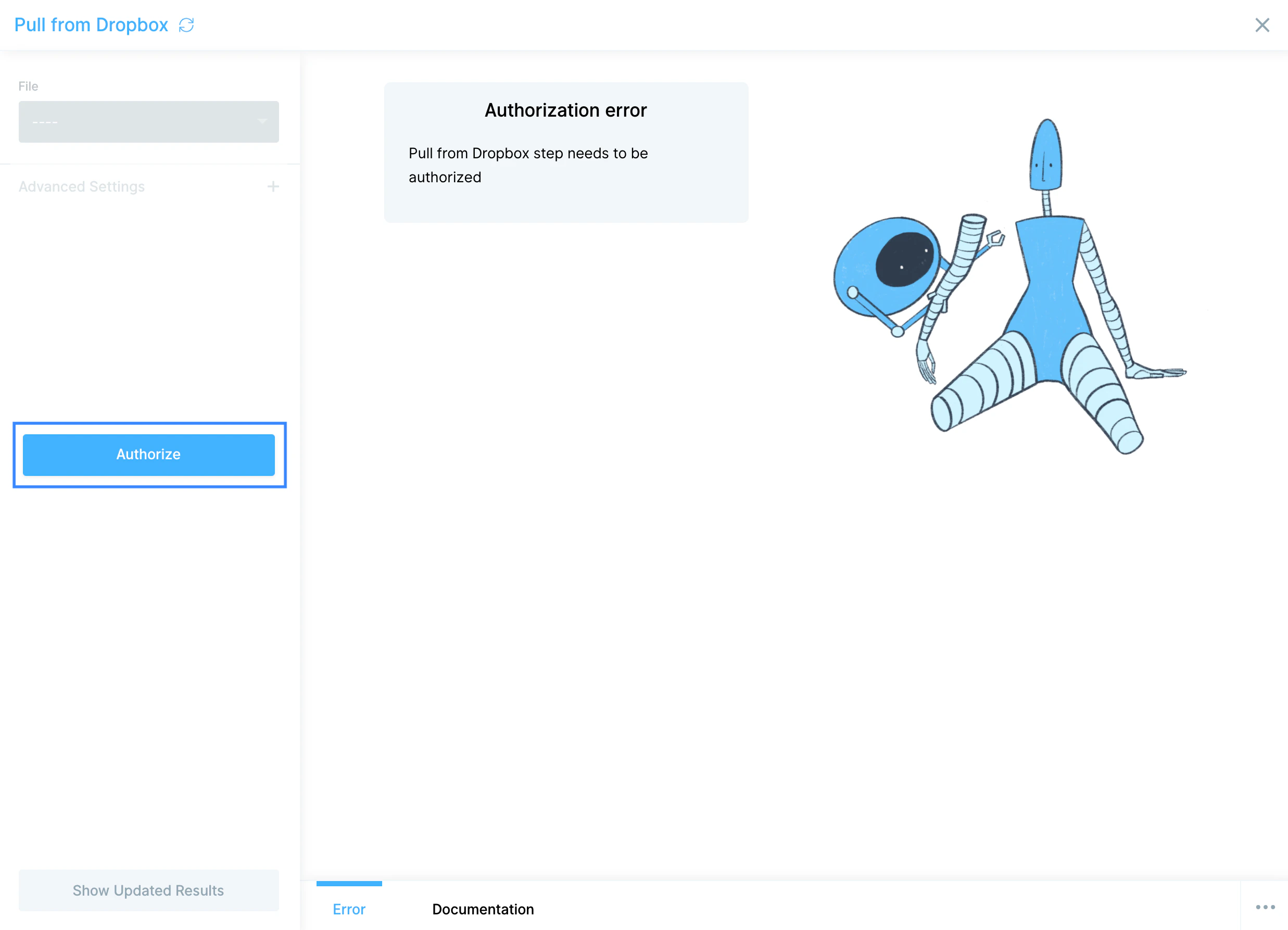
Configure your settings
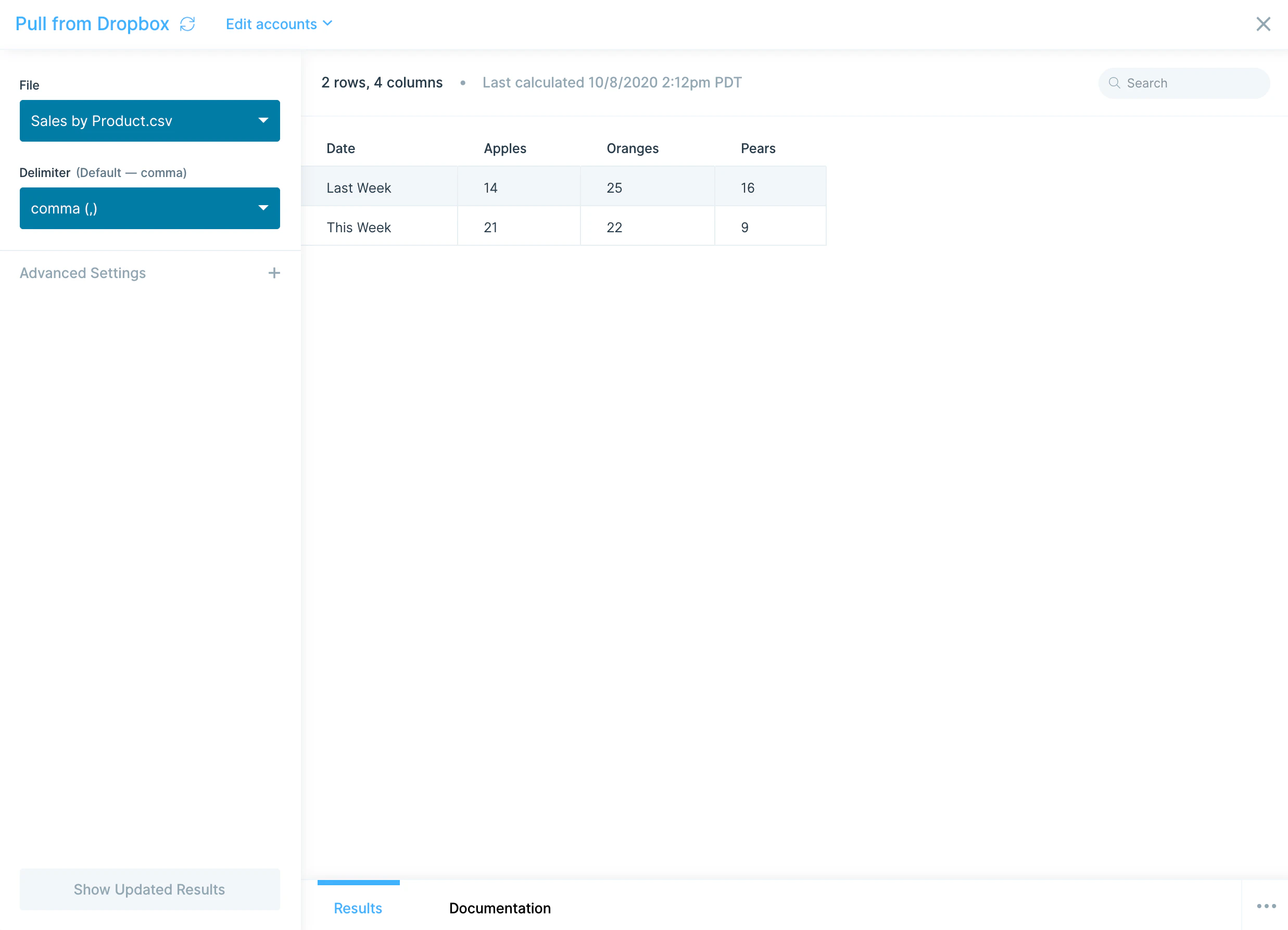
For the Pull from Dropbox step, select the file from the File dropdown. You’ll see all files you have access to. For Dropbox Business accounts, that includes both personal and team files.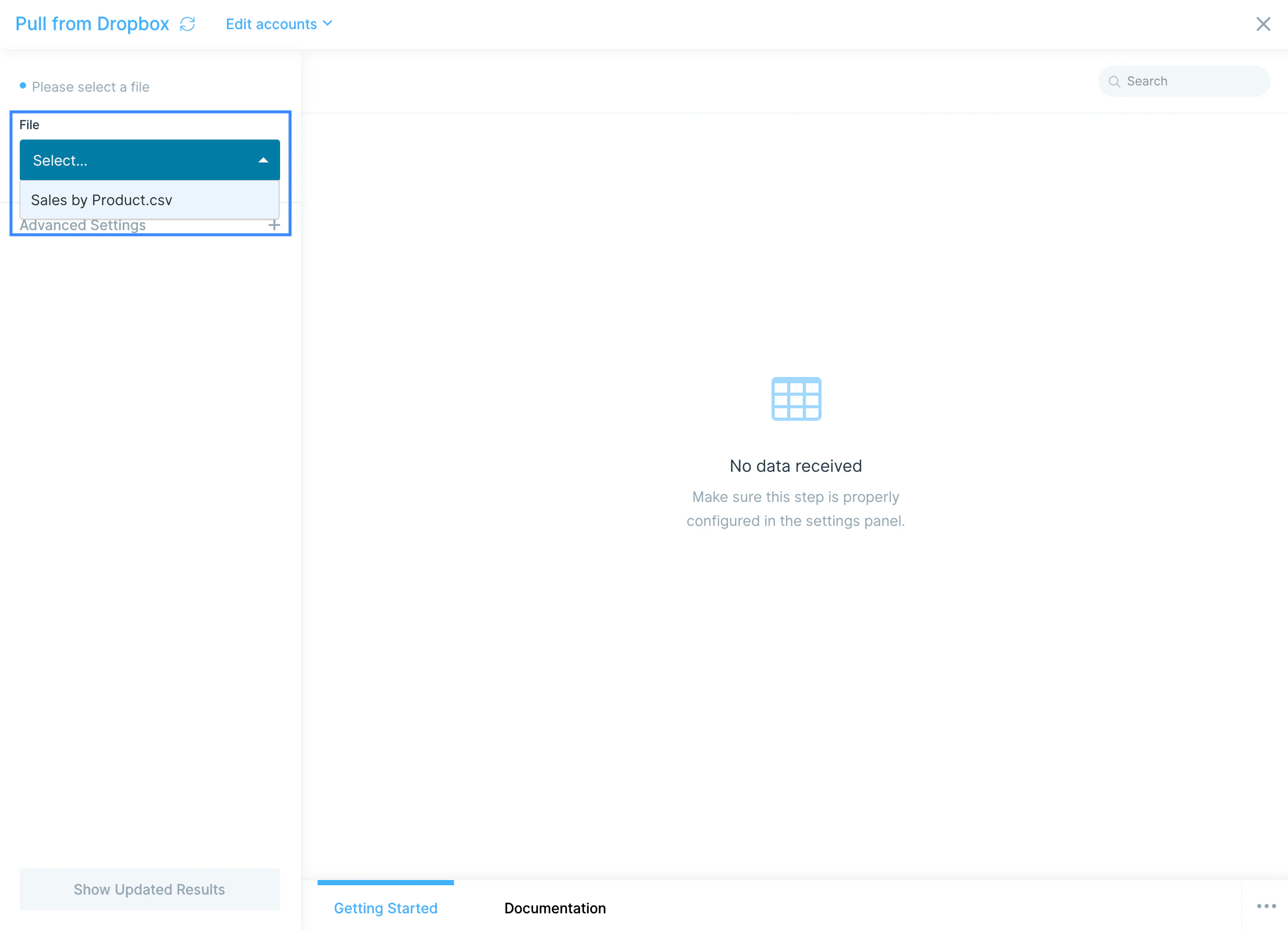
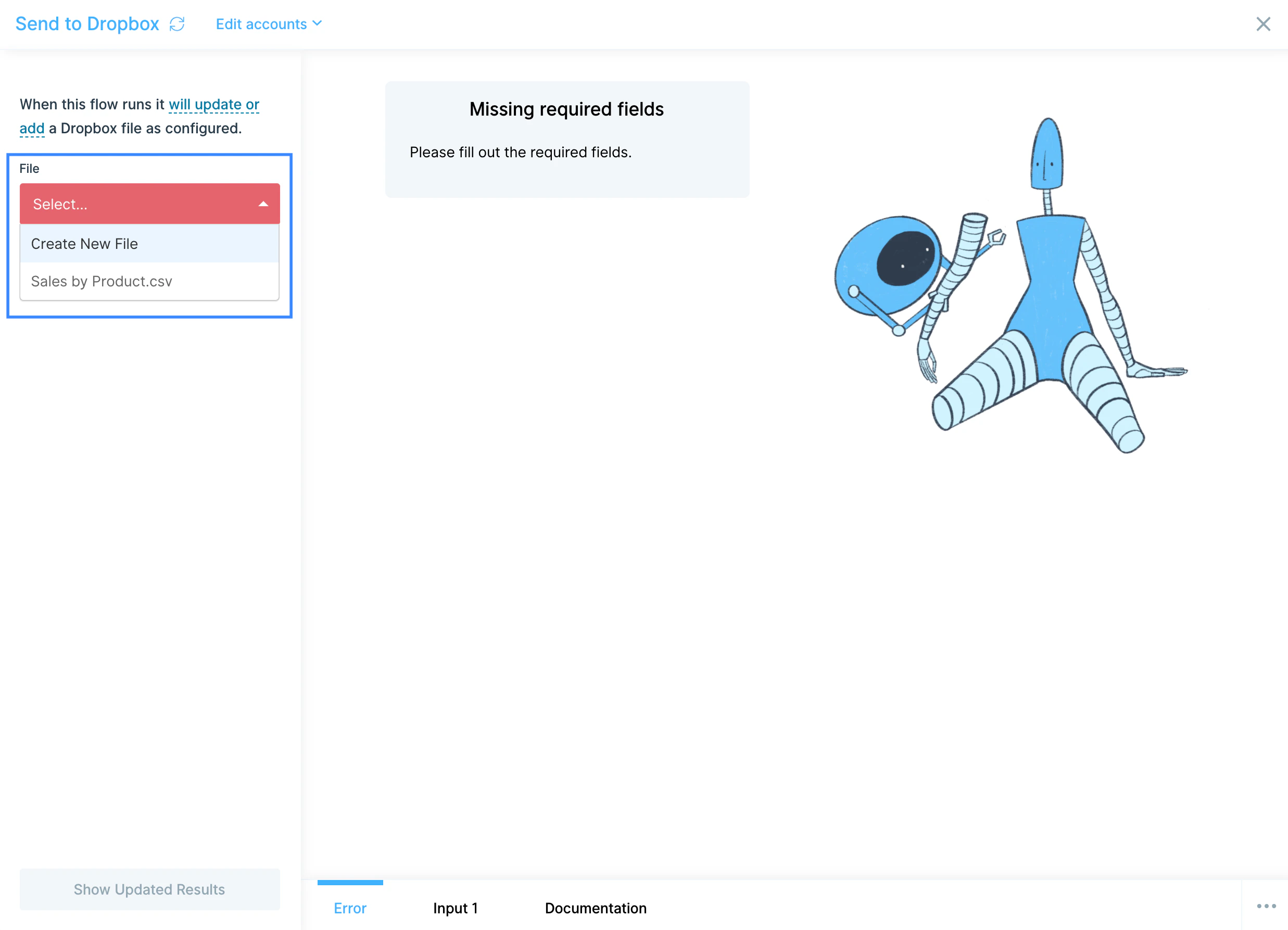
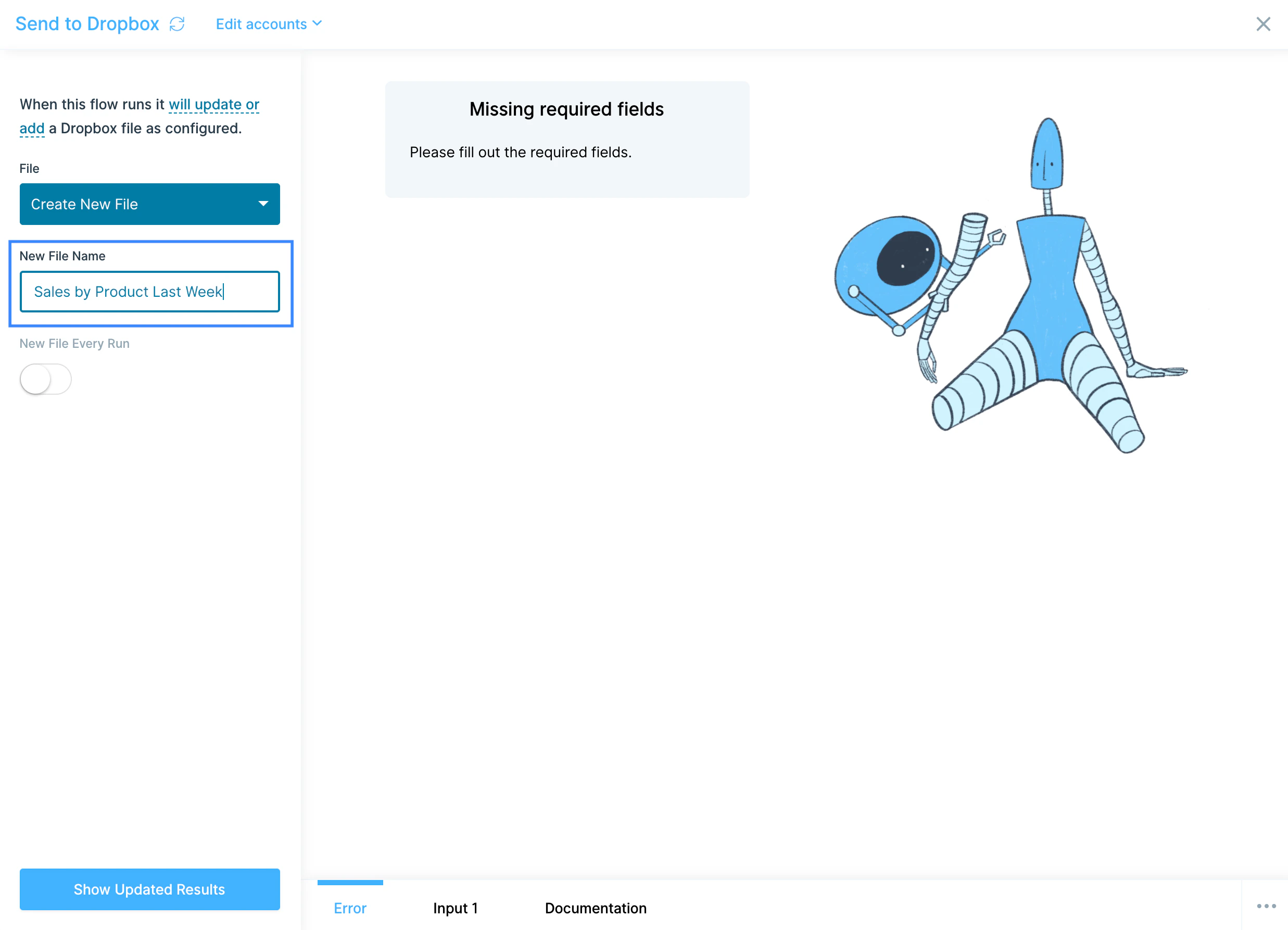
/Reports/2026. The step shows the full path the file will land at as you type. Leave it blank and the file goes to the top level of your account.
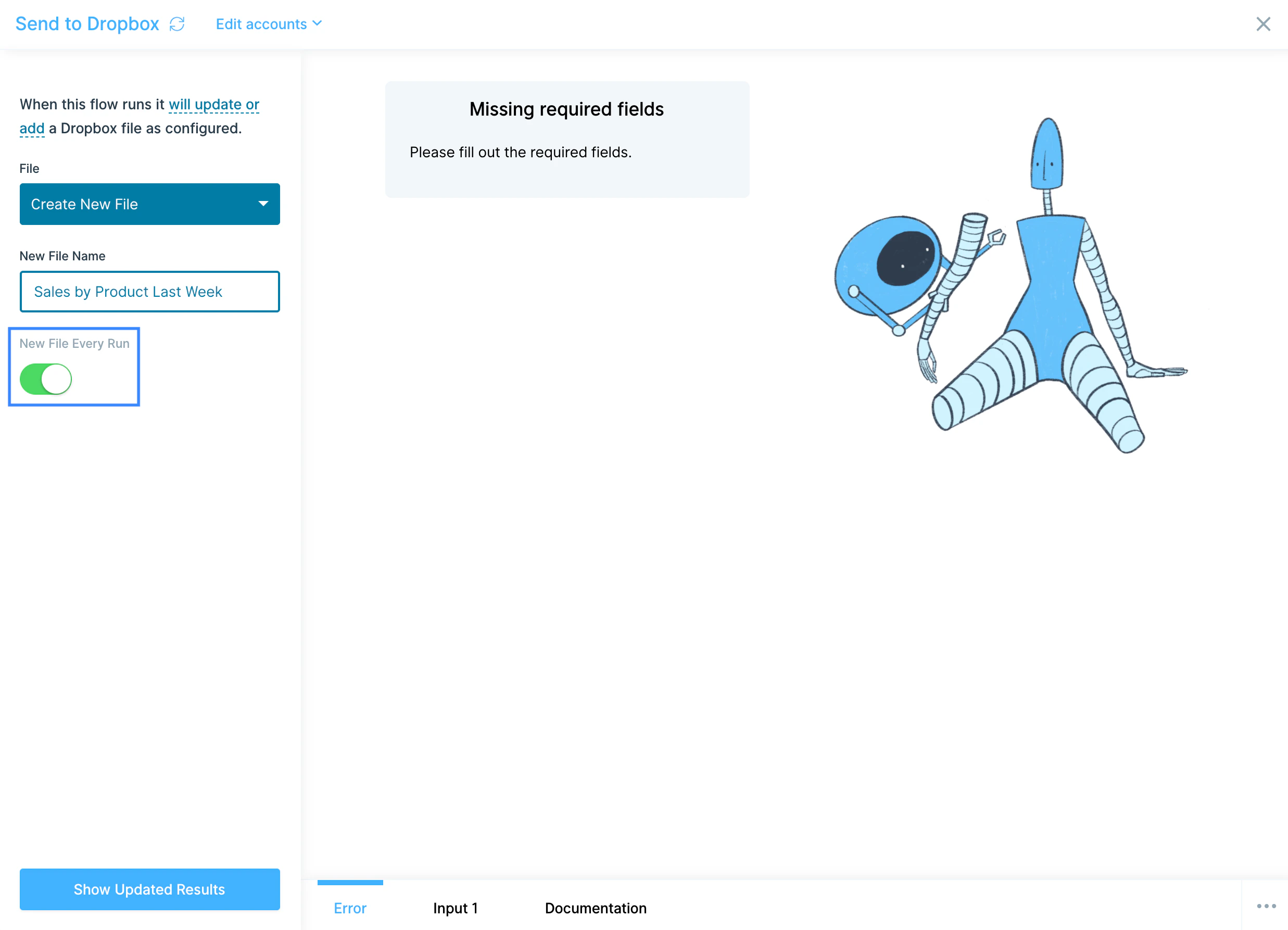
Toggle New File Every Run to write a separate timestamped file each time the flow runs, rather than replacing one file in place.
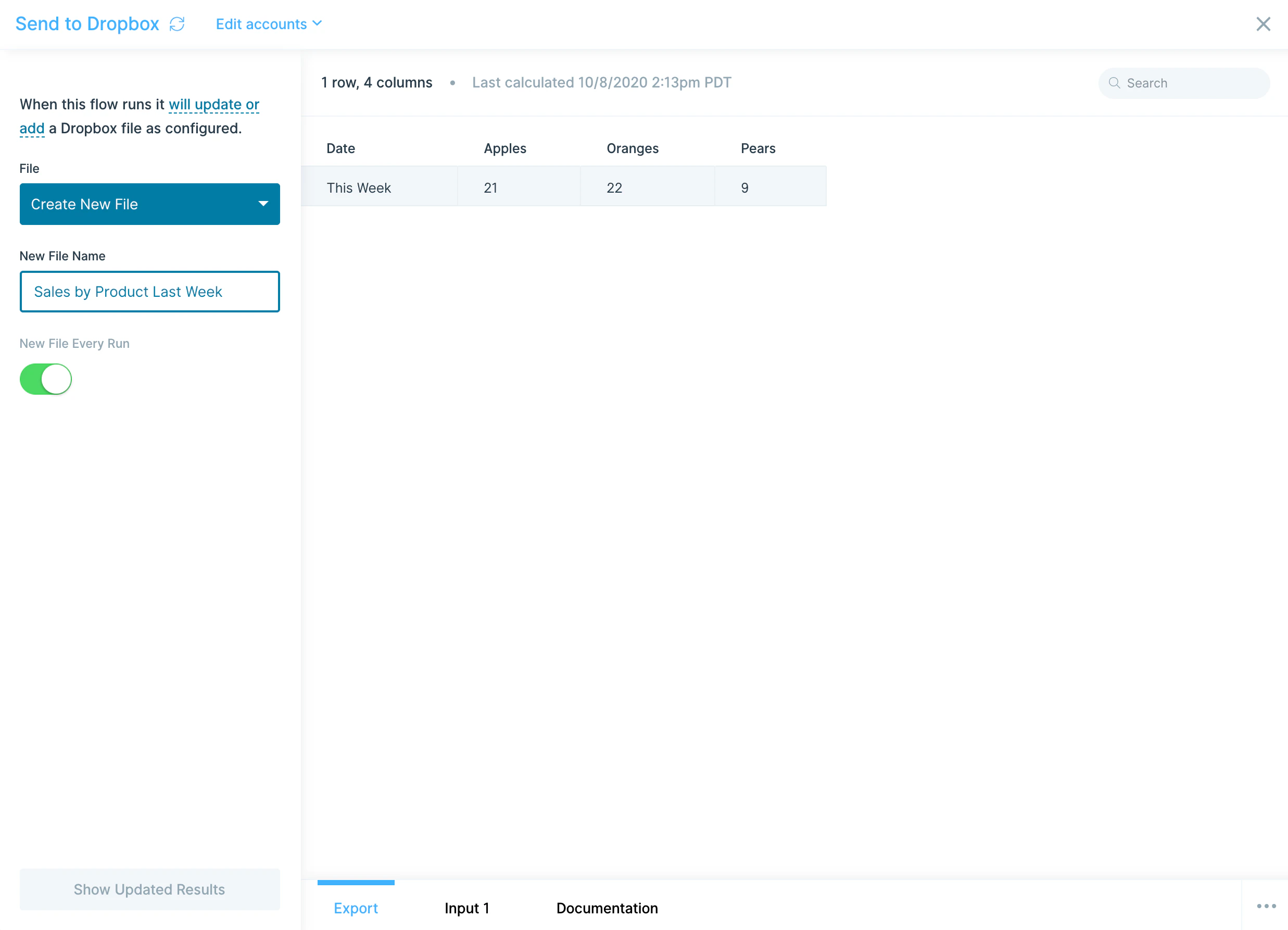
Available data
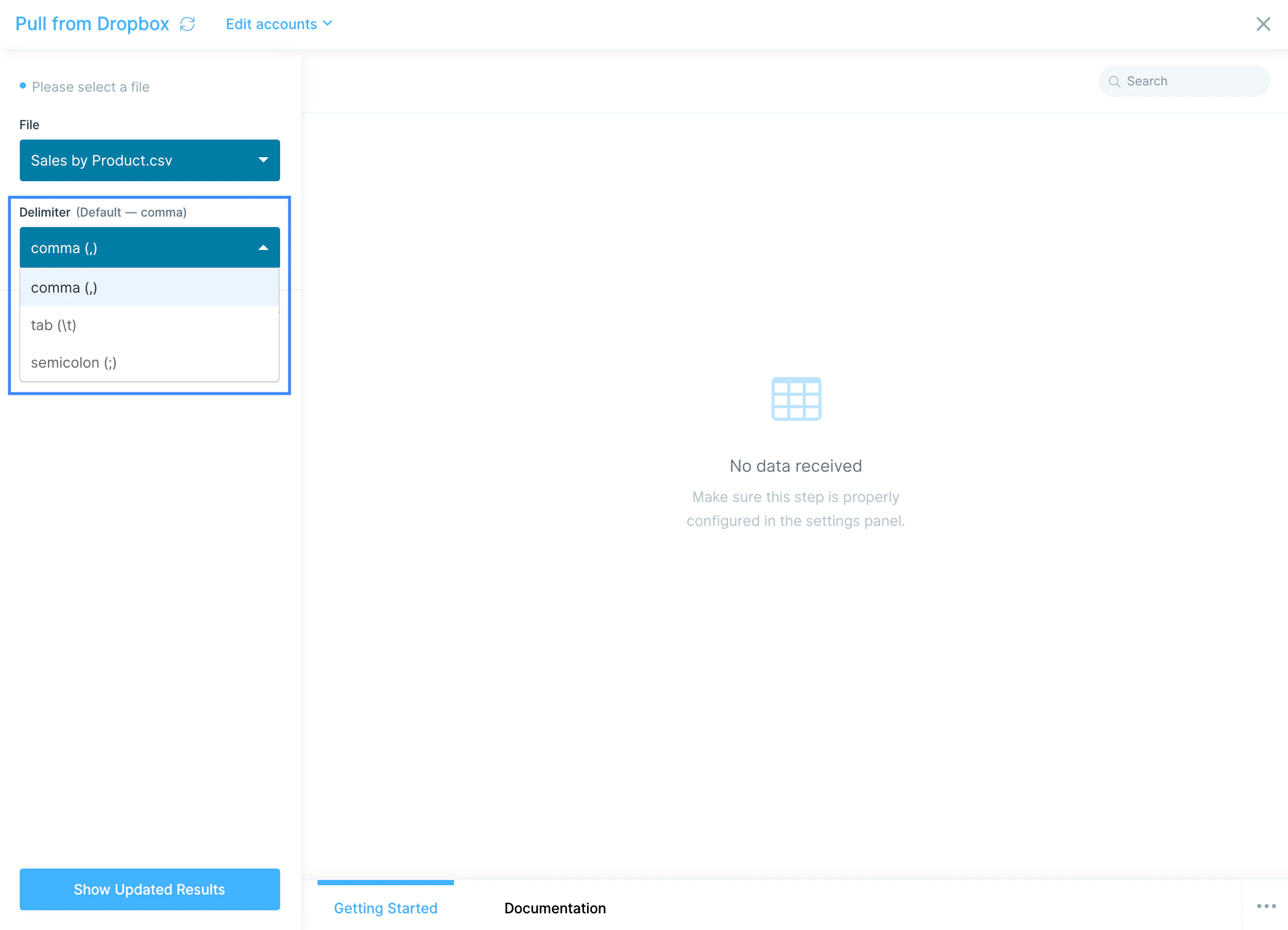
The Dropbox steps work with file-level data, not API records:- CSV with comma, tab, or semicolon delimiters.
- Excel workbooks (.xlsx).
- Personal and team folders. Dropbox Business users see a combined list of all files they have access to. The pull step works against directories owned by the primary Dropbox account owner.
- Search by filename. Under Advanced Settings, type a search term to filter the File dropdown when you’re working in a Dropbox account with thousands of files.
Common use cases
- Ingest partner drops: Pull weekly inventory, shipment, or invoice files your 3PL or supplier shares to a Dropbox folder, then join with order data from Shopify or Amazon Seller Central to reconcile.
- Refresh shared finance files: Read a rate card or GL map from Dropbox, use it to enrich data from NetSuite or QuickBooks Online, and write the result back to the same folder.
- Drop ops reports for stakeholders: Send a daily ops summary to a Dropbox folder execs already check, instead of emailing CSVs around.
- Bridge Dropbox and a database: Pull a file from Dropbox, transform it, and load the result into Snowflake, BigQuery, or Redshift.
- Mirror files between storage tools: Read from Dropbox and write the same dataset to Google Drive, Box, or SharePoint when different teams use different platforms.
- Send fulfillment files to your warehouse: Build a clean order CSV from your e-commerce data and drop it on a shared Dropbox folder for your warehouse partner to pick up.
Tips for using Prowork with Dropbox
- Use search for large accounts. If your Dropbox has thousands of files, type a filename fragment under Advanced Settings to filter the File dropdown instead of scrolling.
- Confirm folder ownership for Pull from Dropbox. The step only sees files in directories owned by the primary Dropbox account owner. If a file isn’t appearing, check who actually owns the folder.
- Target a folder for new files. Use the folder path field on Send to Dropbox to write into a specific folder instead of the top level of your account.
- Empty tables stop the run. If a Send to Dropbox step receives no rows at all, it flags the run instead of replacing your file with a blank CSV. A table with headers and no data rows still exports.
- Pair with cleaning steps. Files from external partners often have inconsistent headers, blank rows, or stray columns. Add Edit columns and Filter rows steps right after the pull to standardize.
- Schedule pulls to match upstream cadence. If a partner drops a file every Monday at 8 a.m., schedule the flow for 8:30 a.m. so you’re always working from fresh data.
- Set the right delimiter. European partners often share semicolon-delimited CSVs. Set the Delimiter dropdown before troubleshooting “missing column” errors.
FAQ
What file formats does the Dropbox integration support?
CSV (comma, tab, or semicolon delimited) and Excel (.xlsx and .xlsm) files. Other file types in Dropbox won’t appear in the File dropdown.Can I pull from a shared team folder?
Yes. Dropbox Business users see a combined list of personal and team files in the File dropdown, as long as the connected account has access. Files in folders not owned by the primary Dropbox account owner may not appear.Where does Send to Dropbox put new files?
Wherever you point them. Enter a folder path like/Reports/2026 when creating a new file and the step writes there. Left blank, files land at the top level of the connected account — for Dropbox Business, the connected user’s private member folder.
Does Prowork sync Dropbox file changes in real time?
Yes, in the sense that each flow run reads the current state of the file. Schedule the flow on the cadence you need (hourly, daily, on demand). For event-driven flows, use a separate service to trigger Prowork’s webhook trigger when a file changes in Dropbox.With Dropbox and Prowork connected, the spreadsheet handoffs that used to require email chains and manual uploads run on a schedule, with clean files landing where your team and partners already work.