Excel files are everywhere in finance, ops, and merchandising workflows. Prowork has two steps for handling them: Pull from Excel file to pull a workbook into your flow, and Generate Excel file to export your flow’s output as a multi-sheet XLSX.
Pull from Excel file
The Pull from Excel file step pulls tabular data from a single sheet in an Excel workbook you upload.
Configuration
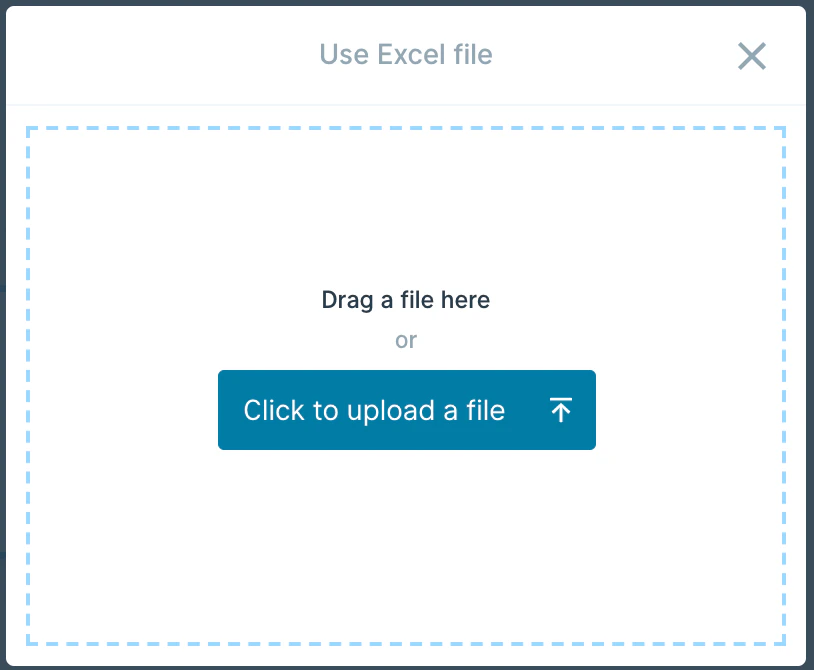
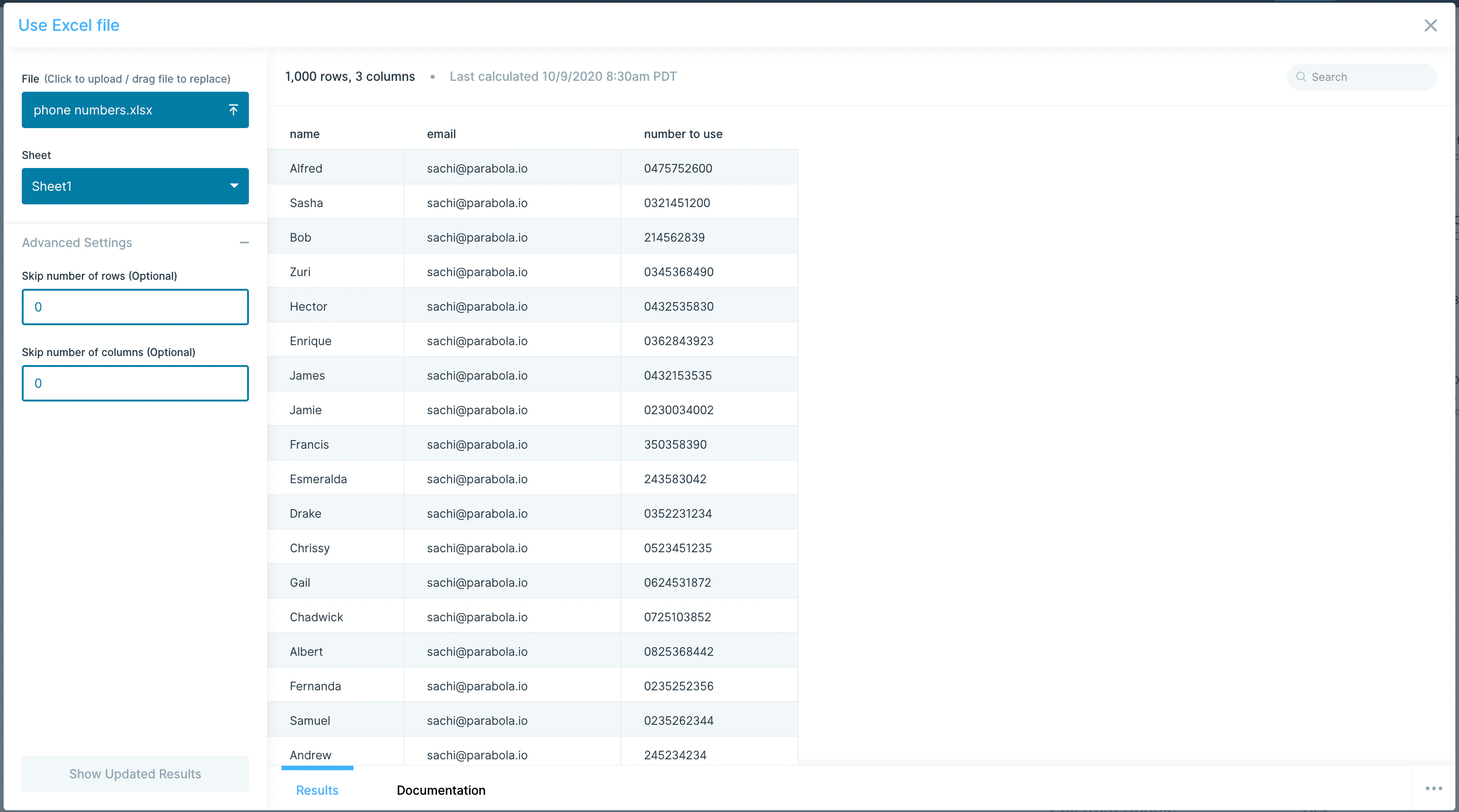
Click Click to upload a file (or drag a file onto the canvas).
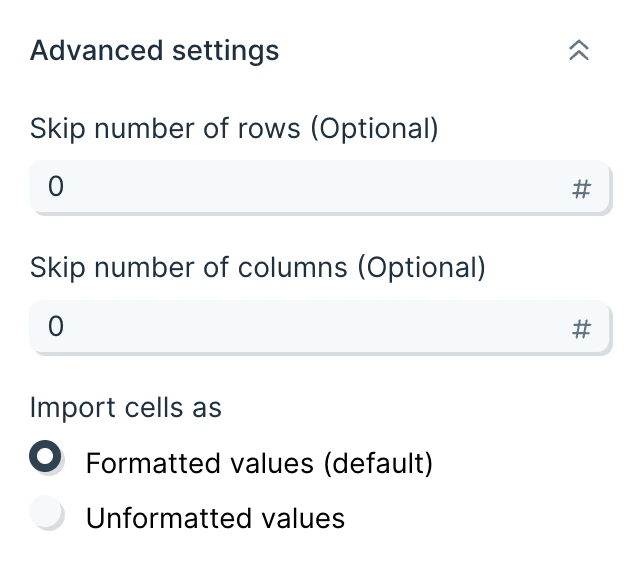
If your workbook has multiple sheets, choose the one you want from the Sheet dropdown. In Advanced Settings, you can skip a number of rows or columns when importing: rows skip top-down, columns skip left-to-right.
By default, cells are imported as formatted values, so dates, numbers, and currency render the way they appear in Excel.
Enable unformatted values to import the raw underlying data instead. This shows numbers without rounding and converts dates to Excel’s native serial format (the number of days since 1900-01-01).
Helpful tips
- Files don’t auto-update. If you change the original file on your computer, re-upload it. For live updates on each run, use Pull from SharePoint, OneDrive, or Google Drive.
- Formulas and formatting are stripped on upload. All formulas are converted to their values; cell formatting is dropped.
- Storage and security. Uploaded files are stored in an Amazon S3 bucket. Connections use SSL and are encrypted.
Generate Excel file
The Generate Excel file step exports the data flowing into it as an .xlsx file. It can take multiple inputs, one per sheet, and the file is delivered to the flow owner’s email address as a download link.
Configuration
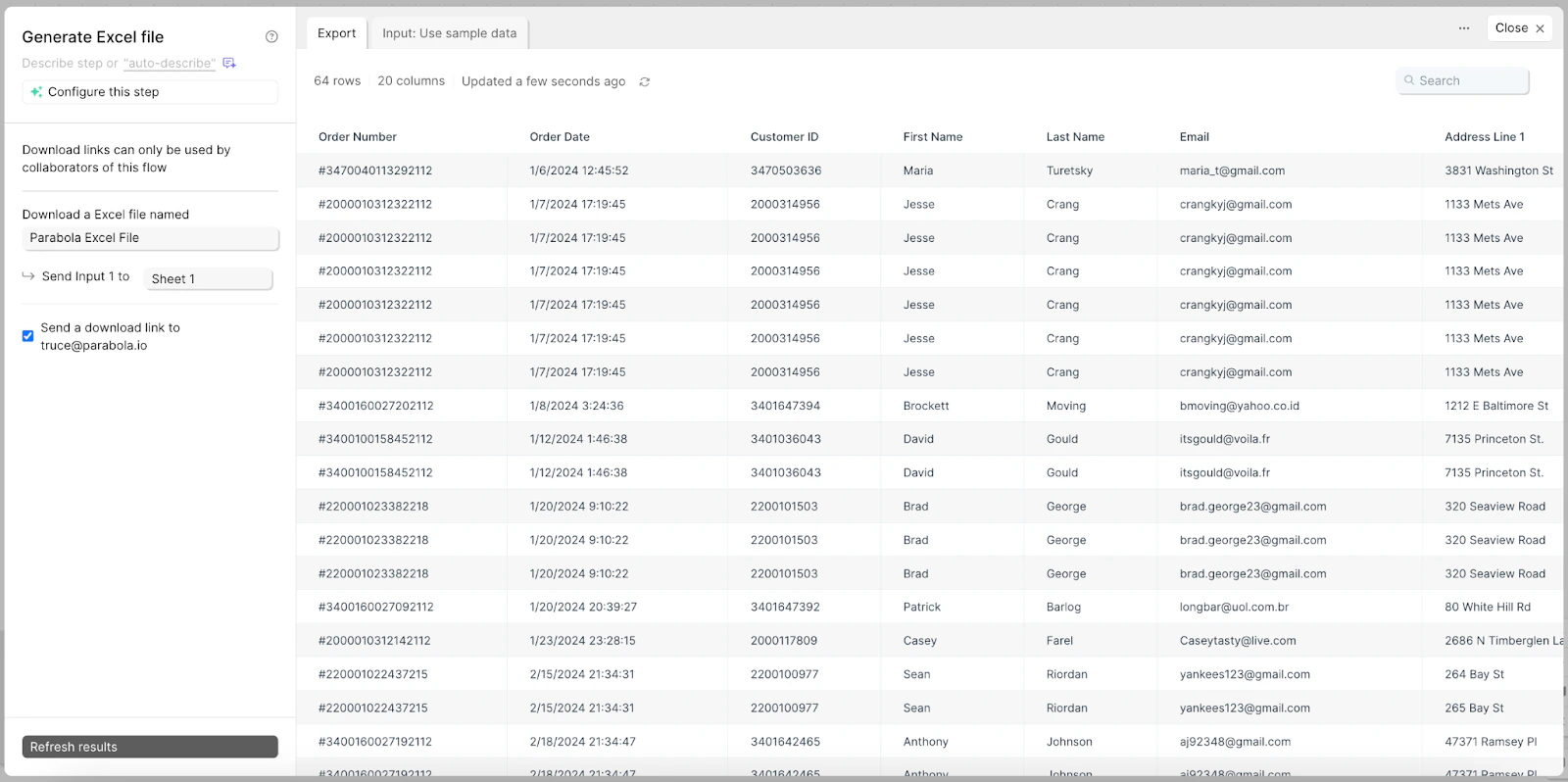
Connect a step to Generate Excel file and a preview of the output appears.
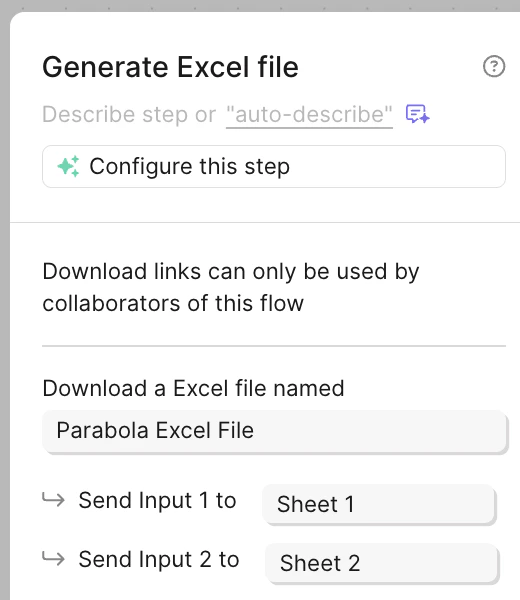
The default file name is Prowork Excel File. To rename it, type a new name in the box under “Download an Excel file named.”
The step accepts multiple inputs. Each input writes to a separate sheet: Input 1 maps to Sheet 1, Input 2 to Sheet 2, and so on. Sheet names can be customized in the step settings. Use the input tabs at the top of the step to confirm each input is going where you expect.
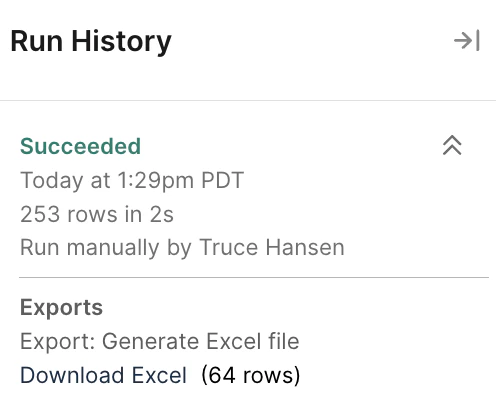
After publishing and running the flow, the email download link is valid for 24 hours. You can also download past Excel files from the Run History panel by clicking Download Excel.
Helpful tips
- Sheet names are limited to 31 characters. Longer names cause the flow to fail. This is an Excel format constraint, not a Prowork one.
- Zero rows means no email. If the input has no rows, no file is sent.
- Multi-tab beats multi-file. When you need to send several related datasets to the same recipient, use one Generate Excel file step with multiple inputs instead of multiple Generate CSV file steps.
- Long numbers stay intact. Excel renders long values like order IDs and barcodes in scientific notation by default, and only preserves 15 digits of precision when converting a number to text. The Number handling setting prevents this: on the recommended option, identifiers longer than 15 digits stay as text and real numbers get a plain format. New steps use it by default. Steps built before this setting existed keep their old behavior until you open them and change the dropdown — if an existing export is corrupting IDs, that’s the first thing to check.
- Files are stored in S3. Generated files persist in an Amazon S3 bucket so they reload when you open the flow. Connections use SSL and are encrypted.
Last modified on September 22, 2026