

Selecting and running a saved search
1
Open the step
Open the Pull from NetSuite step on your canvas.
2
Select the search type
Select the search type that matches your saved search (Transaction, Item, Customer, Vendor, Employee, etc.).
3
Select the saved search
Select the specific saved search from the dropdown, or type its Name or internal ID directly.Use the ID if you have 1000+ saved searches. Find it in NetSuite, just below the search title (e.g. 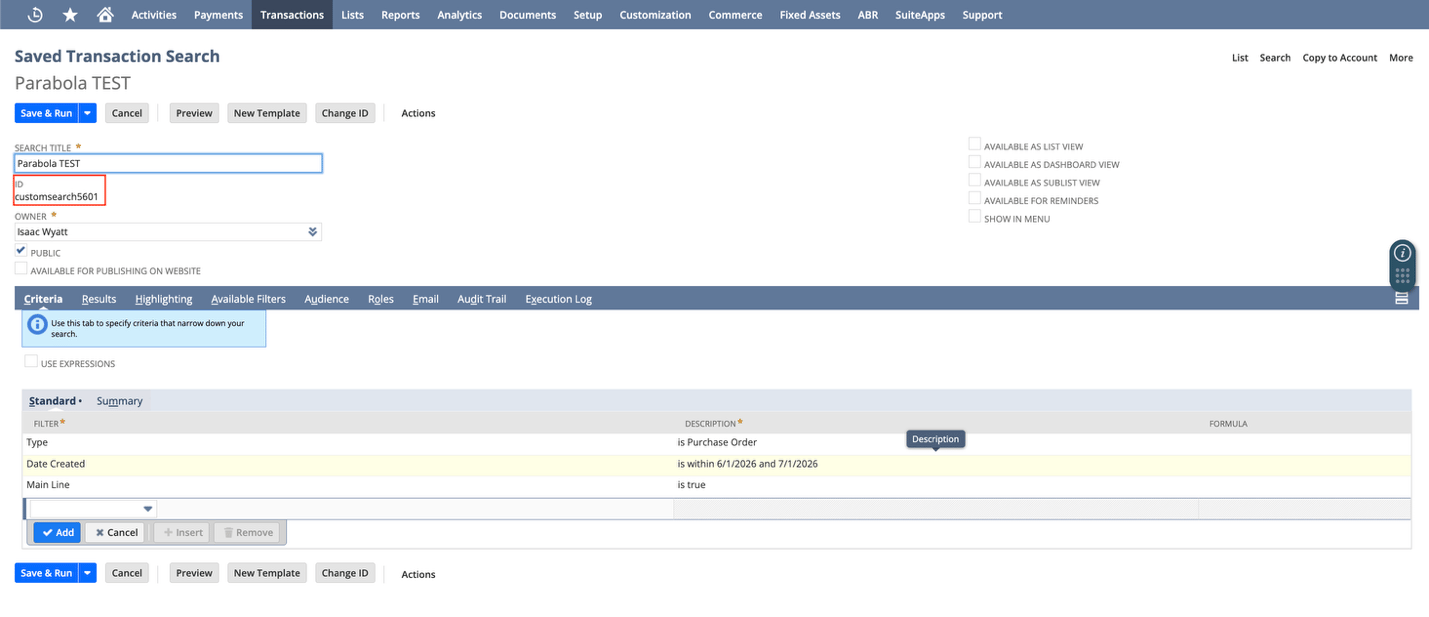
customsearch5601).4
Load results
Click Update Results or Refresh Results at the bottom to load results.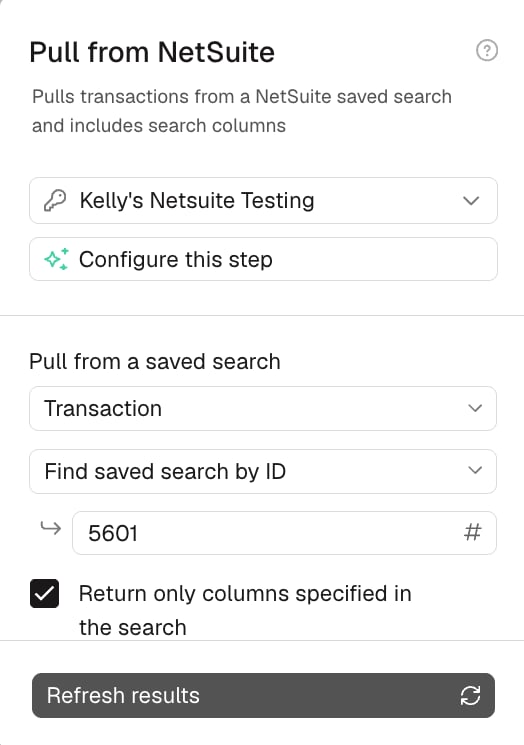
If you’re unsure, open the saved search in NetSuite and check which type it was created under. The type you select in the step must match.
The Return only columns specified in the search checkbox controls whether Prowork returns every available column or just the ones included in your NetSuite search. Leave it unchecked if you want additional fields for the same records without editing the search in NetSuite.
Common issues
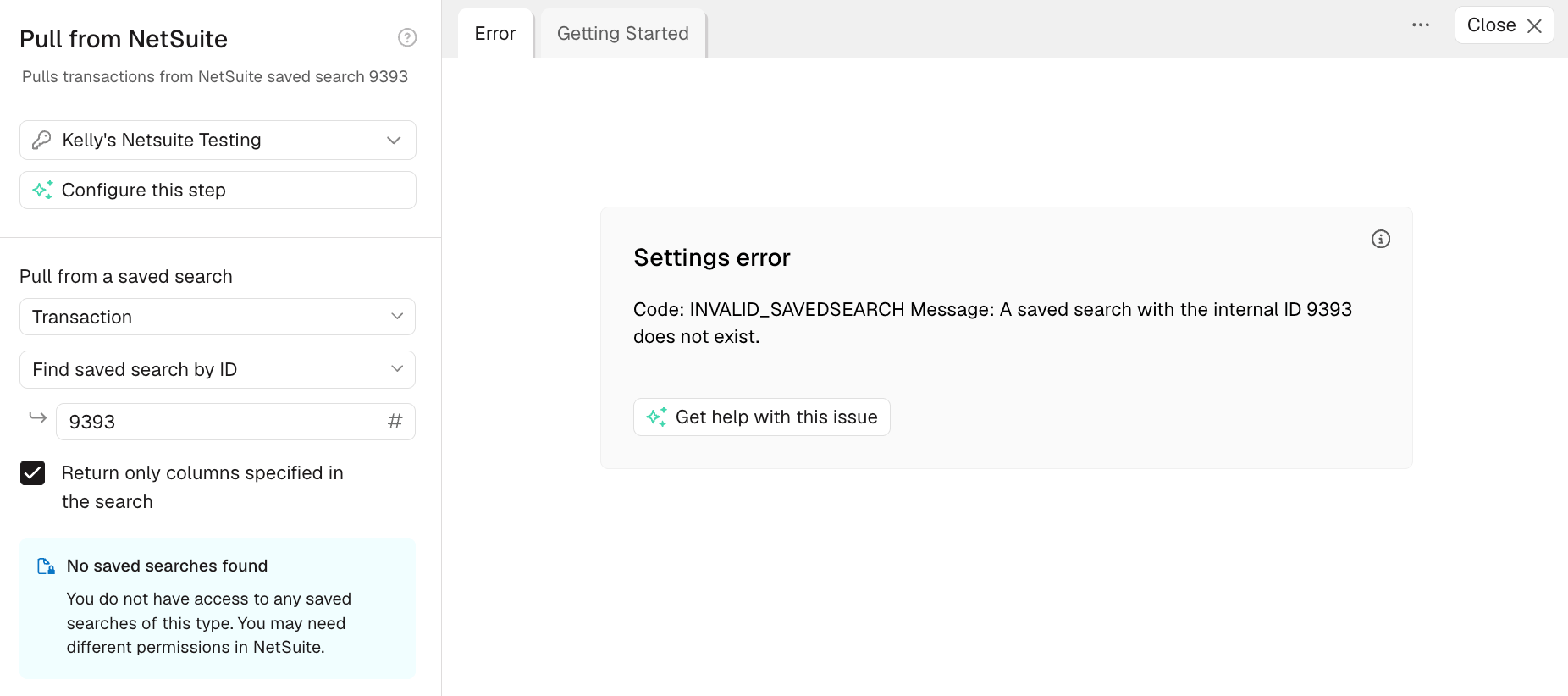
Start here for the full list of issues and their potential causes.Issue 1: Returning an error
- Summary results: a field’s Summary Type (Group, Sum, Count, Max, or Min) is set instead of None. Open the search’s Results tab in NetSuite, set every field’s Summary Type to None, and re-run. Need the aggregated view? Recreate it in Prowork afterward with a Sum by group or Merge duplicate rows step. Best practice: use a separate saved search for Prowork rather than an internal report.
-
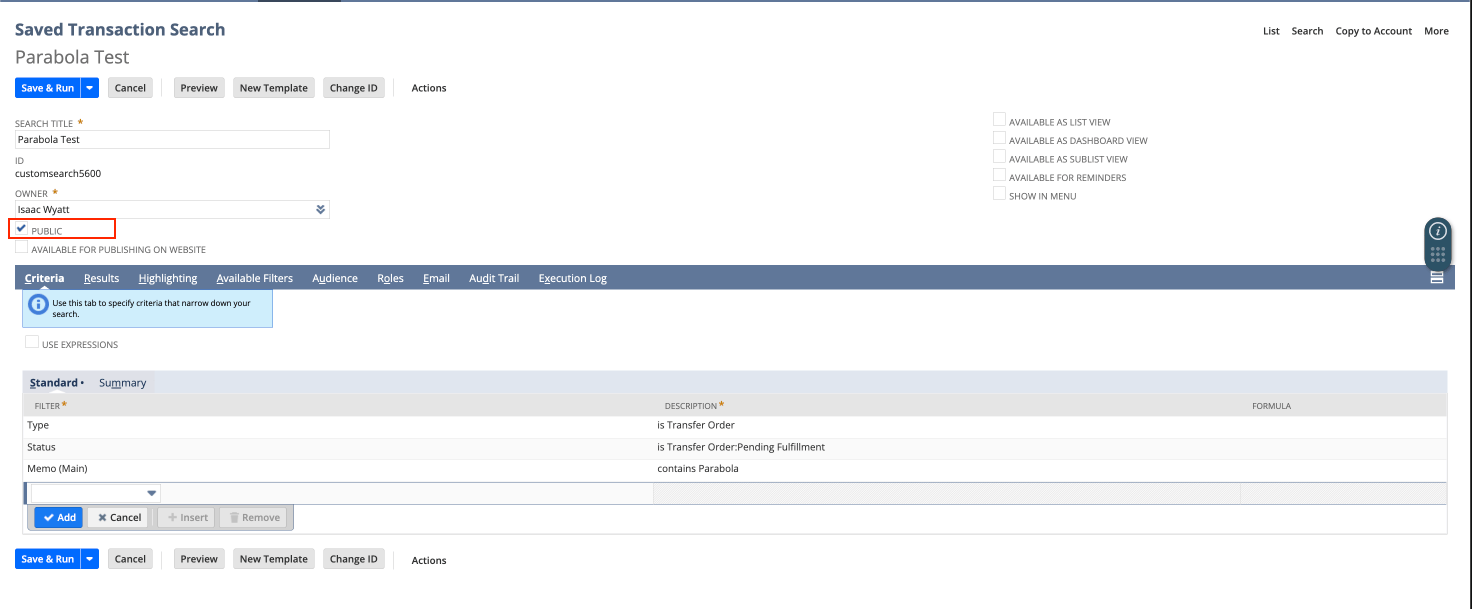
Not public: open the search in NetSuite and confirm the Public checkbox is checked.
-
Wrong search type: the type selected in Prowork must match the type the search was created under in NetSuite.
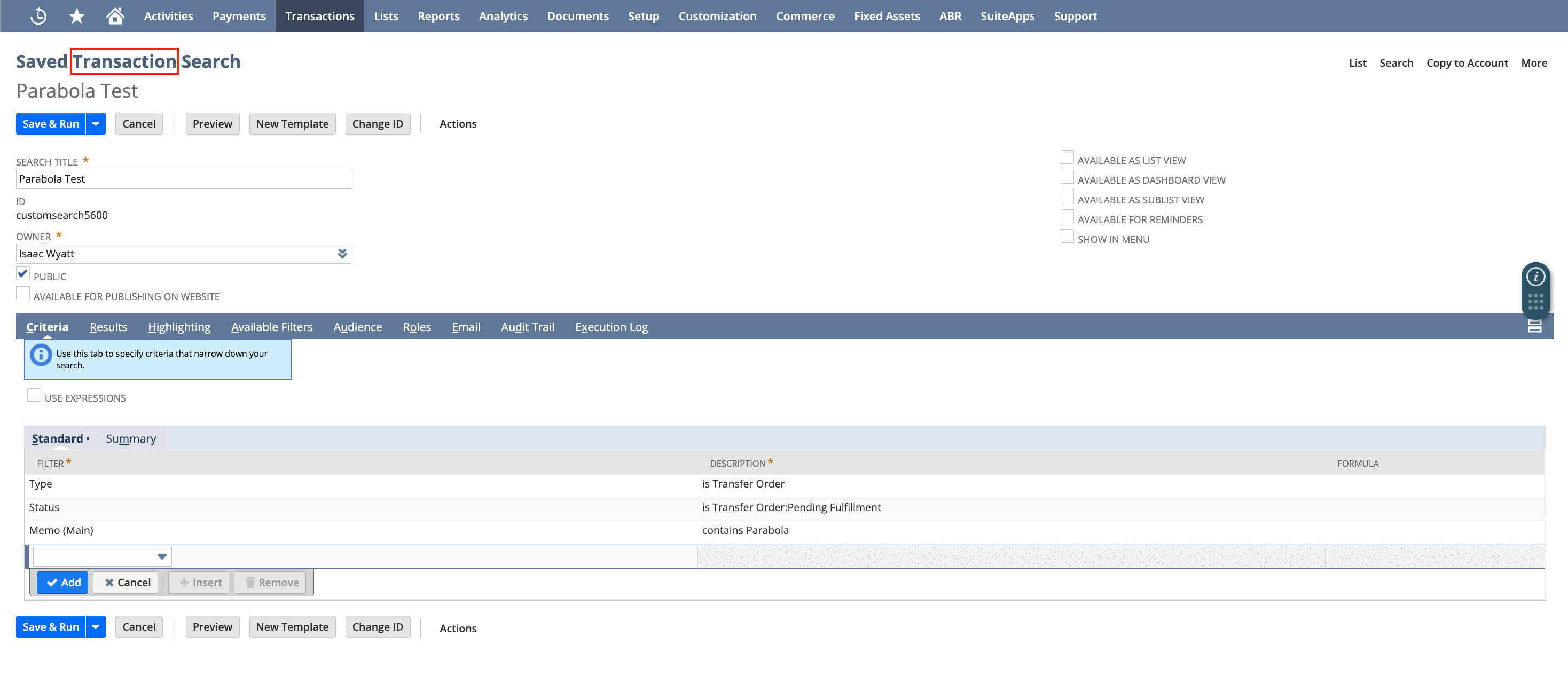
- Role permissions: the role may not have access to the search’s underlying record type (e.g. it needs Bill permission, not just Find Transaction, if all the transactions in the search are Bills).
- Incorrect search ID: a mistyped or nonexistent ID entered in Find saved search by ID shows an error.
Issue 2: Returning zero rows or results
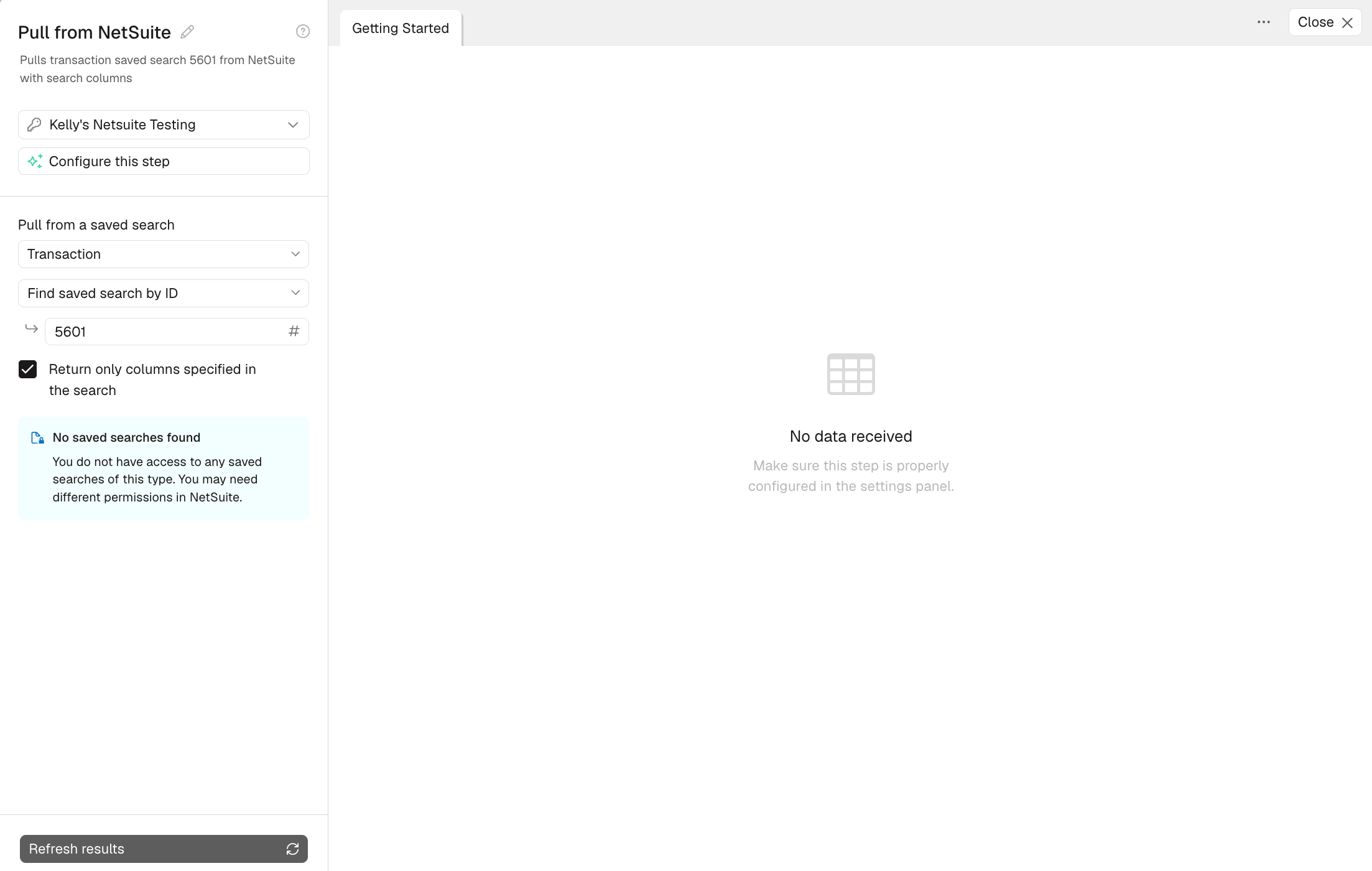
- Role permissions: the role has no access to any record type in the search, so Prowork shows the error: No data received. Update the role’s permissions to fix it.
Issue 3: Returning incomplete data (missing rows or columns)
- Role permissions (rows): the role can’t see some record types in the search (e.g. lacks Bill permission when some transactions are Bills), so those rows are silently dropped. Update the role’s permissions to cover every record type included in the search. To confirm, compare NetSuite’s row count directly against Prowork’s; a gap points to permissions.
- Unsupported transaction type: some transaction types can’t be pulled via saved search regardless of role permissions. Remove that type from the search, or pull it separately via SuiteQL if it’s supported there: Blanket Purchase Order · CCard Refund · Commission · Credit Card · Currency Revaluation · Customer Payment Authorization · Deprecated Custom Transaction · Finance Charge · Fulfillment Request · GL Impact Adjustment · Inventory Count · Inventory Distribution · Inventory Status Change · Inventory Worksheet · Liability Adjustment · Ownership Transfer · Payroll Adjustment · Payroll Liability Check · Period End Journal · Purchase Contract · Request For Quote · Revenue Arrangement · Revenue Commitment · Revenue Commitment Reversal · Revenue Contract · Sales Tax Payment · Statement Charge · Store Pickup Fulfillment · System Journal · Tax Liability Cheque · Tegata Payable · Tegata Receivable · Transfer · Vendor Request For Quote
- Empty column: a column with no data in any row gets dropped from the results entirely. No action needed, or swap in a column that does have data.
- Formula field: formula-based fields aren’t returned to Prowork at all. Recreate the calculation as a step in your flow instead.
- Missing column permissions: typically for a custom field. Update the role to grant access to it under Lists and Custom Records.
Issue 4: Returning incorrect values or field names
-
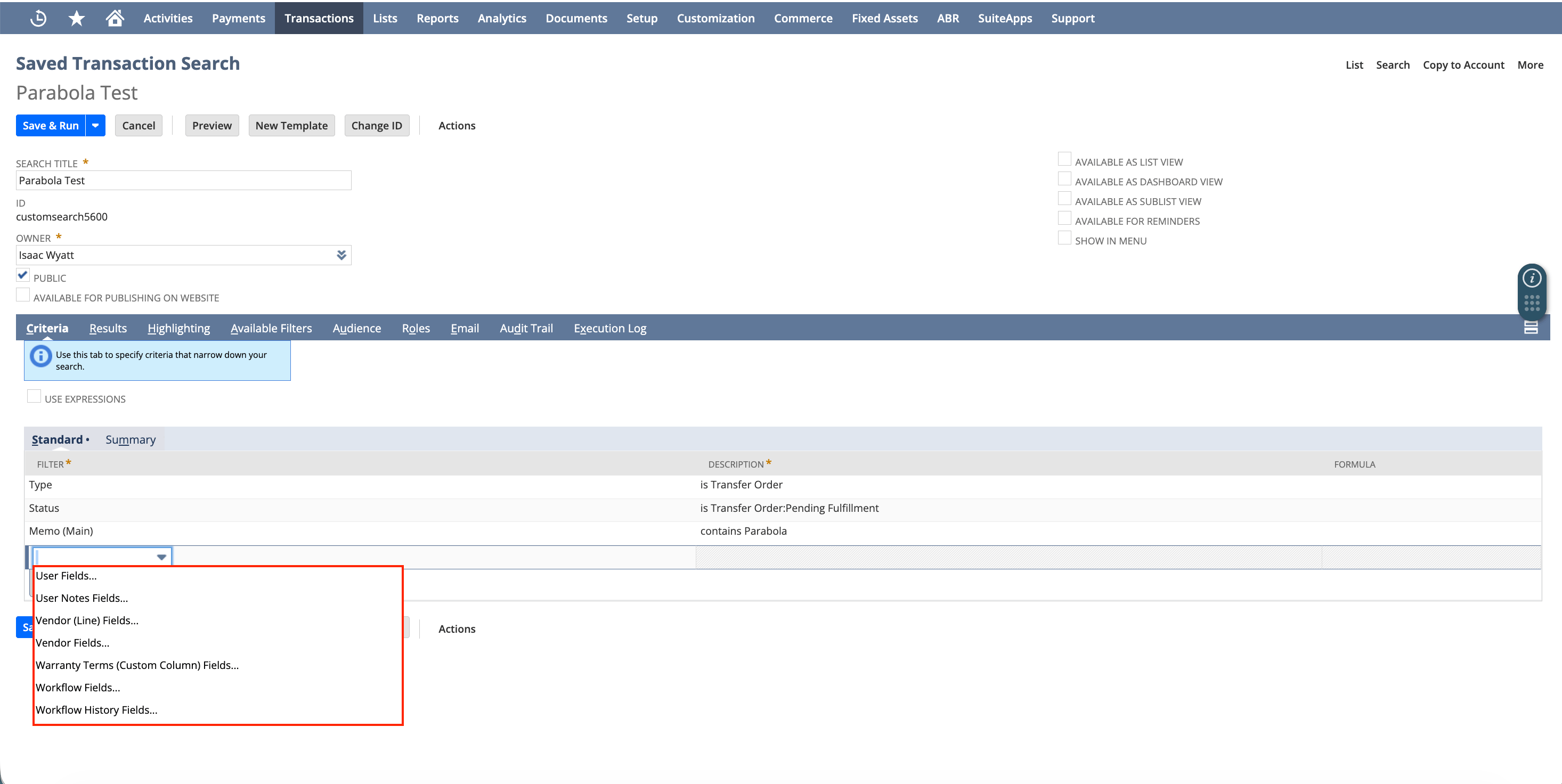
Joined fields: NetSuite returns only the internal ID for related records (vendor, location, etc.), not the name. Add the object’s Name subfield instead (look for the entry ending in ”…Fields…”, e.g. “Vendor Fields…”) and uncheck Return only columns specified in the search.
If it’s still coming in as raw JSON (e.g.
{"attributes":{"internalId":"101"},"name":"DTC"}), flatten it with an AI step using the prompt “expand nested fields to columns.”Alternatively, run separate searches and join the results with a Combine tables step: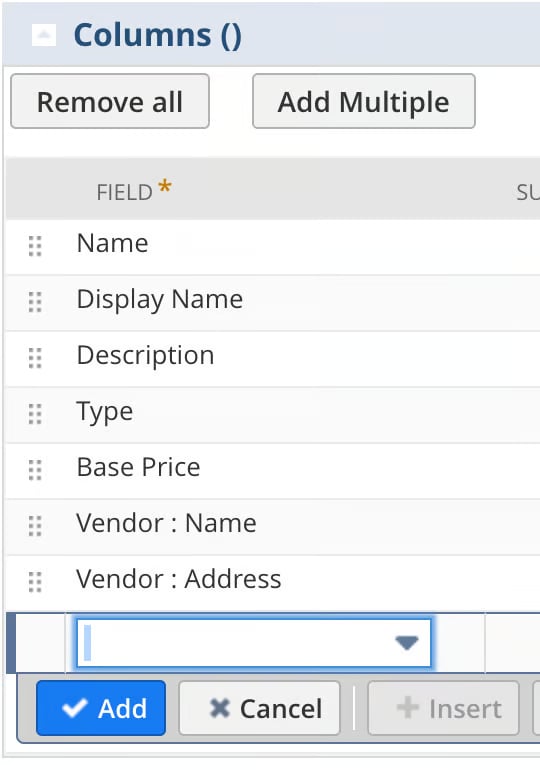
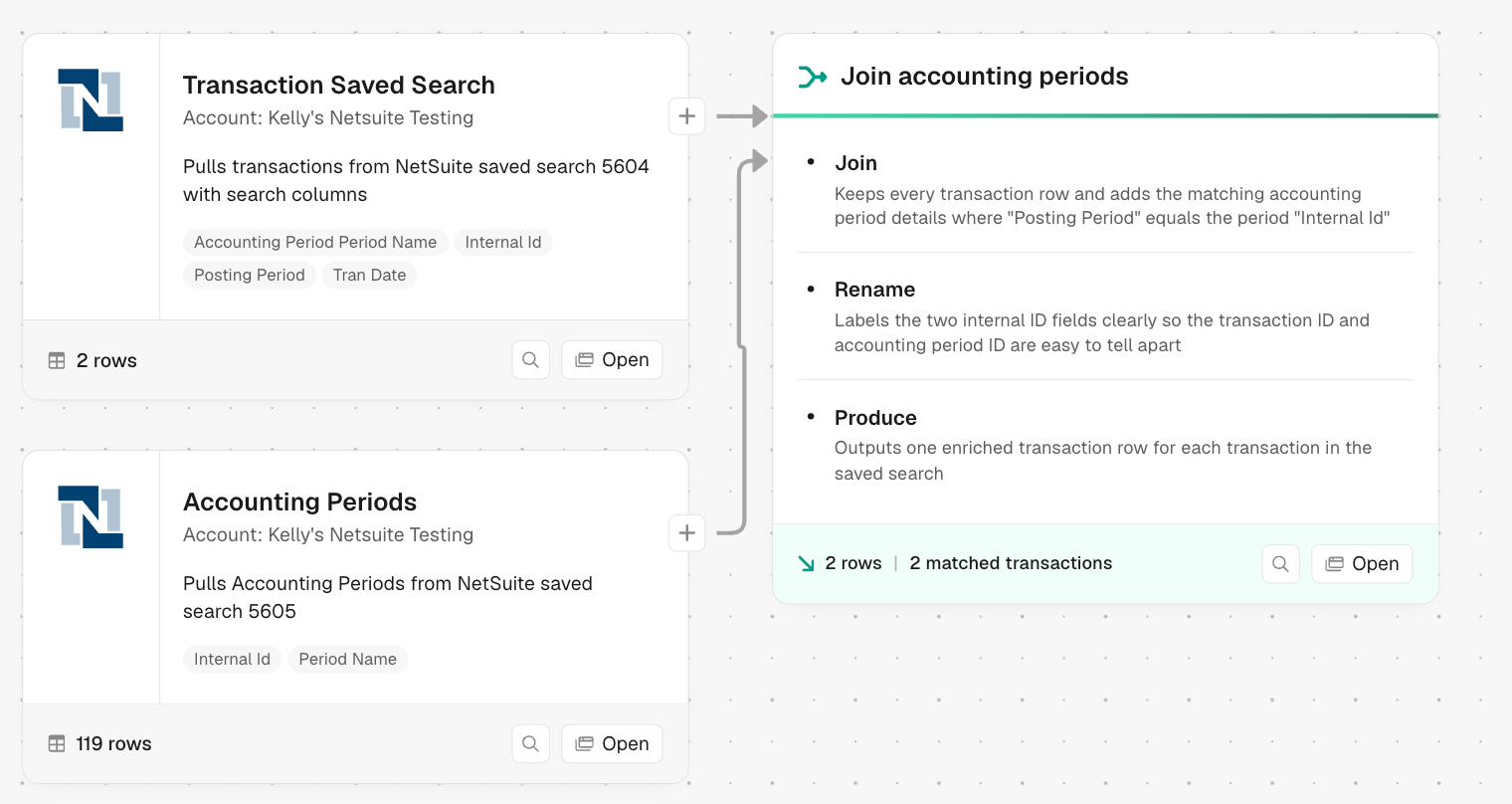
- Custom list fields: a custom field with a set list of options (e.g. “Color” with Mauve, Ruby, Emerald) always returns the raw internal ID. Export a mapping of IDs to display names from NetSuite, then join it back with a Combine tables step. Custom fields using a free-text box pull in normally and aren’t affected.
- Column renamed on pull: the data is present but under a header you didn’t expect. Check your other columns’ values, then rename the column in Prowork once you find it.
Pulling inventory balances
NetSuite’s SOAP API doesn’t expose Inventory Balance as a standard search object, so you can’t pull it directly with a saved search. Instead, build an Item search and add these location-level result fields to get per-location quantities for each item:- Inventory Location (the location name)
- Location On Hand (units physically in stock)
- Location Available (on hand minus committed)
- Location Committed (units reserved on open orders)
- Location Back Ordered (units on back order)
- Location On Order (units on open purchase orders)
Row limits and search timeouts
There’s no hard row limit, but very large searches can time out before the data fully loads. This is a NetSuite API constraint, not a Prowork limit. If you hit it:- Narrow the search criteria with filters like date range, status, location, or subsidiary.
- Split one large search into several smaller ones (for example, by month or subsidiary) and stack the results back together in Prowork.
- Use a scheduled email export. NetSuite can email a saved search’s results as a CSV on a schedule. Receive that email with an Extract from Email step, which avoids the timeout. This works well for large reference datasets that don’t need real-time freshness.