
What's new in Prowork?
Fix
Big results no longer end a Prowork chat
When something Prowork looked up returned more data than fits in one message, the chat ended with “Internal error.” Now Prowork keeps what fits, notes how much was cut and keeps going. Ask Parabola works the same way.
Fix
Cmd-click in the profile menu opens a new tab
Cmd-click (Ctrl-click on Windows) or middle-click on My Flows, My profile, Billing & Usage and the other profile menu items now opens them in a new tab. A normal click works the same as before.
Improvement
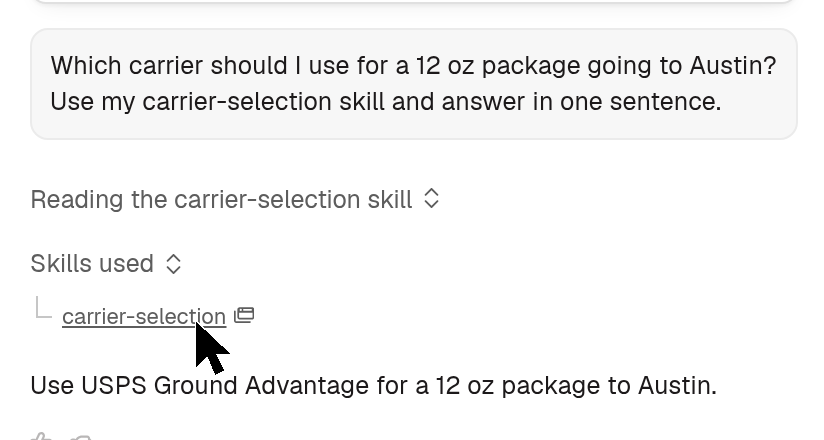
Open a skill from a Prowork reply
Under Skills used in a Prowork reply, click any of your Personal or Workspace skills to open it right over the chat and see what Prowork followed. Built-in skills are still listed but don’t open.
Fix
Prowork’s small edits to code steps work again
Asking Prowork to change a line or two in a code step works again, without rewriting the whole step. Join, Limit rows and a few other steps had the same problem and are fixed too.
Improvement
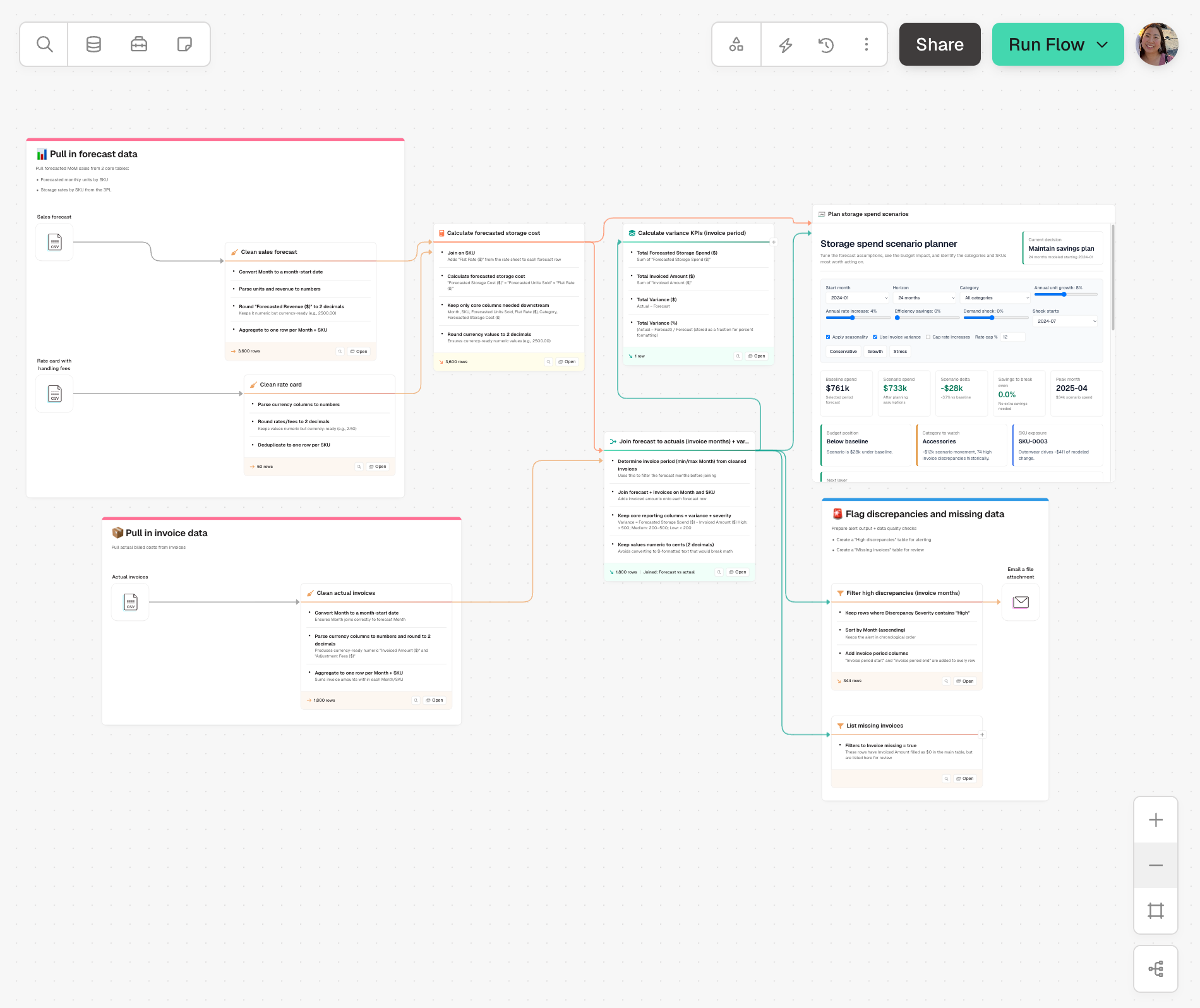
Arrows go around steps and cards
Arrows on the canvas now go around steps, cards, card titles and other arrows instead of cutting through them, so busy Flows are easier to follow. Arrows into a card come in from the side where they can, and auto-arrange leaves a little more room between columns.
Improvement
Artifacts can be up to 10 MB
Artifacts can now be up to 10 MB, up from 5 MB. If one is still too big, its card shows how big it is and what to cut, like fewer rows or columns, or a summary of the data. Click Ask Prowork to fix this and Prowork knows what to change.
Fix
Some Excel files import much faster
Some Excel files, like certain Power BI exports, need an extra repair step before they can be read. On large files that took minutes; now it takes seconds. Accented and non-Latin characters in these files also come through correctly.
Fix
Filter condition buttons stay open
The move, duplicate and delete buttons next to a condition no longer disappear when you move your mouse toward them. Fixed in Filter rows, Add if/else column, Pull from QuickBooks Online and Pull from Dynamics Finance.
Improvement
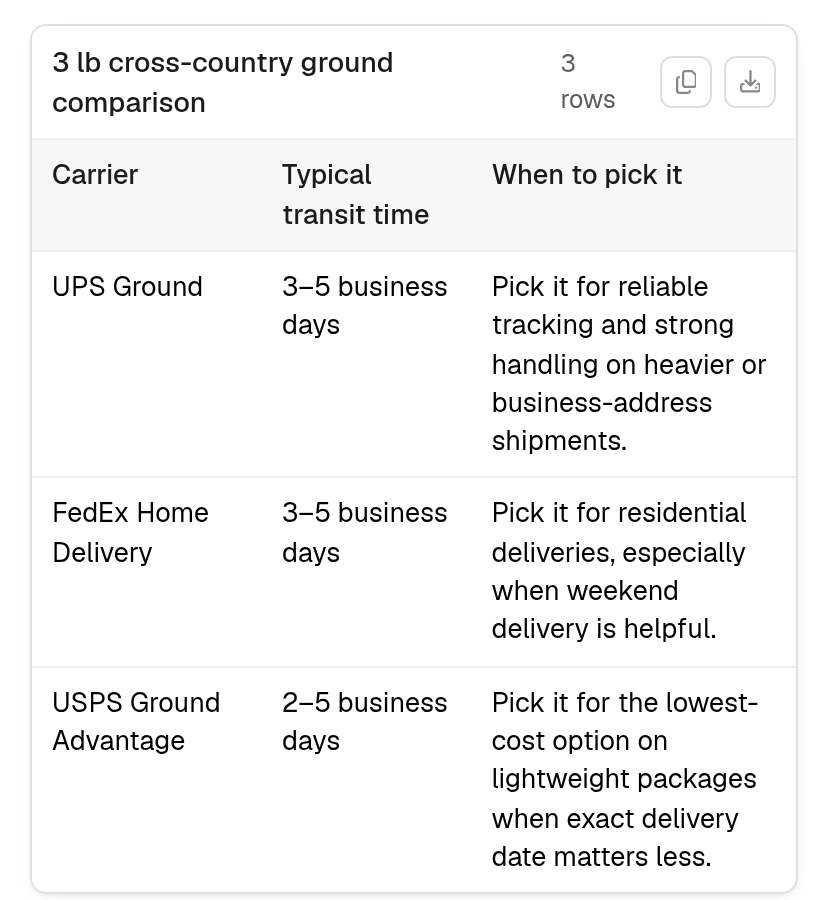
Tables in the Prowork chat fit the sidebar
Long text in chat tables now wraps, so two- and three-column tables don’t need sideways scrolling. Table cards show full values instead of cutting them off with “…”. Tables with lots of columns still scroll inside themselves.
Improvement
Team owners can add and remove members
If you own a team, you can now add people who are already in your workspace and remove members, without being an admin. Inviting new people to the workspace, editing team settings and deleting a team are still admin-only.
Improvement
Prowork checks that an Artifact loads before it hands it back
Prowork now opens each Artifact it builds before it tells you it’s done. If the Artifact doesn’t load, Prowork sees the actual error and can fix it first, so you’ll run into “Failed to render” a lot less.
Improvement
Prowork keeps going when an AI provider goes down
If the AI provider behind Prowork fails partway through a reply, Prowork now retries on a backup provider instead of showing an error. The reply on screen may start over, and the finished answer replaces it. Since Oct 9, a provider that hasn’t answered within 30 seconds also counts as failed, so you aren’t left waiting up to five minutes.
Fix
The section picker shows on every Artifact
On some Artifacts, the All sections checklist above the chat didn’t appear, so you could only send edits for the whole Artifact. It now appears on every Artifact.
Improvement
Large Flows are faster to edit
Dragging steps around a big Flow used to lag. Now, on a 100-step Flow, each movement during a drag takes about a tenth of the work it used to.
New
Pull from Logiwa
Bring Logiwa warehouse data into a Flow. Choose from 37 datasets, including shipment and purchase orders, inventory, products, receiving and shipment history, and lookups. Each dataset has the filters Logiwa supports, and datasets with a date filter default to the last day. The step pulls every page for you and returns order lines one row per line. Connect with a Logiwa user’s email and password. Sandbox accounts work too.
New
All your Parabola Tables on one page
The new Tables page lists every Parabola Table you can see. For each one you get the Flow that writes it, how many Flows pull from it, who can see its data and when it last changed. Click a table’s name to see its rows, or click Used in N Flows to see which Flows depend on it before you change anything. Filters help you find tables nothing uses anymore. Open it from Tables in the left sidebar.
Improvement
See more of what Prowork is doing
The Reasoning panel in a Prowork chat now adds a line when Prowork searches the web, searches the Parabola docs, reads a file you attached, reads or saves a skill, or tests code in a scratchpad. Open a web search line to see exactly what it searched for. The lines stay after the reply finishes and after you reload.
New
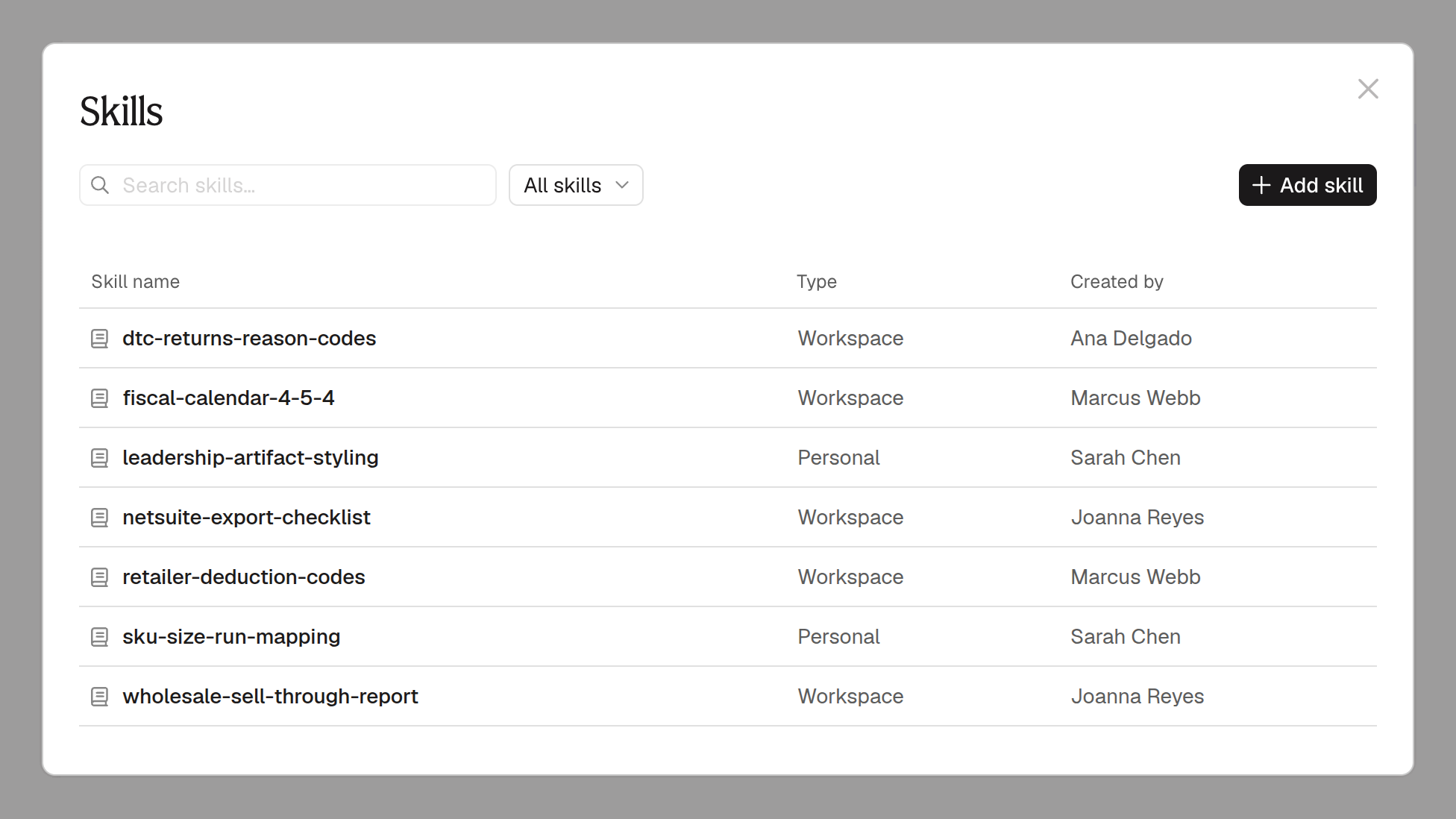
Teach Prowork how you work with Skills
Skills are short notes that tell Prowork how you and your team like things done: which tables to use for a report, how you calculate net revenue, how your Artifacts should be styled, or what to check before exporting to NetSuite. Write one once and you won’t have to explain it again. Prowork reads each skill’s summary and loads the ones that fit your request, so you never need to call a skill by name. To create one, ask Prowork to “make this a skill” in any conversation, or open Skills in the left sidebar. New skills are Personal. Click Share to make one a Workspace skill that everyone in your workspace benefits from. Admins can limit who creates and edits Workspace skills in Workspace settings. Read more.
New
Reporting admins
There’s a new Reporting admin permission for people who need usage numbers but shouldn’t see billing. Reporting admins can see credit usage and the usage overview, download usage reports and schedule report emails. The page shows up for them as Usage & Reporting, with no company, payment, plan or invoice sections. Billing admins get reporting access automatically. Members with no admin role now see only the read-only company details on Billing & Usage.
Fix
Artifacts no longer say they failed because of a browser extension
Password managers, crypto wallets and similar extensions created unfavorable conditions when rendering Artifacts, which has been fixed.
Improvement
Links to Parabola show a preview when you paste them
Pasting a Parabola link into Slack, iMessage, LinkedIn or X now shows a preview card instead of a bare link.
Fix
Redo works after undoing a step deletion
If you deleted a step and pressed undo, redo stopped working and the only way back was to delete the step again by hand. That’s been fixed.
Improvement
Attach a file before you’ve sent a message
You can drop a file into a new Prowork chat, or use the paperclip, before you’ve typed anything. Before, Prowork told you to send a message first. The file uploads straight away, and nothing goes to Prowork until you hit send.
New
Share Artifacts with people outside Parabola
Who can view an Artifact now has two more options. Any email on your company domain lets anyone with an address on your workspace’s verified domains open it after they confirm their email. You can also add specific email addresses, and each person gets an email with a link to verify. Once verified, they can view any Artifact shared with them. Re-verification is required every 3 days.
Improvement
Cap rows while you build a Dynamics pull
Pull from Dynamics Finance has a row limiter while building checkbox that caps online calculations at 10,000 rows, so building against a large table doesn’t stress your Dynamics instance.
Fix
Invited teammates can’t get locked out of sign-in
People invited to a team could end up in a state where no password would ever work, and Forgot password led to a second dead end. Both are fixed, and anyone already stuck gets a working setup link the next time they try to sign in.
Fix
Schedules in British Columbia, and six other regions, fire at the right time
British Columbia stops changing its clocks on 1 November 2026 and our timezone data didn’t respect that. The data is current now, which also corrects Mexico City, which stopped observing daylight saving in 2022, and five other regions. Four other zones were fixed.
Improvement
Run a Flow that doesn’t have a destination
A Flow no longer needs a destination to run or publish, which allows for running more types of Flows. Refresh all sources is now always in the menu too, including for Flows built only from uploaded files or sample data. An empty Flow still can’t run.
Fix
Excel files with won, pound, yen or rupee formatting
A single cell formatted with a currency symbol other than the dollar or euro sign failed the whole upload, with a message saying the file wasn’t a valid .xlsx. Won, pound, yen, rupee, shekel, dong, ruble and złoty were all affected, as was the non-breaking space some European locales put before the symbol. Those files parse now, and anything that parsed before comes out exactly as it did.
Improvement
Facebook Ads uses Marketing API v26
Pull from Facebook Ads now calls version 26 of Meta’s Marketing API, ahead of Meta retiring v24 on October 6. Meta has replaced the DMA breakdown with Comscore Markets, so the step uses that now. Flows that had DMA selected switch over on their own and keep running.
Fix
Looker pulls with table calculations
A Looker pull whose query had table calculations could fail with “Refusing to run query with large limit.” The step now tries again at 100,000 rows. If the full result fits, the pull succeeds. If it doesn’t, you get an error that says what to change, instead of a table with rows quietly missing.
Improvement
Duplicating a Flow is faster and more reliable
Previously, it was unreliable and slow to duplicate large Flows. Now, a Flow that would have taken 5 minutes to duplicate takes 20 seconds.
Fix
BigQuery accounts connection fix
Clicking to add or reconnect a BigQuery account was not working. That has been fixed.
New
Open a Flow’s Artifacts from the canvas
Hover the Artifacts icon in the canvas pill (top right) for a list of every Artifact in the Flow, named the way they’re named on the canvas. Click one and its share link opens in a new tab. A Flow with none gets a Create new Artifact button that opens Prowork with the prompt already sent. The Dashboard tab is also gone from Flows with no legacy Visualize step, and old /dashboard links on those Flows land on the canvas.
Improvement
Search your members and teams
The Workspace page, the Teams list and a team’s own page each have a search box. Search members by name or email, and teams by name, owner name or owner email. Sorting survives a search, and the counts in the header still describe the whole workspace rather than what you filtered to.
New
Private key authentication for NetSuite and other token APIs
The Expiring Access Token (Client Credentials) credential has an Authentication method setting, and picking Private key JWT lets you authenticate with a signed key instead of a shared secret. NetSuite’s other flow forces a reconnect every seven days no matter what; this one doesn’t expire. Simple setup takes a token URL, client ID, key file, signing algorithm, key ID and scopes, and an advanced section covers servers that want something non-standard. The key is uploaded from a file and never sent back to the browser, so editing a credential means uploading it again.
Fix
Prowork chats no longer get stuck looking busy
A message that failed to send stayed on screen, and the chat sat there working forever with nothing to do but reload. Failed sends are removed now and you’re told they failed. A chat that lost events while its connection dropped also refetches the conversation instead of waiting on a reply that already finished.
Improvement
Prowork tells you what it’s building
Building a large step or an artifact used to take minutes with nothing on screen but a spinner. The reasoning block now adds a line for each component Prowork is writing as it goes, like the step it’s building or the function it’s typing, and the newest line shows on the collapsed block so you can follow progress without opening it.
Improvement
Sample data now joins across datasets
The Use sample data step has a new version behind it carrying the full datasets, about 75,000 rows across 27 files instead of 5,800. Steps already in a Flow keep the rows they have today and show an update-available tag.
Fix
Excel cells paste into Prowork as text
Copying cells out of Excel and pasting them into the chat attached a picture of the cells. Pasted cells come in as text now.
Improvement
Reasoning in Prowork expands when you click it
Click on the reasoning titles while Prowork is working to see exactly how it reasons through your requests.
Improvement
See when a message was sent in Prowork
Hover a message you sent to see when it was sent, or hover Prowork’s latest reply for the time beside the feedback buttons.
Improvement
Put people on teams while you invite them
Bulk add gives every invitee their own team picker, so a group can be invited straight onto the right teams instead of inviting everyone and then assigning teams one at a time from the members table.
Fix
Deleting a Prowork conversation mid-reply stops the reply
Deleting a conversation while Prowork was still replying left it generating into a conversation that no longer existed, and held the Flow’s editing lock for ten minutes so nobody else could open it. Deleting now stops the reply within a second or two and releases the lock.
Fix
File modified times in the SharePoint and OneDrive pickers
In the Pull from SharePoint and Pull from OneDrive file pickers, the modified time under each file was off by your distance from UTC. A file changed a minute ago read as changed seven hours ago on the US West Coast, four on the East. It shows the real time now.
New
Download an Artifact’s data as CSV
Any table in an Artifact can be downloaded as a CSV. Hover a table for its own download button, or use the menu beside Share at the top, which lists every table in the Artifact plus the full set of input tables for the Artifact. When a table is downloaded, you will receive a CSV of what’s on screen, with filters, sort and displayed columns applied. Anyone you send a share link to can download as well if they have access to the Artifact.
Improvement
See the real PDF email before the step sends it
The Preview tab on Email a PDF renders the actual template that goes out, branded or plain text, and it’s the tab the step opens on. Email a file attachment and Send emails by row have the same preview now. All three take an HTML or Text body: Text shows markup literally and stays the default, HTML sends it as markup. Wide tables and images in an HTML body no longer spill outside the template. Email a PDF’s controls are also split into PDF formatting and Email formatting instead of one long list.
New
Set a company logo for your team’s artifacts
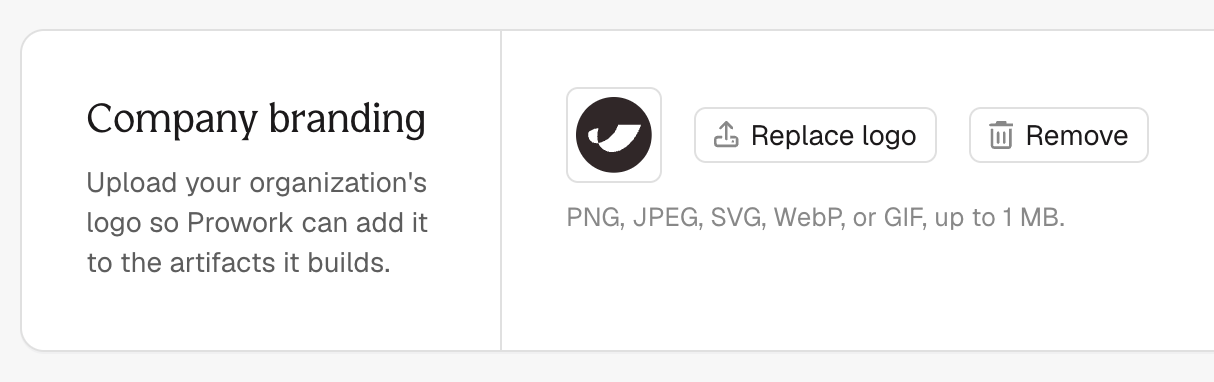
Admins can upload a company logo once, in Billing & Usage under Company branding, and anyone on the team can have Prowork place it in an artifact. Ask Prowork to add the logo and it renders wherever the artifact does: the canvas, the result modal, a shared link, and the PDF. Swap the logo later and artifacts pick up the new one on their next run. PNG, JPEG, SVG, WebP and GIF, up to 1 MB.
Improvement
Number handling for Generate Excel file
Generate Excel file gets the number handling setting the other Excel exports already have. On the recommended setting, long identifiers and leading zeros survive the export instead of being rounded or trimmed, and real numbers get a plain format so Excel stops showing 1.23E+12. New steps use it by default; steps you already built keep writing numbers exactly as they do now until you open the step and change the dropdown.
Improvement
Version history keeps versions for up to two years
How far back Flow version history goes now follows your plan: up to 7 days on Basic, 30 on Explorer, 90 on Collaborator, a year on Advanced and Team, two years on Enterprise. This update applies to edits made from here on out, not retroactively.
Improvement
New filters and Bills columns for Ramp
Pull from Ramp can filter Card Transactions by accounting status, approval status, and charge status — including slices Ramp’s own CSV export can’t do, like unsynced or awaiting reviewer. The old State filter is now Charge status, to match Ramp’s naming, and covers the full set of values. Bills pick up Invoice URLs, Bill Owner ID, and Bill Owner Name. Invoice links expire quickly, so use them on the same run rather than storing them.
Fix
Send to Dropbox no longer overwrites a file with an empty one
If a Send to Dropbox step received no rows at all, it replaced the file in Dropbox with a blank CSV and reported a clean run. It now stops and flags the run instead, the way it already did when the incoming table had no columns. A table with headers and no data rows still exports, unchanged.
Fix
A clearer message when a NetSuite connection expires
NetSuite connections need re-authorizing periodically. When one expired, the step showed NetSuite’s own error text wrapped in ours, which read like a Parabola failure rather than an expected reconnect. Steps on the NetSuite connection now tell you to reconnect the account.
Improvement
Number handling for three more Excel exports
The XLSX number handling setting that came to Send to FTP is now on Email a file attachment, Send to Google Drive, and Send to OneDrive/SharePoint. On the recommended setting, long identifiers and leading zeros survive the export instead of being rounded or trimmed, and real numbers get a plain format so Excel stops showing 1.23E+12. New steps use it by default; steps you already built keep writing numbers exactly as they do now until you open the step and change the dropdown.
Improvement
Schedules, triggers and history are one click away again
Schedules, triggers and history have their own buttons on the canvas again, in the pill at the top right beside Canvas and Dashboard, instead of sitting inside the options menu. If any schedules or triggers are active, the icon will show as green.
Improvement
Shared Artifact links show the Flow’s name
The title on a shared Artifact page is the name of the Flow it came from rather than the name of the step itself, so recipients can tell what they’re looking at. The browser tab follows it.
Fix
The Send to API step tells you when a domain is blocked
When your org’s domain allowlist blocked the destination, a Send to API step would appear to succeed, even though it was blocked. The step now fails, names the blocked domain, and shows the prompt to add it on the integrations page.
Improvement
Open an Artifact step from its header
Artifact steps on the canvas have an “open” button in the top right of the header. It opens the artifact in the full result view, same as double-clicking the header or the pencil in the hover bar.
Improvement
Prowork adds Artifacts as it builds
When Prowork builds a new Flow or a new section of a Flow, it now adds an artifact on its own if the Flow doesn’t have one, provided the Artifact helps answer what you asked for. It has more shapes to pick from too: alongside dashboards and single charts, there’s a watchtower for exception alerting and a message preview for seeing what an email or Slack message will look like.
Improvement
Keep long numbers intact in Excel files sent over FTP
Send to FTP has a number handling setting when the file type is XLSX. On the recommended setting, identifiers longer than 15 digits (e.g. order numbers, barcodes, account numbers) stay as text instead of being rounded off, and real numbers get a plain format so Excel stops rendering them as 1.23E+12. New steps use it by default. Steps you already built keep writing numbers exactly as they do now; add a new step to pick up the change.
Improvement
Prowork can edit while you’re away
Close your tab while Prowork is mid-edit and it keeps working. Anyone else on that Flow now sees “Prowork is editing this Flow” and can view it until the turn ends, so their changes can’t land on top of what Prowork is writing. Editing comes back on its own when Prowork finishes, and your own Prowork never locks you out of your own Flow.
Fix
Drop an arrow anywhere on a step
Dragging an arrow onto a step only connected if you let go near the top-left corner, even though the whole step lit up as a target. The drop zone now covers the step, so releasing anywhere on it makes the connection.
Improvement
Prowork edits Flows faster
Prowork now writes changes to your Flow from the backend instead of routing them through your browser. Edits land faster and it recovers better when it configures a step wrong on the first try. How you prompt it doesn’t change.
Improvement
A rebuilt parser for PDF steps
Steps that read a PDF (Extract from PDF, Pull from file queue, and Extract from email) now run on a rebuilt parser. It uses a newer model, so it holds up better on messy documents and awkward table layouts, and it reads the document as markdown first, which makes larger PDFs parse faster and lets it handle documents that used to be too big to get through. Steps you already built keep the parser they were created with, so add a new step to pick up the improvements.
Fix
Data tracing better follows the row you clicked
Search a step’s results, click a row, and trace it — tracing would sometimes open on a different row and clear your search on the way. It now traces the row you actually clicked, and the filter stays put, so you can trace another row without typing the search again.
Improvement
Start a new Flow from the top of Home
Your Home view now has a New Flow row at the top of your list, laid out like any other Flow. Click it to create a fresh Flow. The New Flow button is still in the header on every other Flows page, and it’s green now so it’s easier to spot. The row hides itself while a search or filter is active.
Improvement
Send emails by row without the Parabola footer
Send emails by row has an Email template setting with two options: Parabola branded, or plain text with no branding. Pick plain text and the “Powered by Parabola” footer is left off the emails that step sends. Email a file attachment already offers this option.
Fix
Shared artifact links now fit a phone screen
The header on a shared artifact link ran off the side of the screen on a phone. Below 600px wide it keeps to one row and drops what it can: the last-calculated timestamp is hidden, and Share and the new-version indicator shrink to icons. The artifact name truncates instead of pushing everything else off-screen.
Fix
Clearing Mocked data no longer breaks a webhook Flow
The Pull from webhook step shows {} in its Mocked data field when nothing is set, but deleting the contents saved an empty value instead. The next webhook run failed with a calculation error and zero rows. An empty field reads as {} again, and steps already saved that way repair themselves on their next run. Mocked data that isn’t valid JSON now tells you so instead of failing generically.
Fix
Scroll wide tables inside an artifact
A table wider than its artifact couldn’t be scrolled sideways in the result modal or in a shared link. Horizontal scrolling works in both places now, and panning and zooming on the canvas are unchanged. Artifacts pick this fix up on their next run.
New
Add your own images to an artifact
You can add your own images to an artifact. Attach an image in the Prowork chat, ask Prowork to place it, and it renders everywhere the artifact shows up: on the canvas, in the result modal, or in a shared link. Handy for putting your logo on a report you send out, or dropping a diagram or screenshot into a dashboard. PNG, JPEG, WebP, and GIF all work, up to 1 MB per image.
Improvement
Prowork picks a saved account more carefully
When Prowork adds an integration step, it now considers accounts shared with your whole org, not just those attached to the Flow. With no clear single account to use, it leaves the step unauthenticated for you to pick. Steps you’ve already set up keep the account they have.
Fix
The canvas tidies up after Prowork builds
Two things could leave the canvas untidy after Prowork added steps. The view didn’t zoom back out to fit the whole Flow once new steps landed, and if you closed the tab while Prowork was still working, auto-arrange never ran on what it added. Reopening a Flow now arranges it when auto-arrange is on, and the view recenters once new steps land.
Improvement
Flow version history is available for everyone
Open the History tab on any Flow to see past versions alongside run history and restore one. How far back the list goes depends on your plan.
Fix
Pull from Box now finds .xlsm files
Macro-enabled Excel files (.xlsm) didn’t appear in the Pull from Box file picker, so there was no way to select one. They now show up alongside .xlsx and .csv files and are read the same way. Macros in the file are ignored, never run.
Fix
Queued runs no longer report failures that didn’t happen
On Flows that get a burst of webhooks, a run could sit in the queue long enough that checking its status marked it failed before it ever had a chance to start. That sent a “Your flow failed” email for a run that was fine, and left the run unable to recover. Waiting in the queue is no longer read as a failure: the run waits, then runs. Only a real result from the run itself sets its status.
Improvement
Zoom, pan, and resize artifacts on the canvas
Working with an artifact on the canvas now behaves like working with any other step. Pinch to zoom and two-finger swipe to pan while your cursor is over a selected artifact, instead of zooming the whole browser page or scrolling the artifact sideways. The resize handle also appears on hover, so you can resize without clicking into the artifact first.
Improvement
Keep typing while Prowork is working
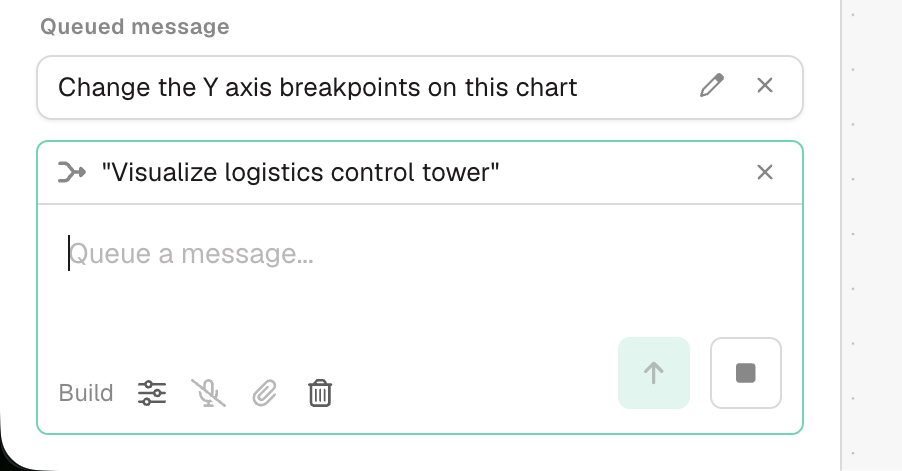
Your conversations no longer lock while Prowork is thinking or making changes. Queue up as many messages as you want, edit them, or remove them before they’re sent. Prowork picks up queued messages between actions and adjusts course without dropping the work it’s already doing.
New
Undo the last thing Prowork did
The latest Prowork message now carries an undo button next to the feedback thumbs on hover. Click it to put your Flow back the way it was right before you sent that prompt, including any edits of your own that landed in between. Undo lasts for your current session, so it goes away once you refresh the Flow or close the tab.
Improvement
Pick a folder for new Send to Dropbox files
Send to Dropbox can now create files inside a folder instead of only at the top level of your account. Choose Create New File, enter a folder path like /Reports/2026, and the step shows the full path the file will land at as you type. Leave it blank and existing steps behave exactly as before.
Fix
SharePoint file picker bug fixed
Two things could stop the SharePoint file picker from opening. If your company serves SharePoint from its own domain rather than a sharepoint.com address, the picker failed before it loaded. And if a teammate shared a SharePoint connection with you as “Can use,” the picker checked for edit access it never needed. Both are fixed.
Improvement
Clearer signals when a Flow can’t be edited
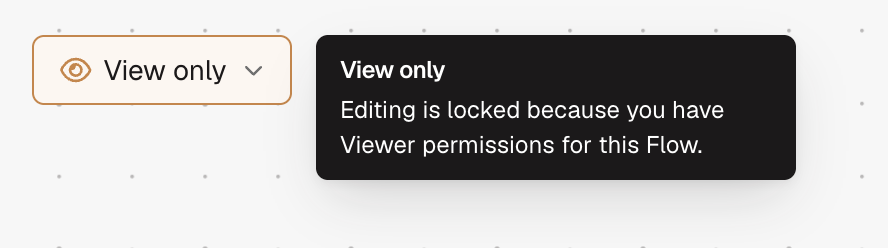
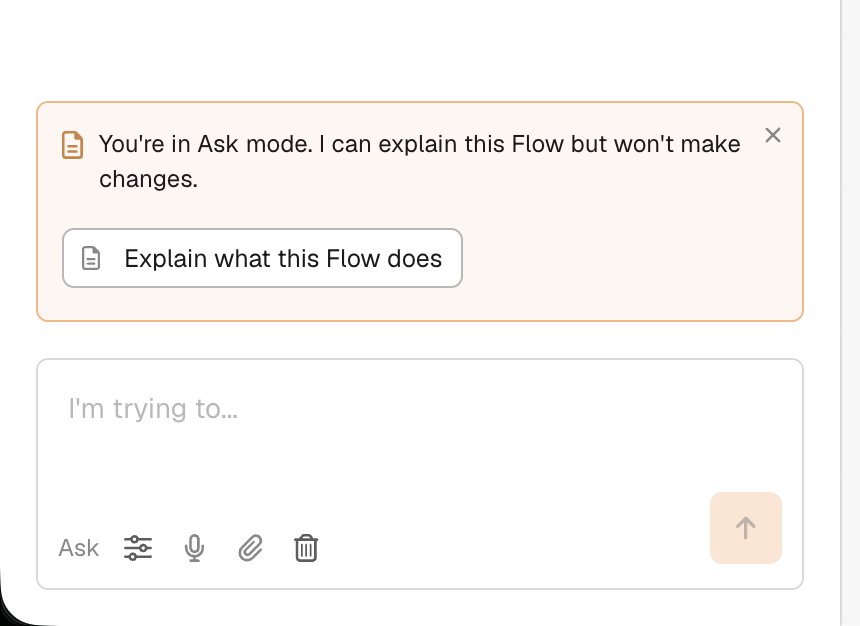
View-only, locked, running, and active schedules all cause Flows to enter a view-only state. That state now uses a more noticeable color to help you understand when you cannot edit. Prowork’s Ask mode picks up the same color while it’s on, which was easy to miss before.
Fix
Clearer errors when a NetSuite import runs long
A Pull from NetSuite step pulling a very large saved search could run out of time and then wrongly tell you to re-authorize. It now reports the real cause, a timeout from too much data, and suggests adding a filter or a narrower date range. NetSuite imports are also faster, pulling more rows per request so large searches finish sooner.
Fix
Flows no longer stay paused after your usage recovers
When an organization exceeded its usage limit, Parabola pauses any scheduled or triggered Flows. Once below the limit, Flows can now be run successfully again. Triggers stay paused until you turn them back on yourself, so nothing resumes and spends credits without you asking.
New
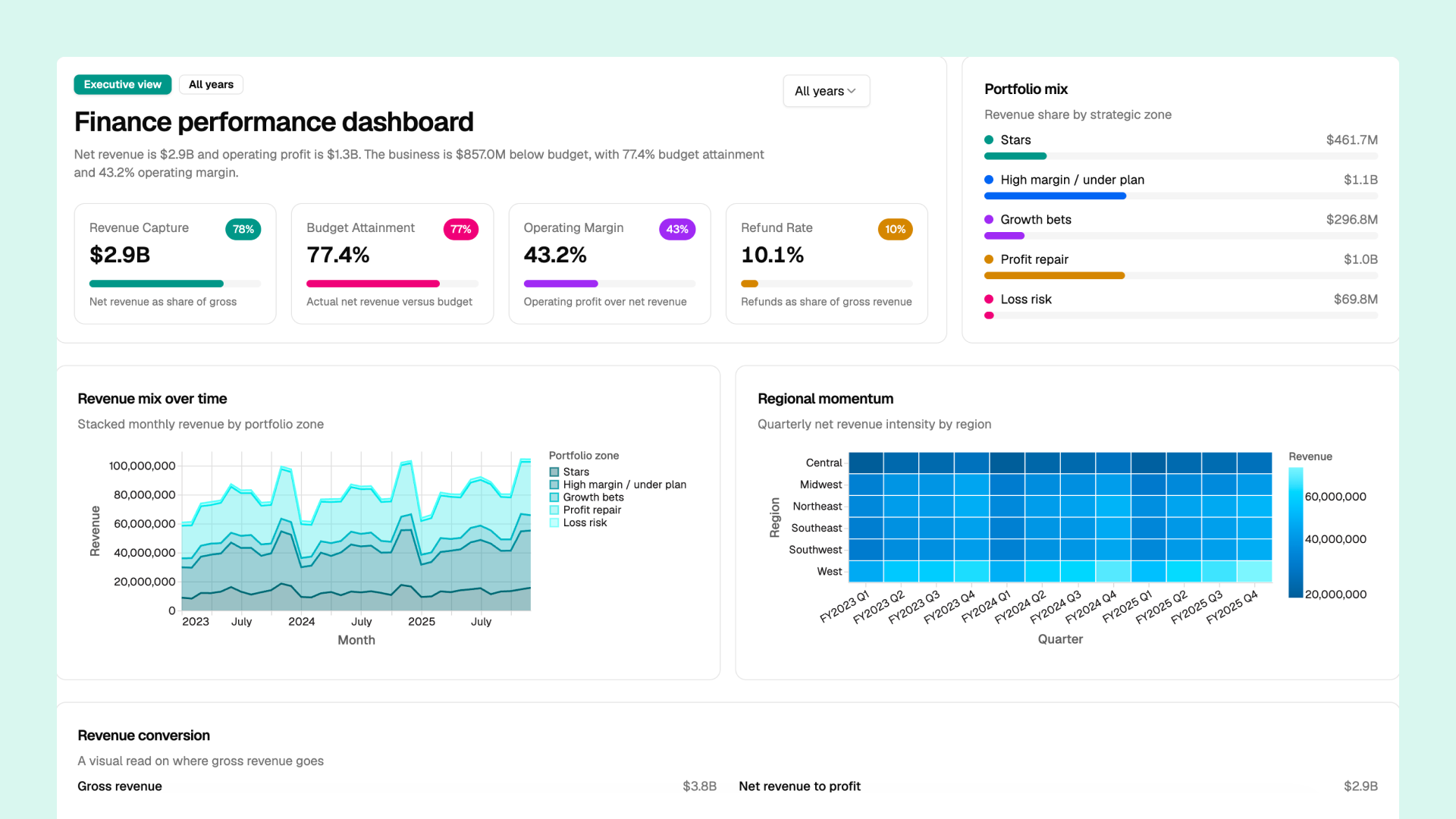
Introducing Artifacts — interactive, shareable applications powered by your data
Artifacts are custom, interactive, shareable applications built agentically with your Flow data. Think dashboards, pivot tables, visual summaries, charts, or even recommended actions. Choose from thousands of visualizations and filters with a single prompt. Style them however you want, including with your company branding. When you’re ready to share, Parabola generates a link so you and your team can dig into the data together.
Improvement
See who owns a saved account
The Saved accounts modal used to select credentials for integration steps now shows the email of the person who connected each account, so it’s clear who owns a shared credential when you’re choosing one for a step.
Improvement
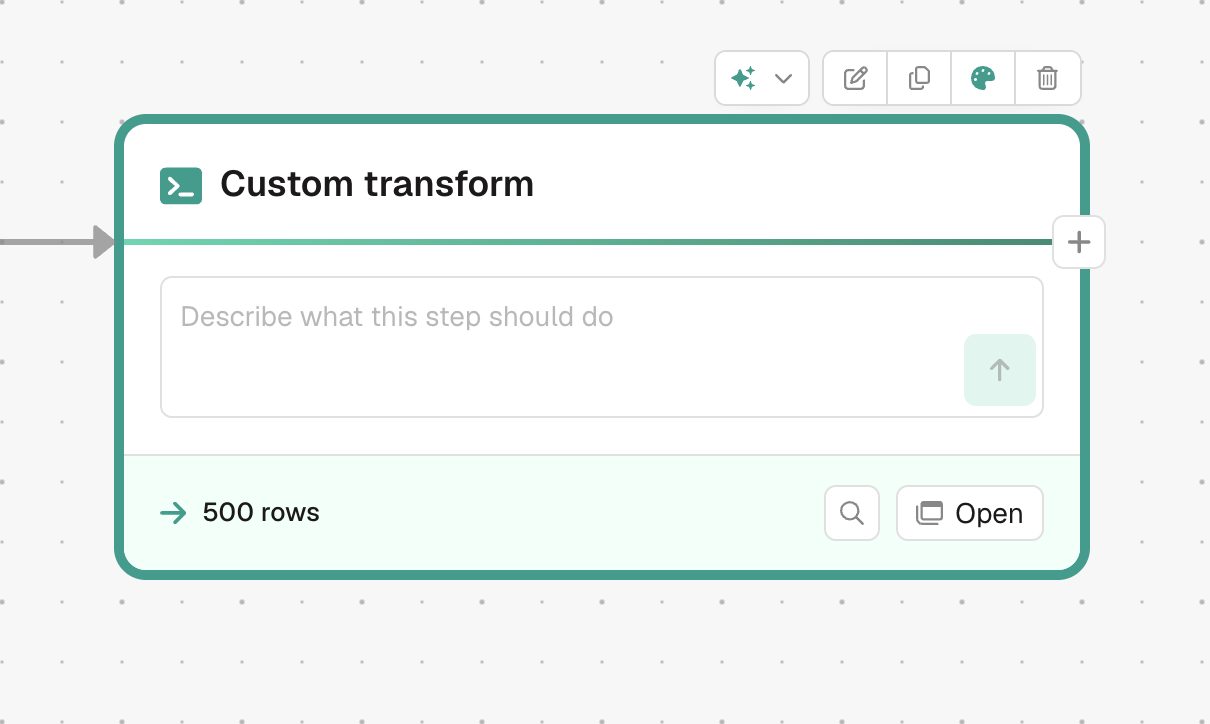
A more powerful Custom Transform step
New Custom transform steps now run on the same framework that Prowork uses to build Flows. Add the step, describe the transform you want in its prompt box, and Prowork writes and runs the code for you. It’s more capable than the previous Custom transform.
Improvement
Improvements to the Email a PDF step
The Email a PDF step picked up a few upgrades. You can add line breaks in the email body, drag to reorder header and footer lines, and preview up to 1,000 rows before you send. If a merge tag points at a column that isn’t in your data, the step now flags it before it runs instead of failing silently.
Improvement
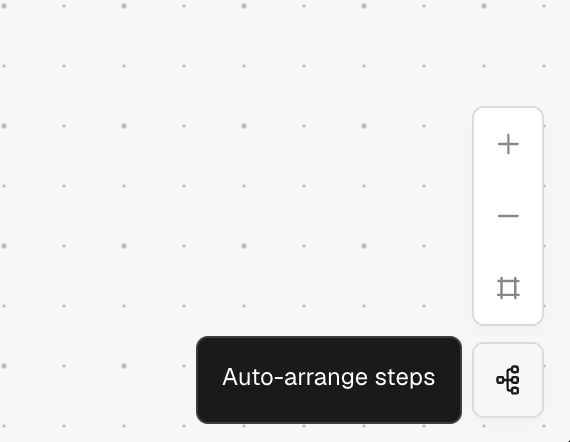
Turn auto-arrange on or off from the canvas
A new Auto-arrange steps toggle sits with the zoom controls in the bottom-right of the canvas. Click it to tidy your Flow’s layout, and to turn auto-arrange mode on or off.
New
Attach files to Prowork
You can now drag files into the Prowork chat and have it read them to understand your data and process. Prowork can also add an attached file to the canvas as a source step. Supports DOCX, CSV, MD, JSON, PDF, XLSX, images, and more. Use the paperclip icon in the Prowork chat composer to directly attach files. Multiple files can be attached to a single message. Read more.
Improvement
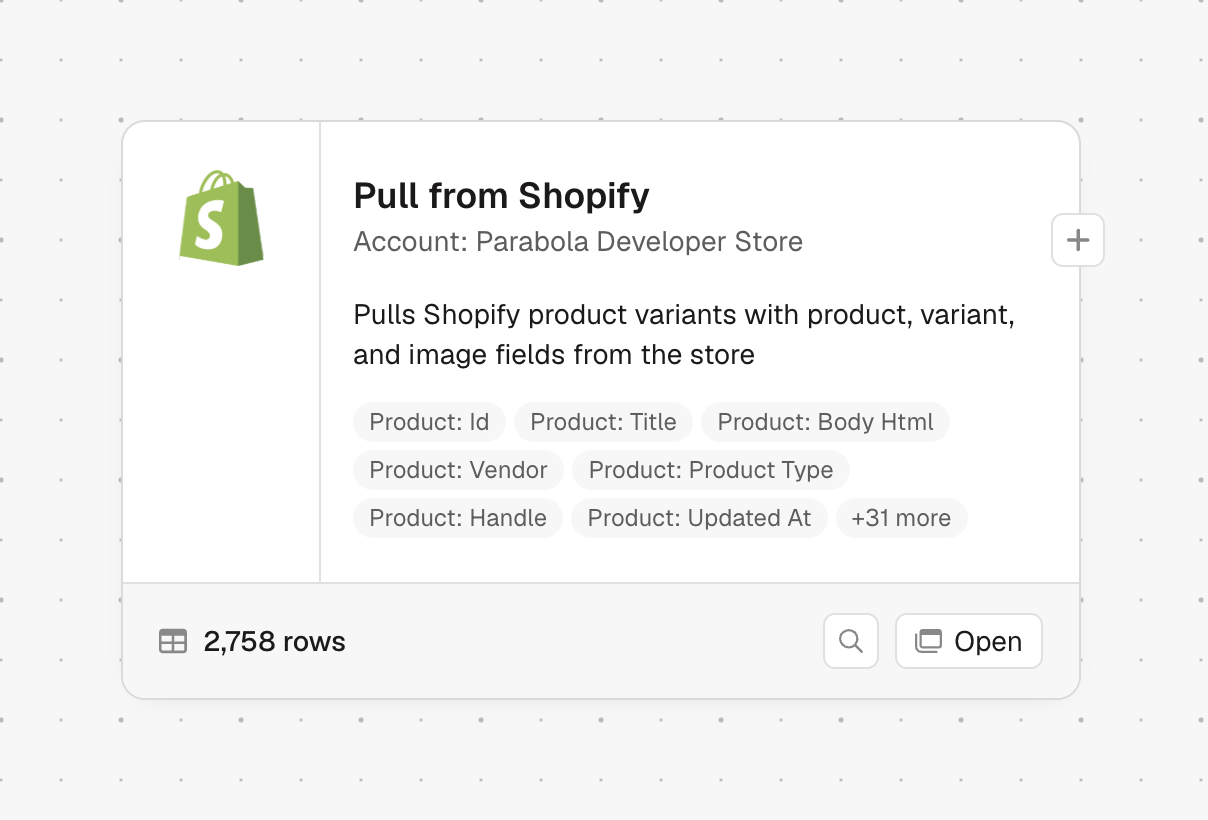
Automatic step descriptions that reflect what your step does
Integration steps now show an AI-written description based on how you’ve set them up. Descriptions update in the background when you change a step’s settings, and any description you’ve written yourself is left untouched.
Fix
Tidier trigger rows
The triggers panel no longer squeezes long email addresses, webhook URLs, and schedule descriptions into overlapping rows. Rows now grow to fit, long values shorten with the full text on hover, and error and empty states are cleaner.
Improvement
Build from the canvas with Prowork
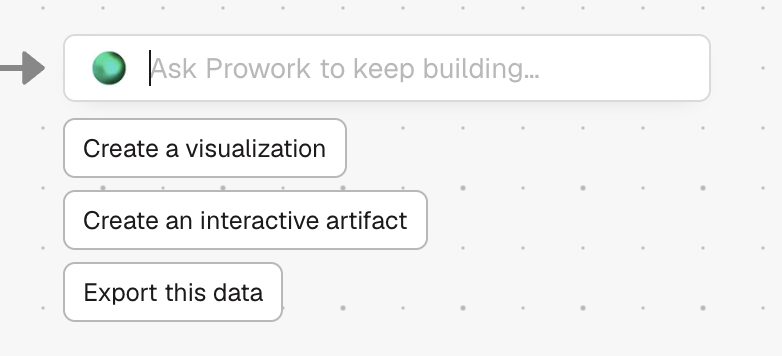
The plus button on a step now opens a Prowork prompt with quick starters like “Create a visualization” or “Export this data,” so you can describe what you want next instead of picking from a step list. Right-clicking a step to visualize it, or right-clicking the canvas to add a step, now prompts Prowork the same way.
Fix
Clearer colors for category charts
Charts that color by an unordered category, like region or status, now use a distinct color for each value instead of shades of one color. Ranked buckets, like age ranges, still use a graded color scale.
New
Find a Flow by its trigger address
Search the Flows page using an inbound email address, webhook URL, or file queue URL to instantly find the flow it triggers. Handy when you've got the trigger address in hand but can't remember which flow it belongs to. Works across Home, My Flows, All Flows, Starred, and Team Flows.
New
Set up integrations right on the canvas
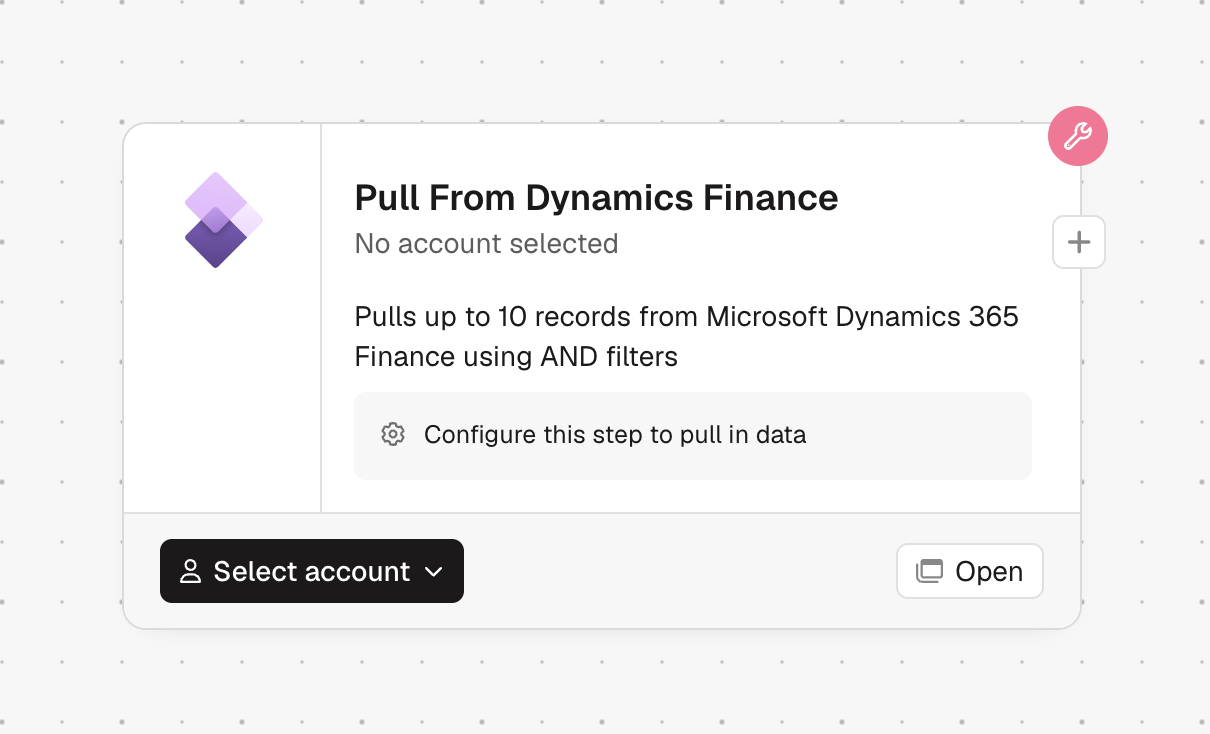
Integration steps are larger and show a description and a sample of their columns. You can browse their data and configure them directly on the canvas. Add a new integration step to get the updated experience; existing integration steps keep their current size.
New
Email a PDF from a Flow
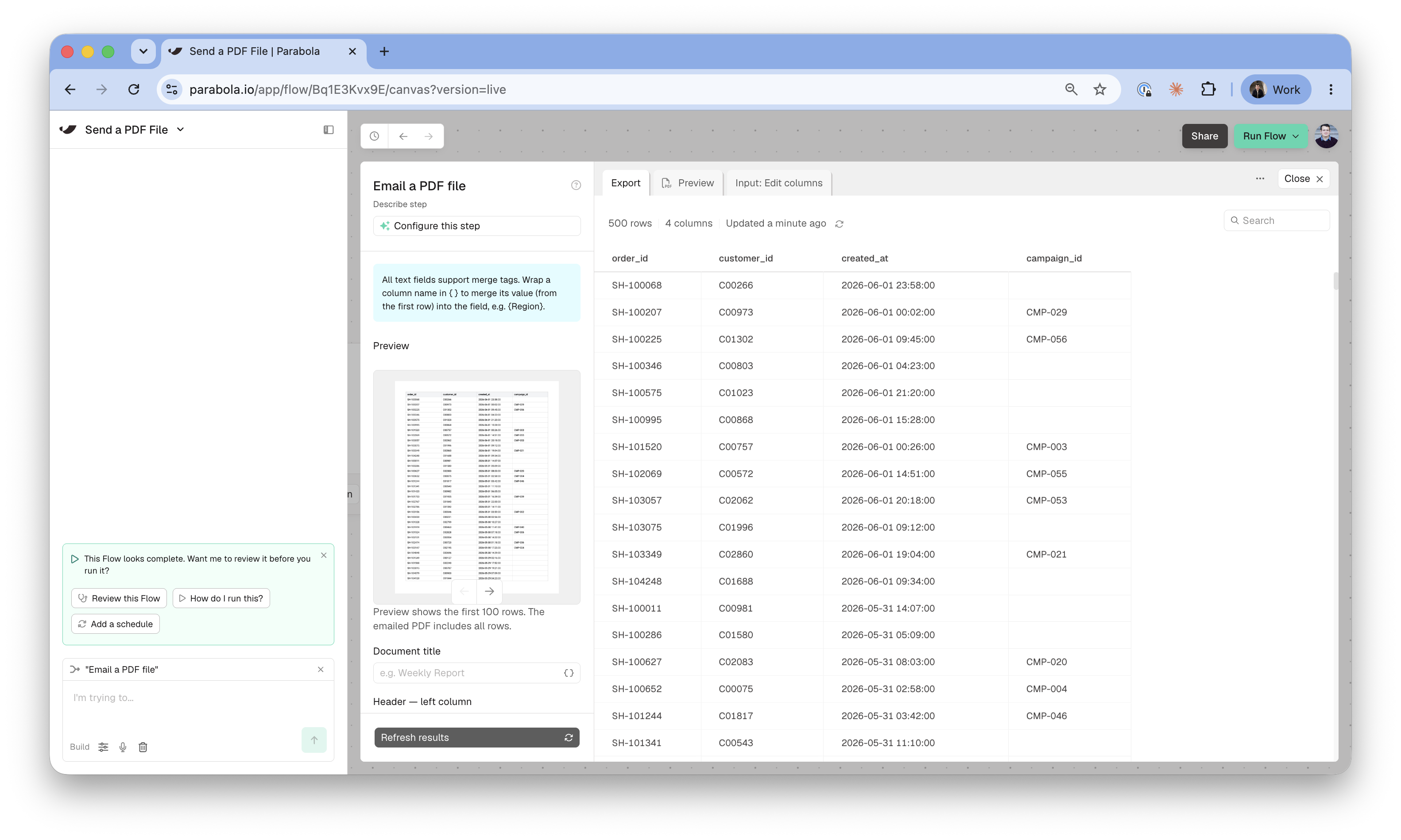
The new Email a PDF file step can create a PDF from your data and email it automatically. You can preview the PDF, which includes a table of the input data, add headers and footers, include custom logos or signatures, and insert values from the first row of your table.
New
Trace where your data came from
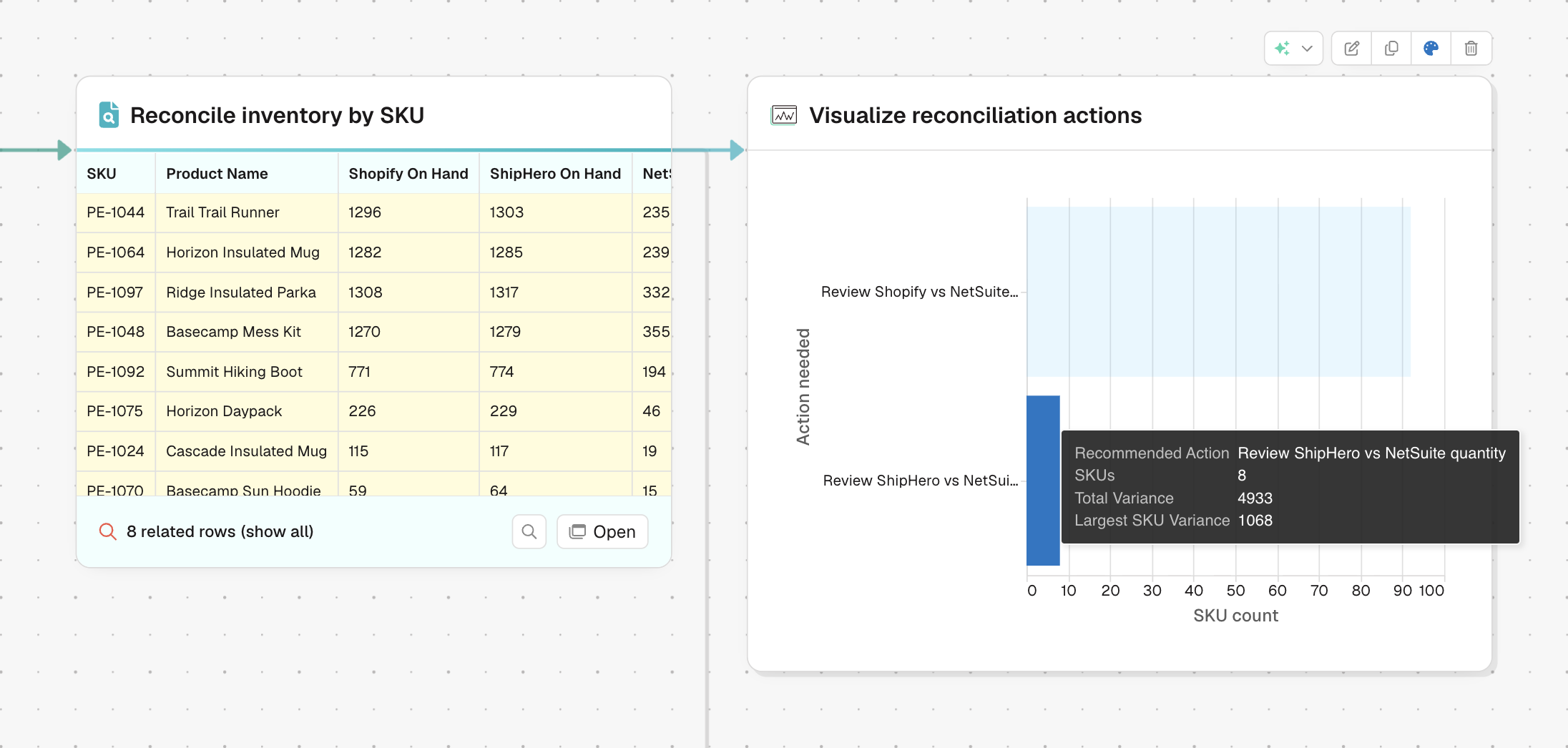
Introducing Data Tracing. Click a row to see which upstream rows contributed to it, then follow the path across connected steps to understand where a value came from and how it changes across your entire Flow. Works great with agentic visualizations!
Improvement
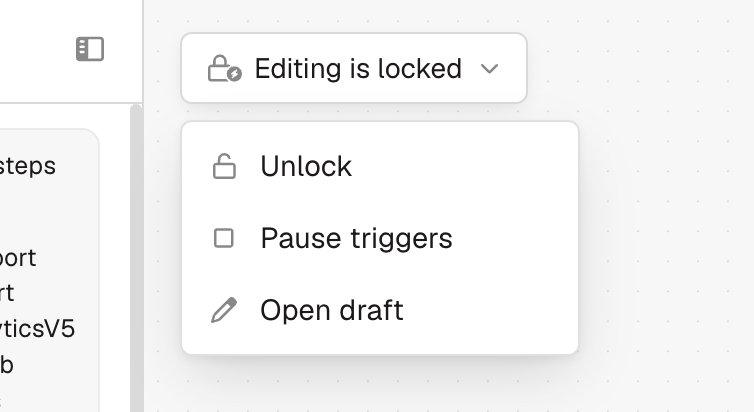
Updated design for the Flow status indicator
Messages like View only, Refresh needed, and Editing is locked now appear as a compact status pill next to the Prowork agent. The pill keeps the canvas clear while still showing the actions available for that Flow.
New
A new SharePoint file picker
Pull from SharePoint now uses a native file picker, so you can browse SharePoint directly instead of searching by site and drive first. The step also supports larger CSV and Excel files.