Cards
Organize your flow into grouped steps and use rich-text formatting to add context or instructions. Within each card, you can include title headers, bold or italicized text, and bulleted or numbered lists.
How it works
Cards help you organize your flow visually and provide helpful context for anyone viewing or editing it. They don’t affect how your flow runs—they’re purely for structure and clarity.
You can connect steps inside and outside of cards. The arrows that connect steps behave the same way, regardless of whether a step is inside a card or not.
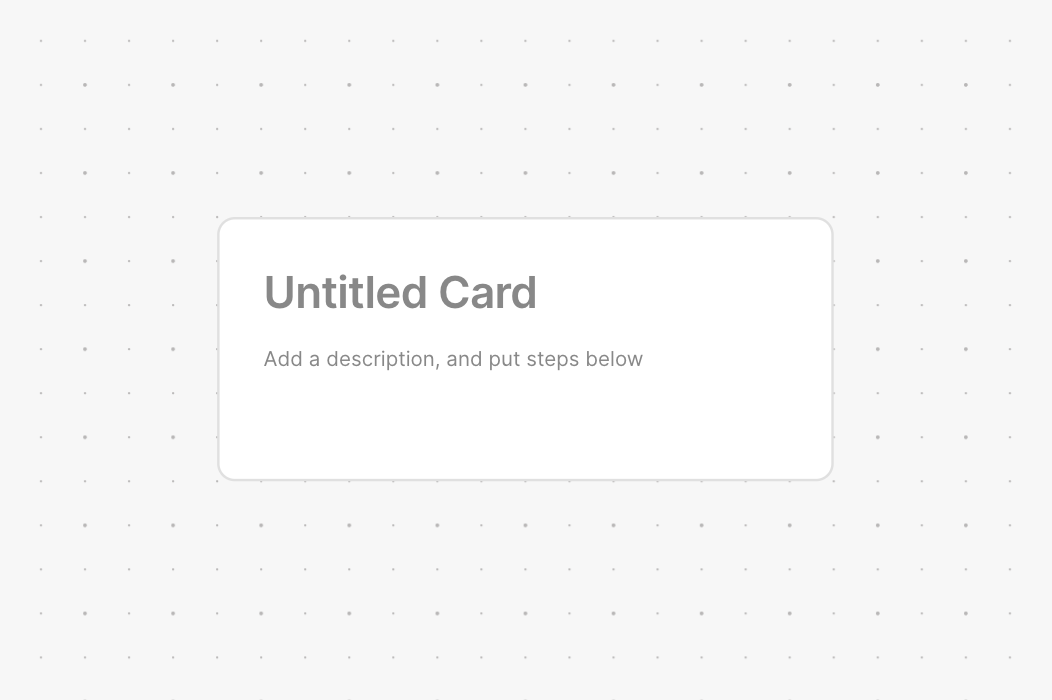
When you add a new card, it starts with a heading labeled “Untitled Card” and a text block where you can add rich text.
Adding a step to the card
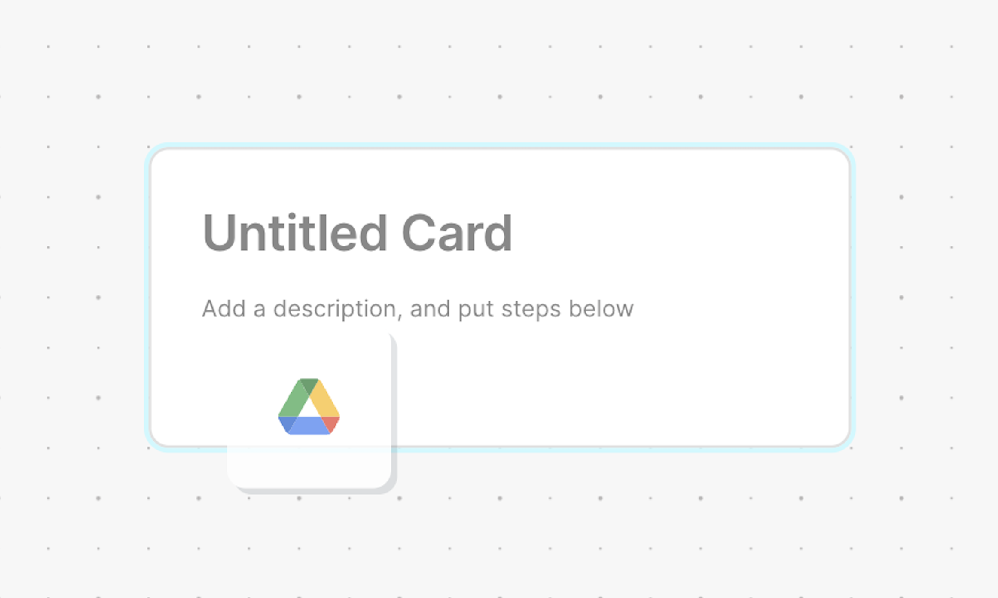
To add a step, drag it over the card. A light blue outline appears to show that you can drop it inside—the step will then snap into place.
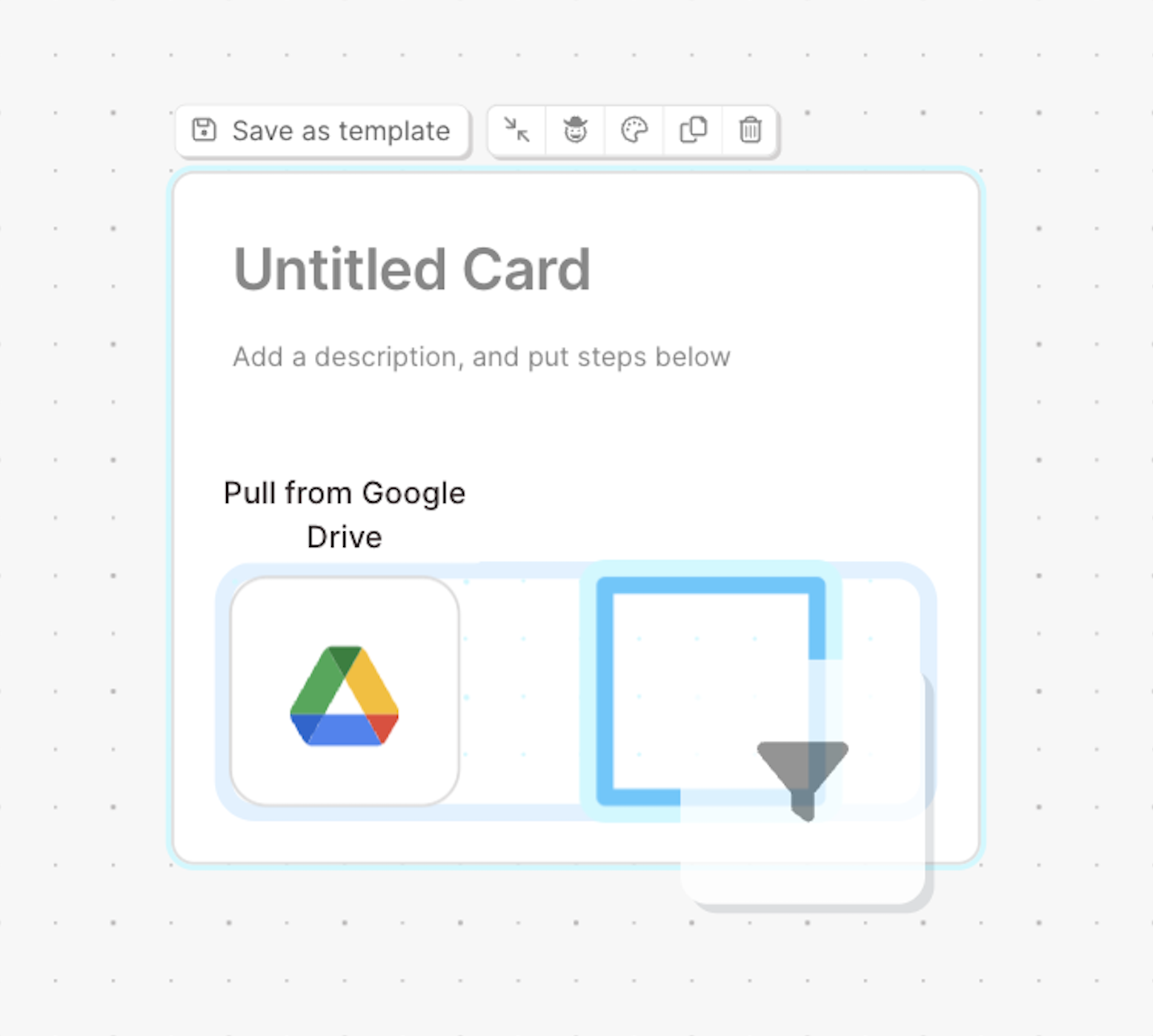
Once the first step is added, a blue box appears inside the card to indicate where new steps can go.
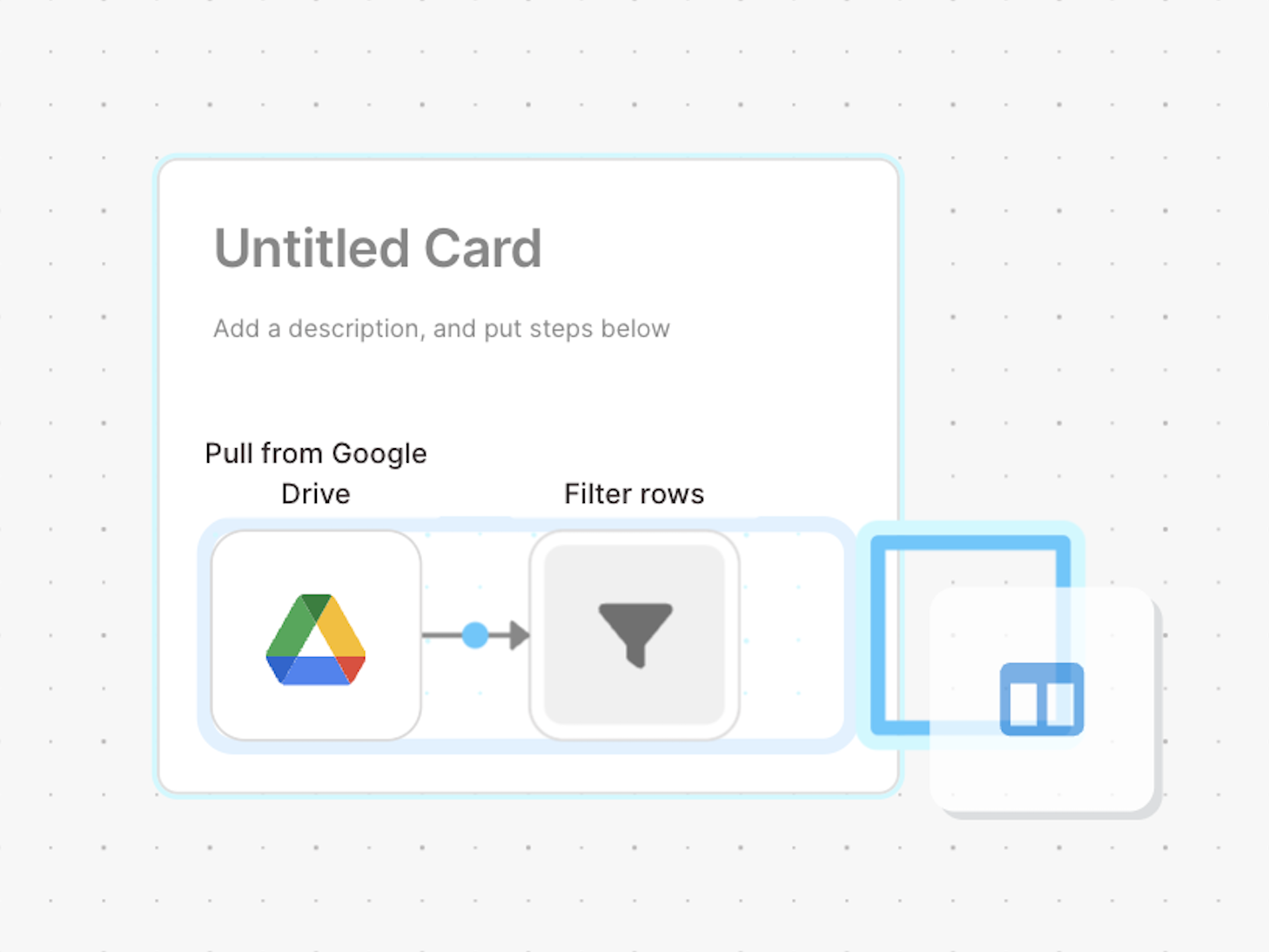
To expand the card, drag a step so it overlaps the inner blue box border or the edge of the card itself.
Adding rich-text formatting
To add rich-text formatting to your cards, click into any text box inside the card, then select the three-dot menu that appears.
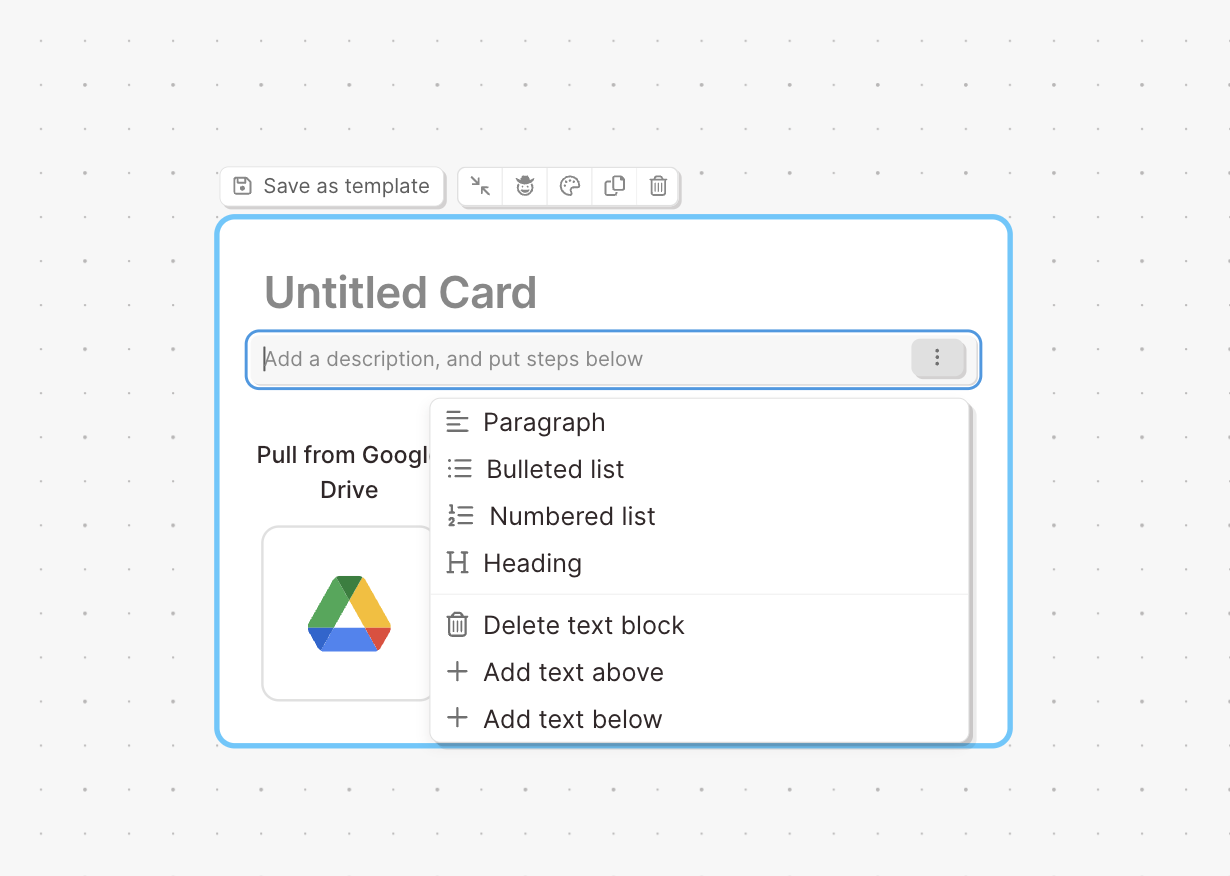
From here, you can:
- Format text as a paragraph, bulleted list, numbered list, or heading
- Add a new text box above or below the current one
- Delete a text block
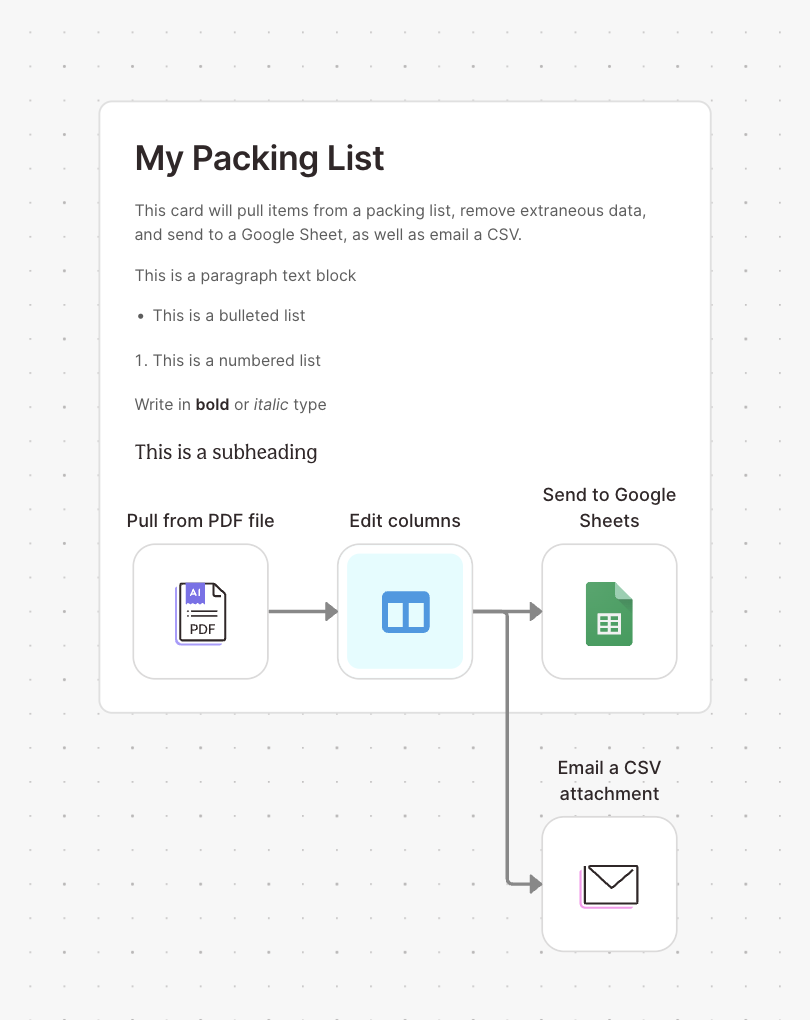
Opening/closing a card (collapsing/expanding)
You can’t manually resize a card—its size adjusts automatically based on the number and arrangement of steps inside it.
To close (collapse) a card, hover over the card and click the collapse icon (two arrows meeting in the middle). The collapsed card keeps its title visible but hides all steps inside, reducing the card’s size.
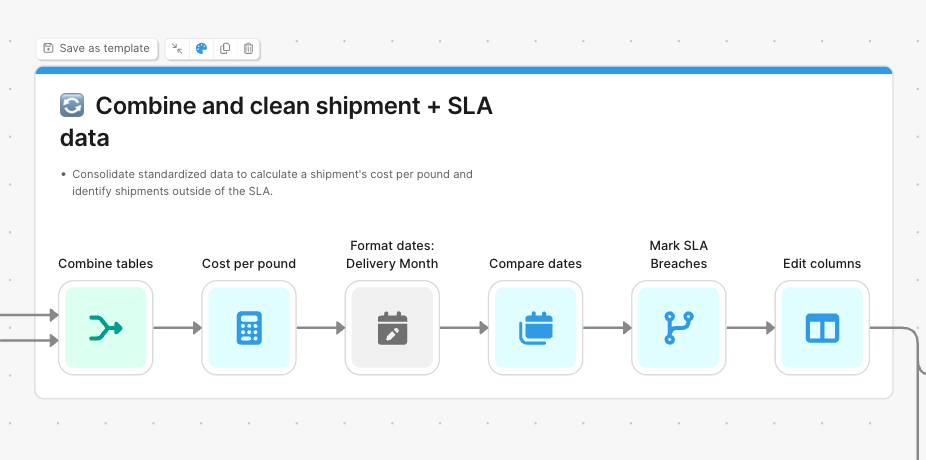
To reopen the card, click the expand icon (the same arrows now pointing outward).
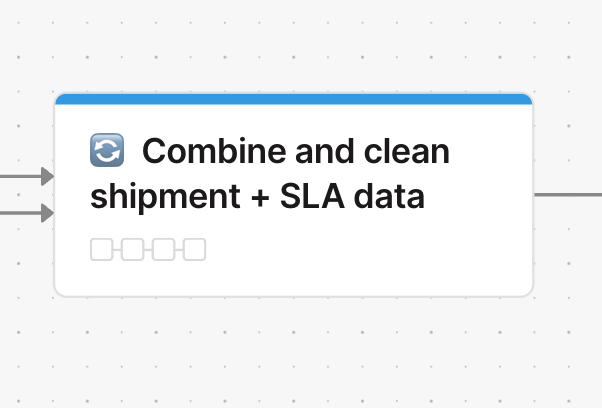
Add color to your card
You can use color labels to visually organize your flow or highlight related sections.
To add a color banner to a card, click the paint palette icon and choose a color from the menu. The selected color will appear as a banner across the top of the card.
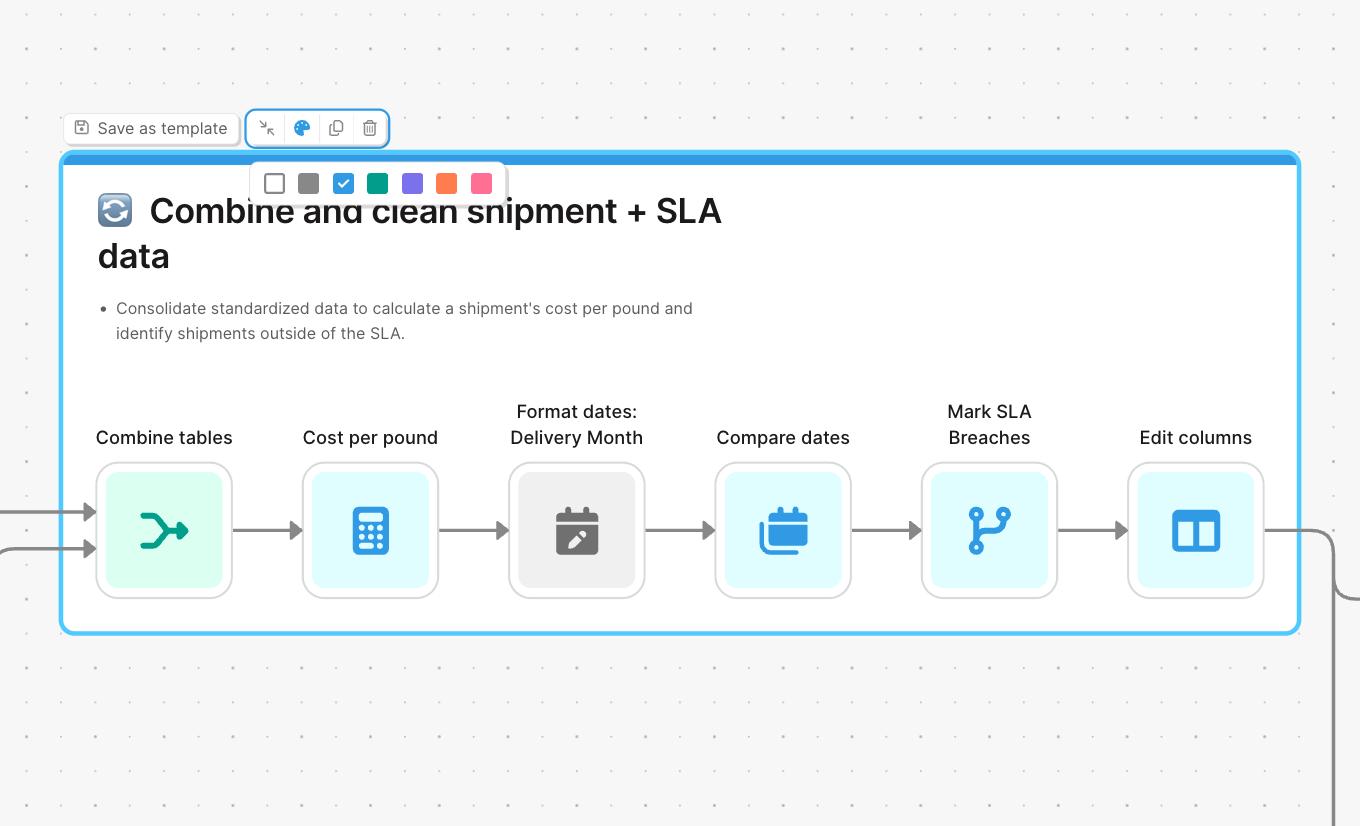
Duplicate a card
To duplicate a card, hover over it and click the duplicate icon (two overlapping squares). This creates a copy of the entire card—including all steps and text inside—so you can reuse it in another part of your flow.
Delete a card
To delete a card, hover over it and click the trash icon. This removes the entire card—including all steps contained inside.
If you want to keep the steps but delete only the card, drag the steps out of the card first, then delete the empty card.
Helpful tips
- Italicize text with ⌘ + I (Mac) or Ctrl + I (PC)
- Bold text with ⌘ + B (Mac) or Ctrl + B (PC)