Find max by group
The Find max by group step calculates the maximum value in a column or a group of columns. This step is similar to the MAX function in Excel.
Input/Output
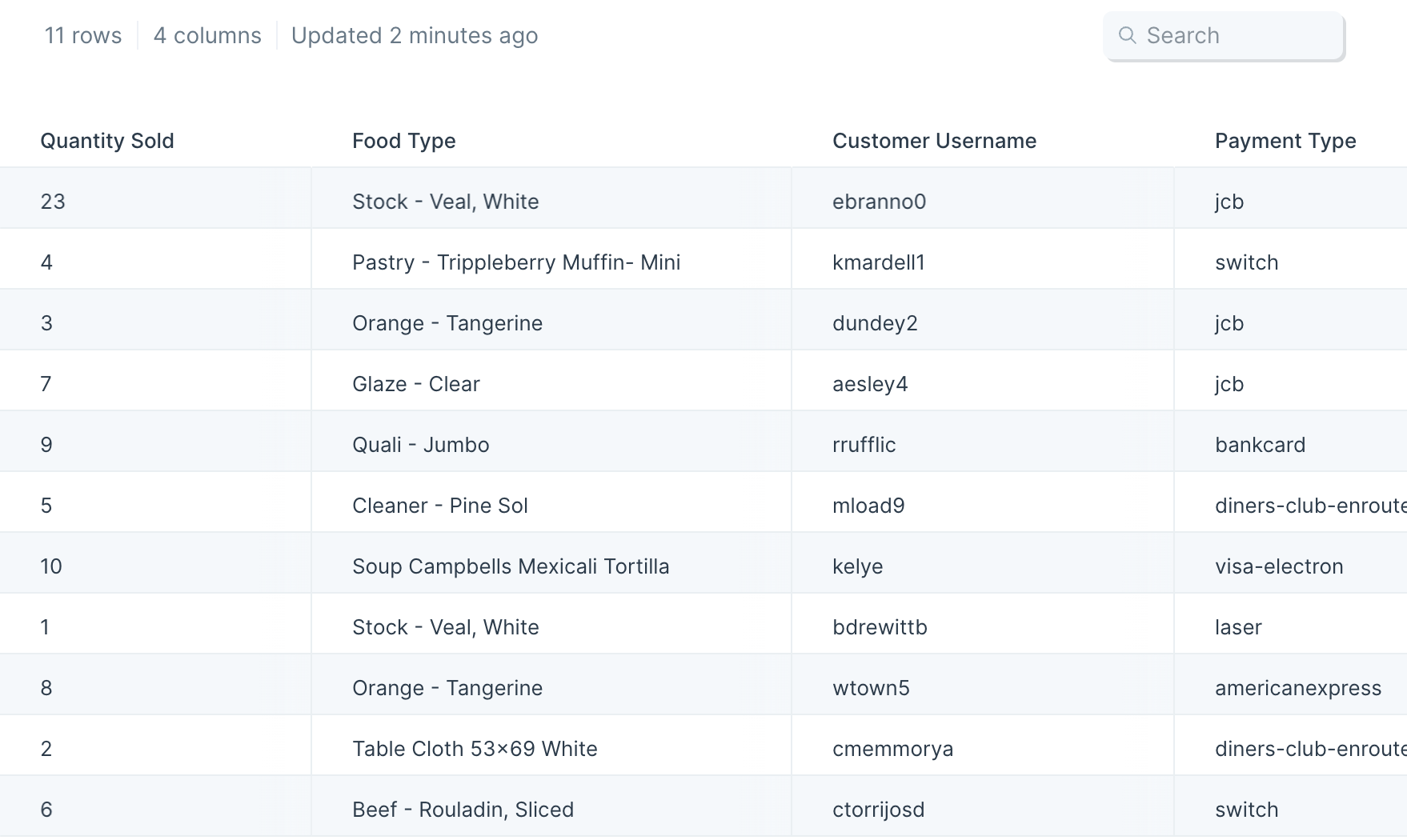
Our input data has 11 rows of order information showing us how many items were sold, the food type, the customer name, and their payment type.
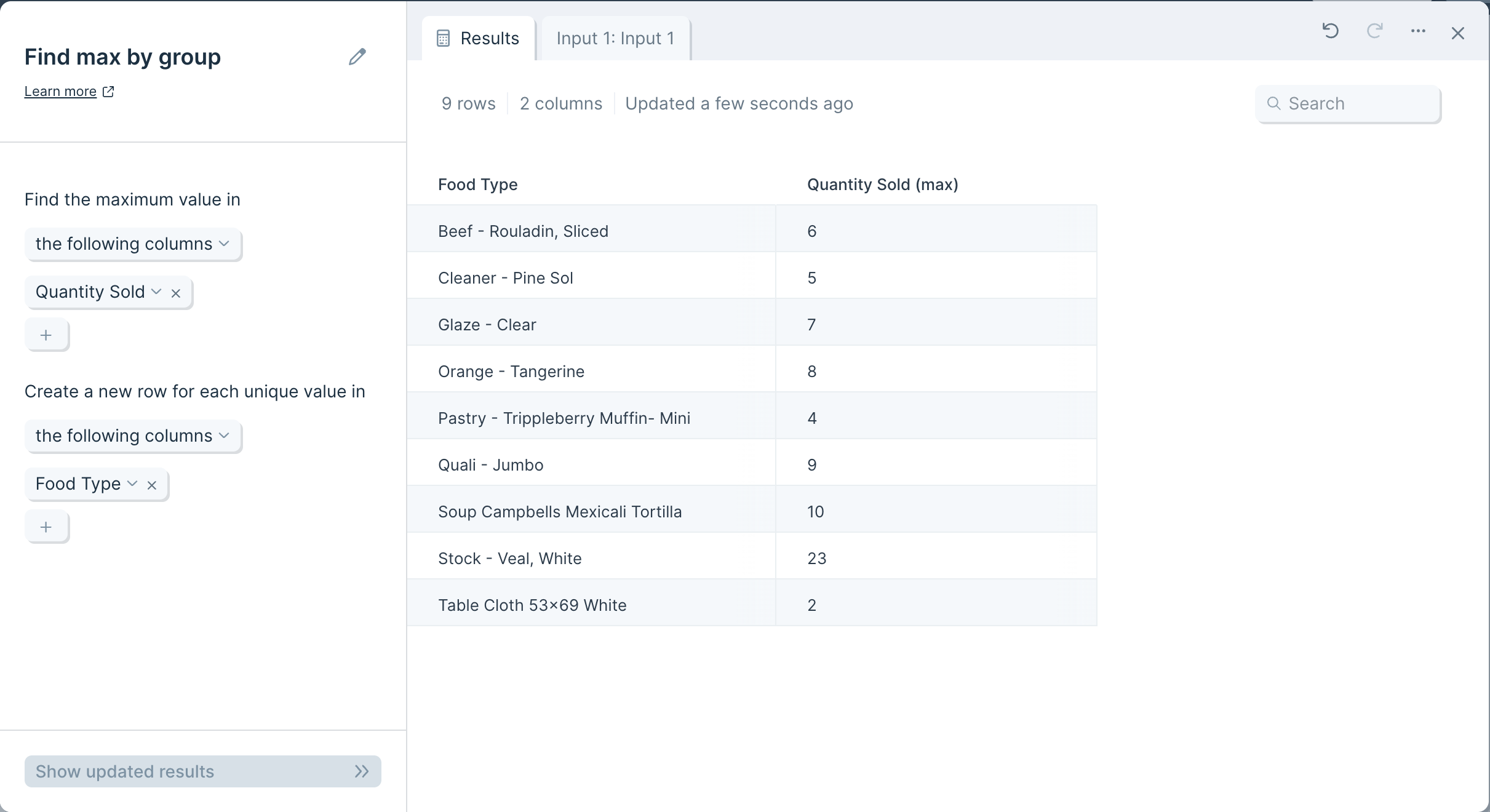
If we instruct the step to find the maximum value in the 'Quantity Sold' column, and create one new row per value in the 'Food Type' column, we can easily find the largest sale of each item.
Custom settings
This step has no default behavior, and must be customized to return a useful output.
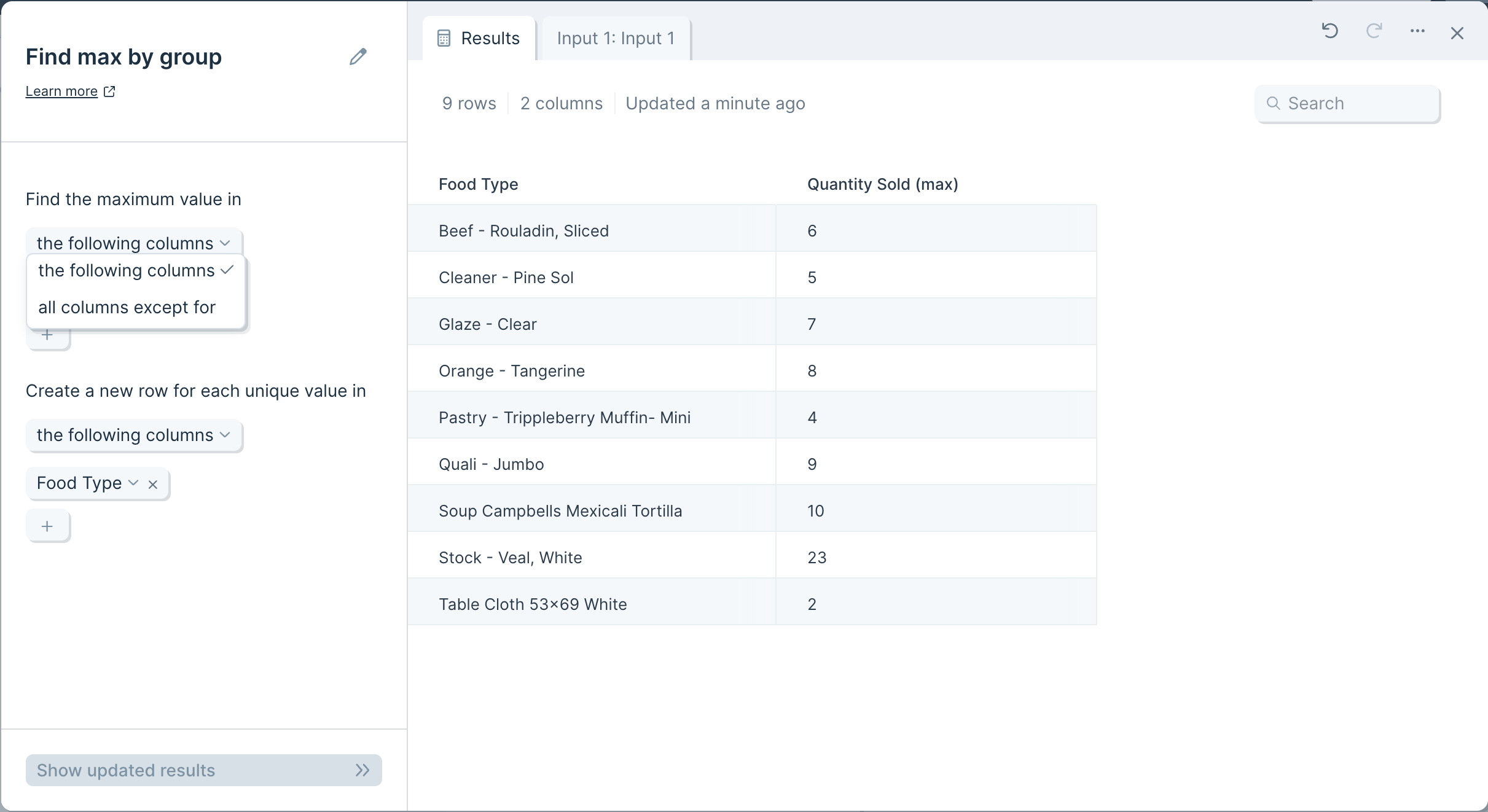
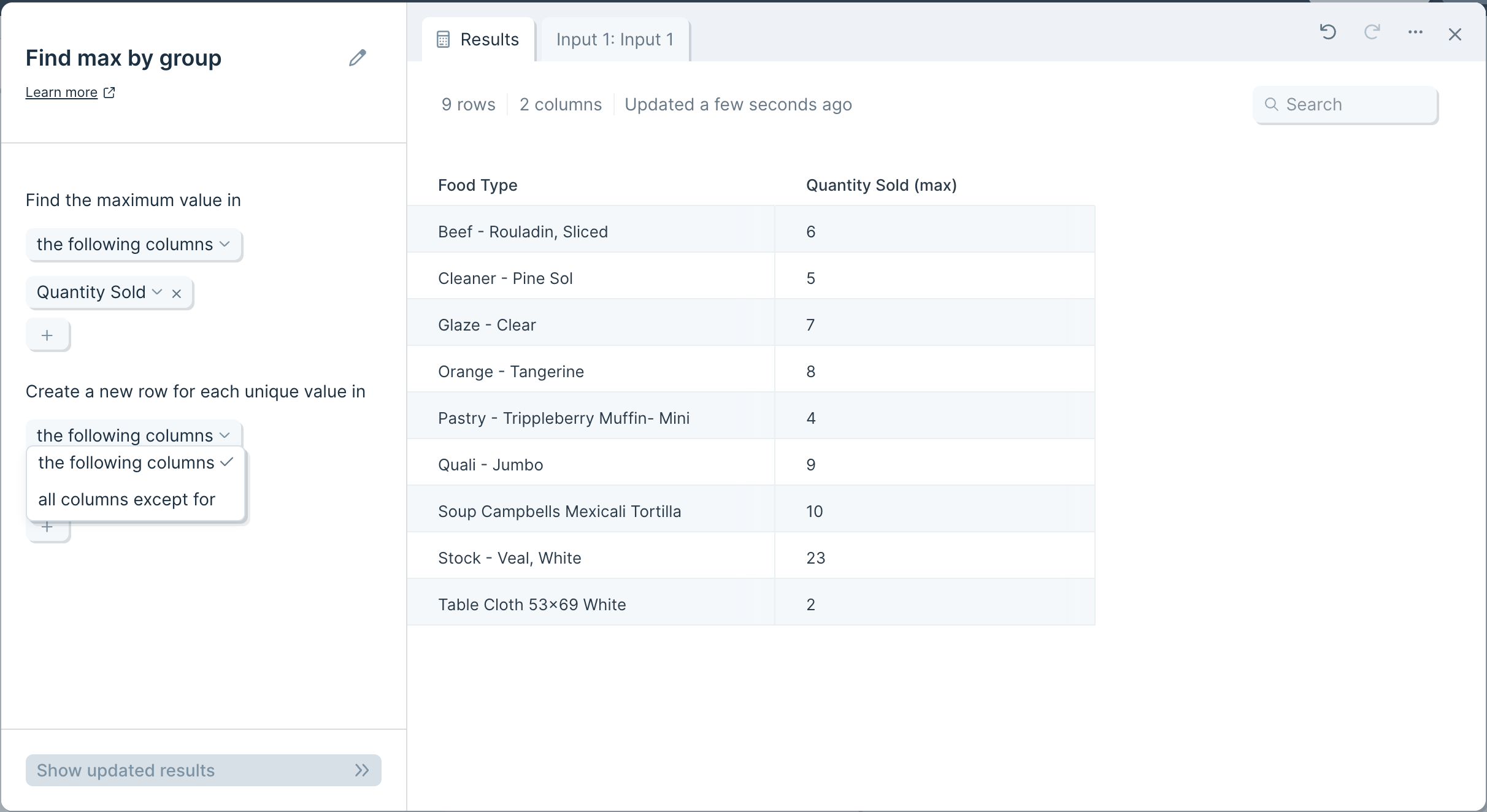
First, decide whether you would like to include or exclude given columns by selecting 'the following columns' or 'all columns except for'.
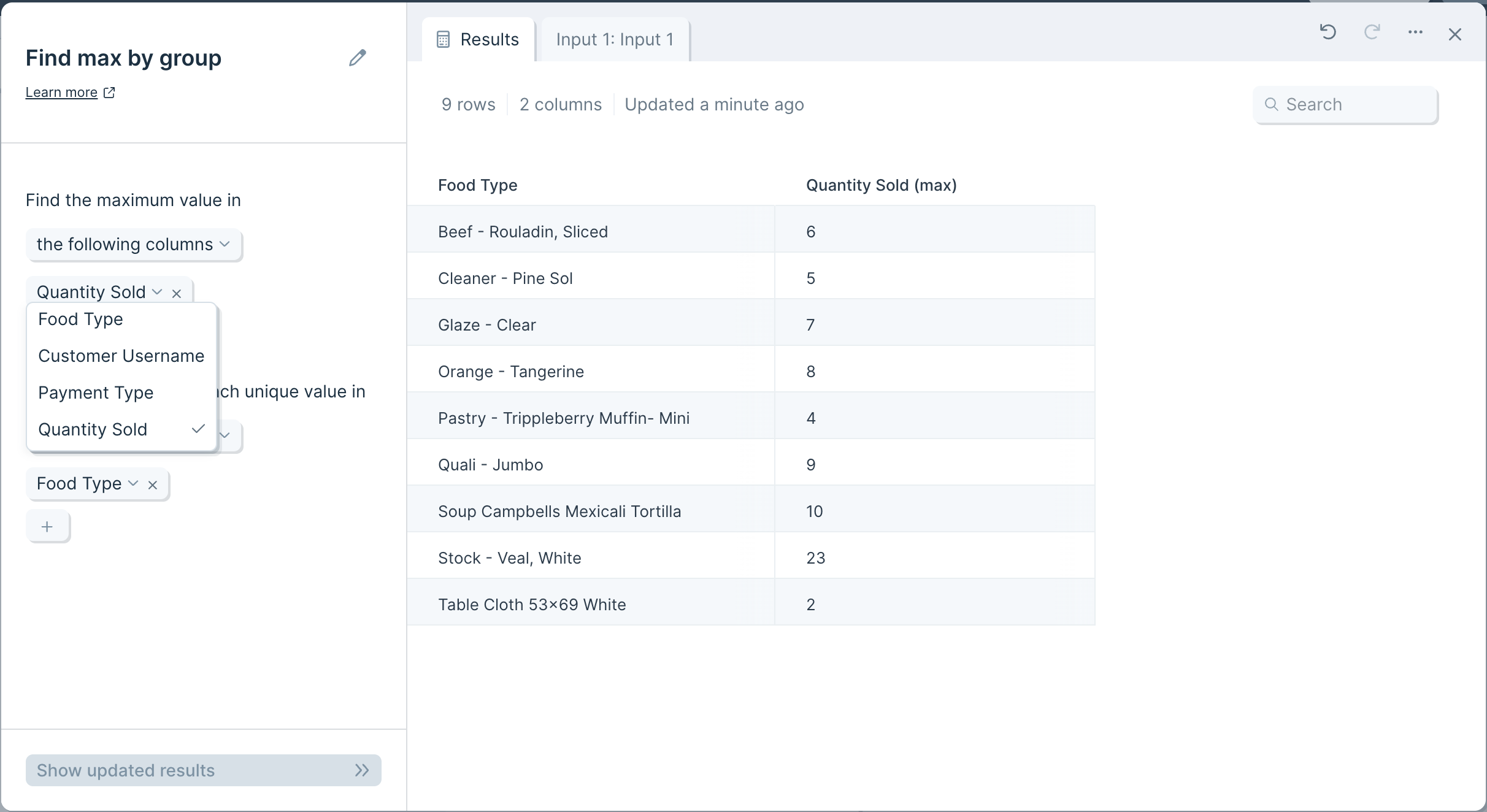
Next, click the plus sign to choose the columns you wish to include or exclude.
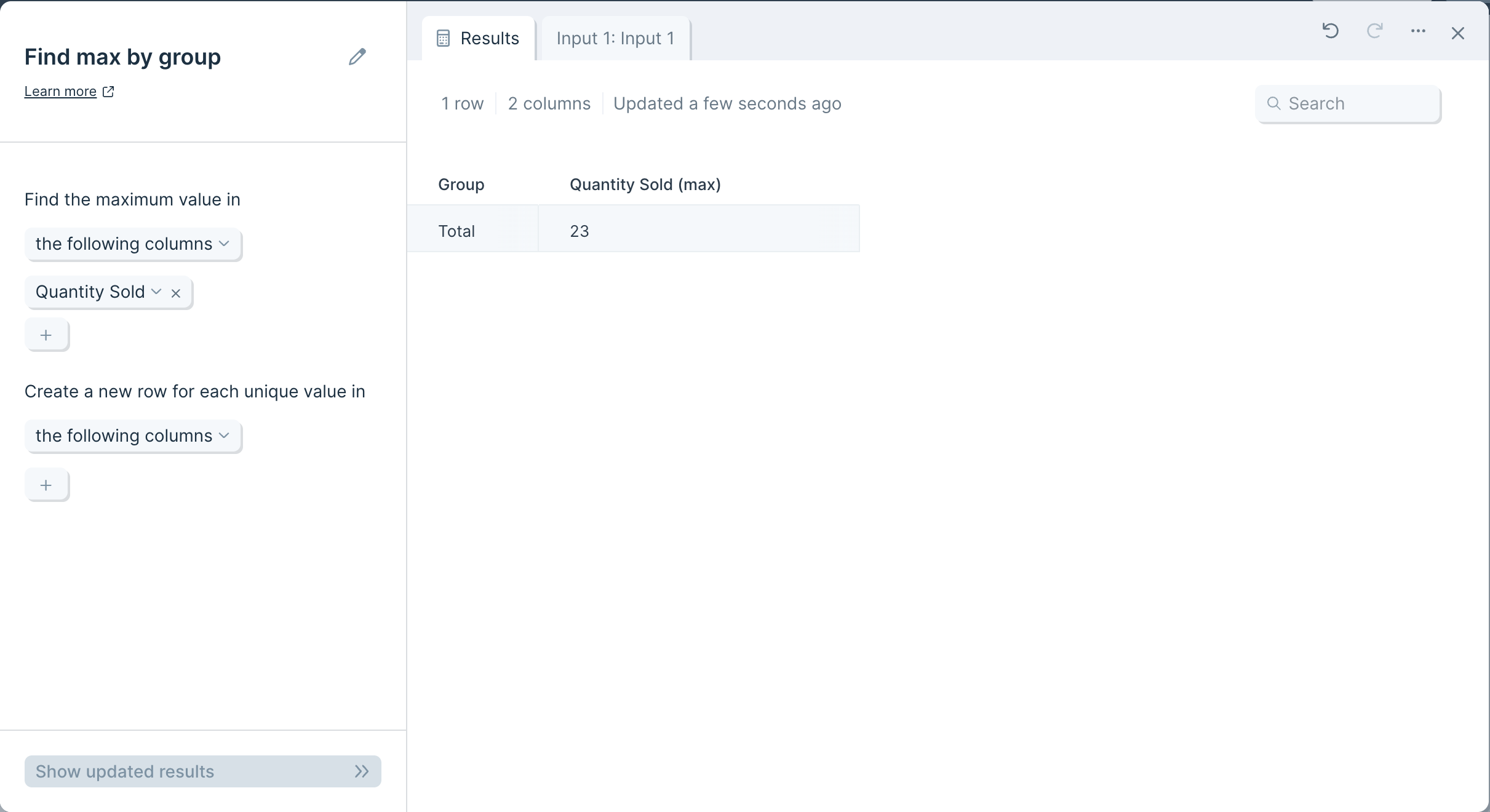
If the 'Create a new row...' option is left blank, the step will return one value per column, according to your specifications in 'Find the maximum value in'
To find maximum values for multiple attributes, you can create a new row for each unique value in your table. As before, you can include or exclude given columns, and you can click the plus sign to specify.
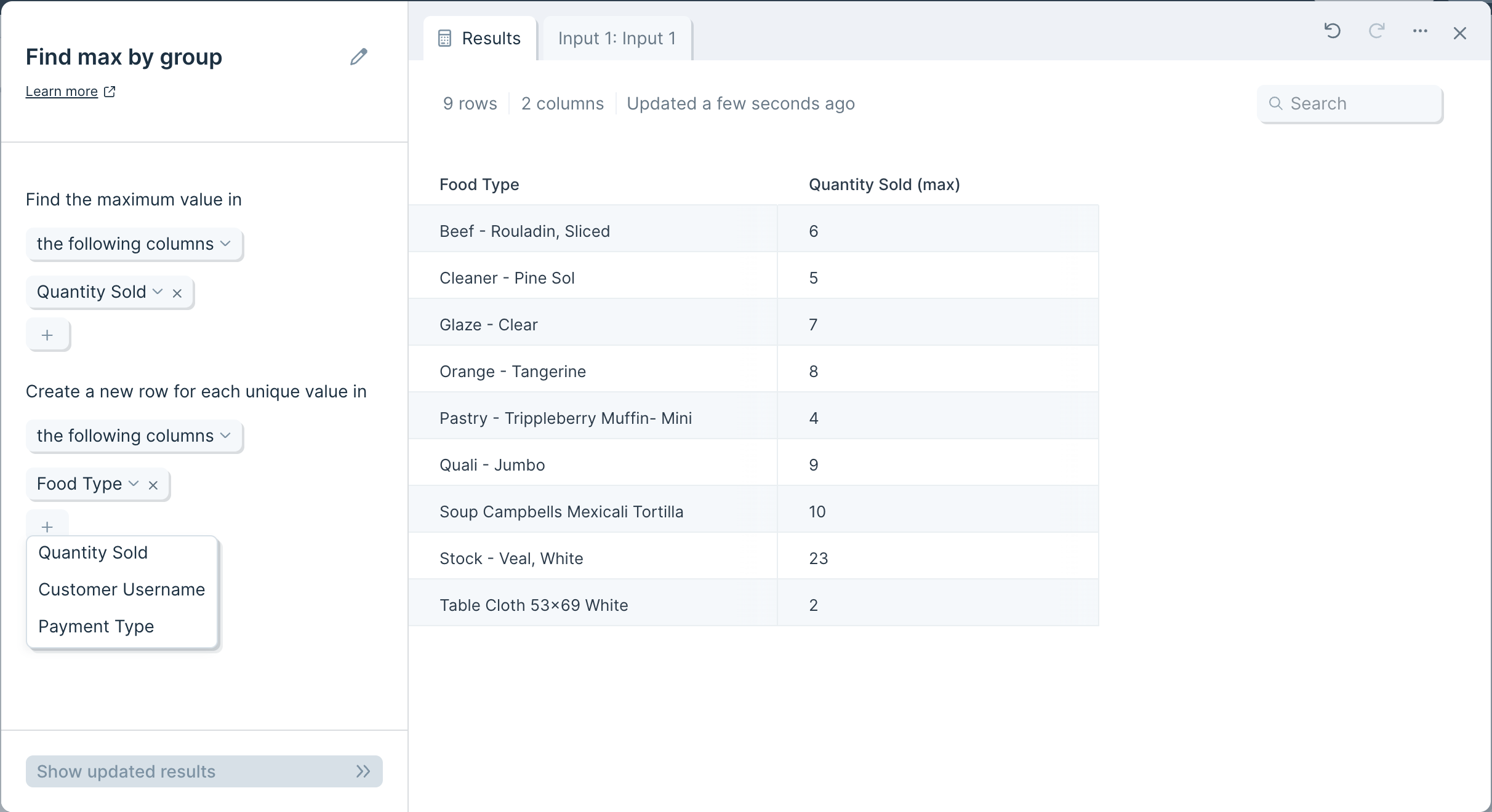
Unique value columns will add left to right, and sort A-Z, and your desired maximum value will display as a new column with "(max)" appended to its header.