Split column
The Split column step splits a column into one or more based on a specified delimiter, such as a comma.
Input/output
Our input data below is a single column called "Data".
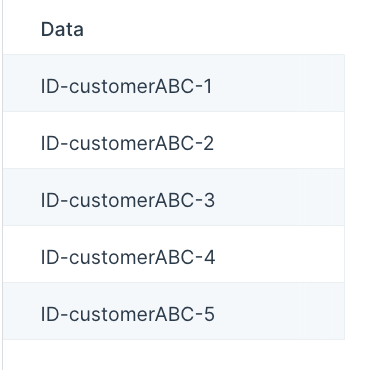
We'll use the Split column step to split this single column into three different columns using the delimiter of a dash mark "-". The output data will look like this:
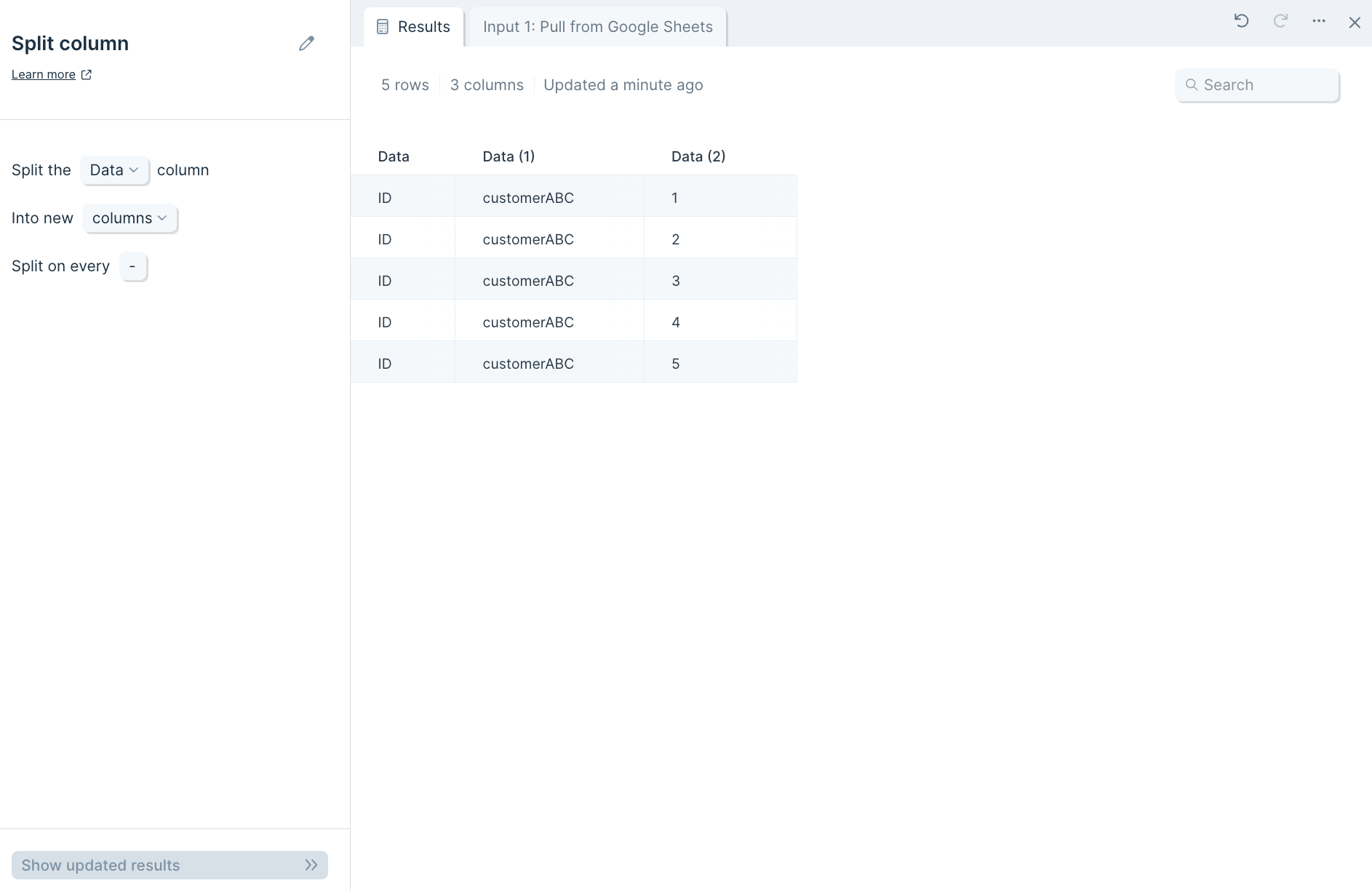
Custom settings
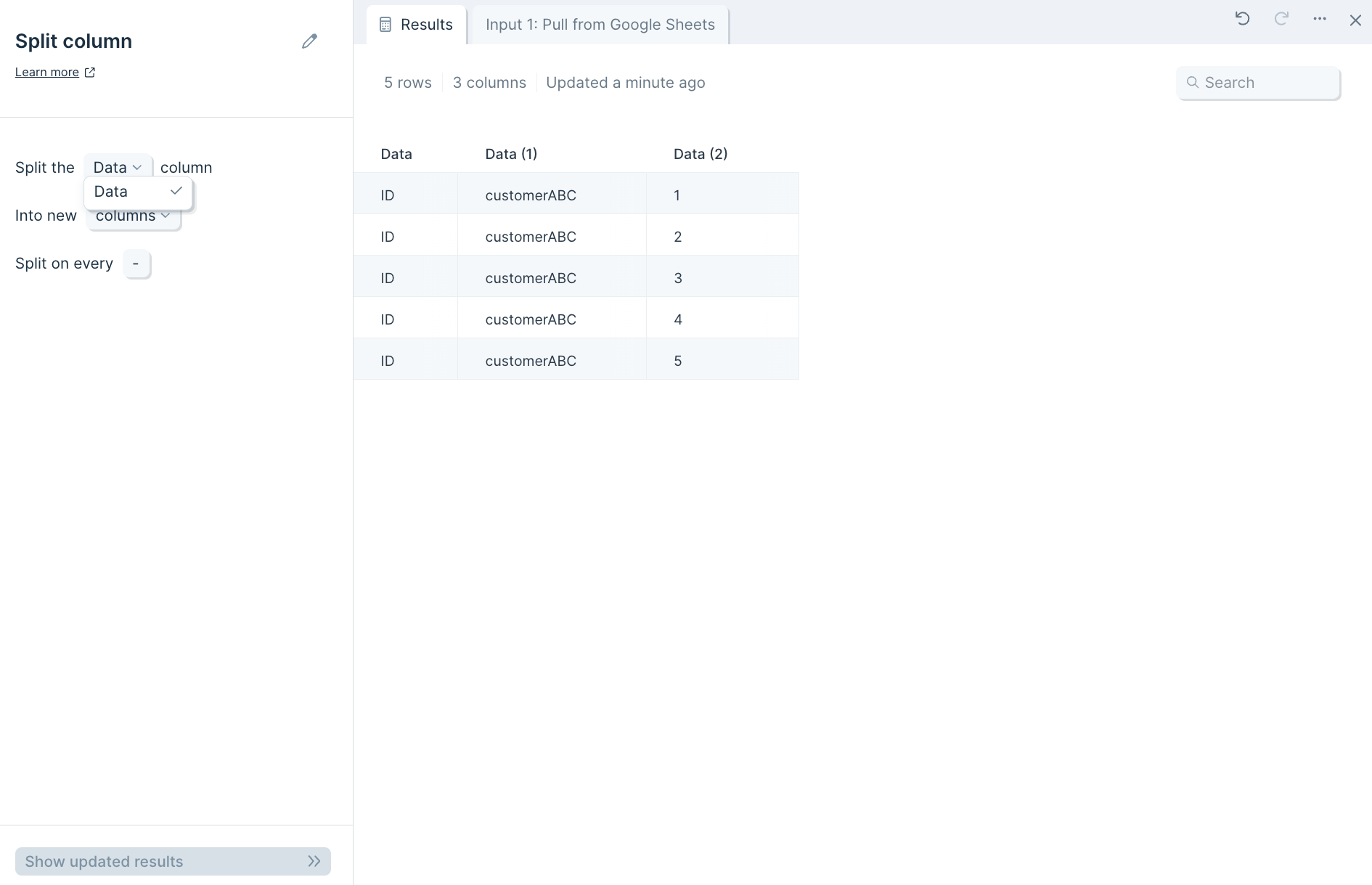
First, in the dropdown select from menu, choose which column to split into one or more.
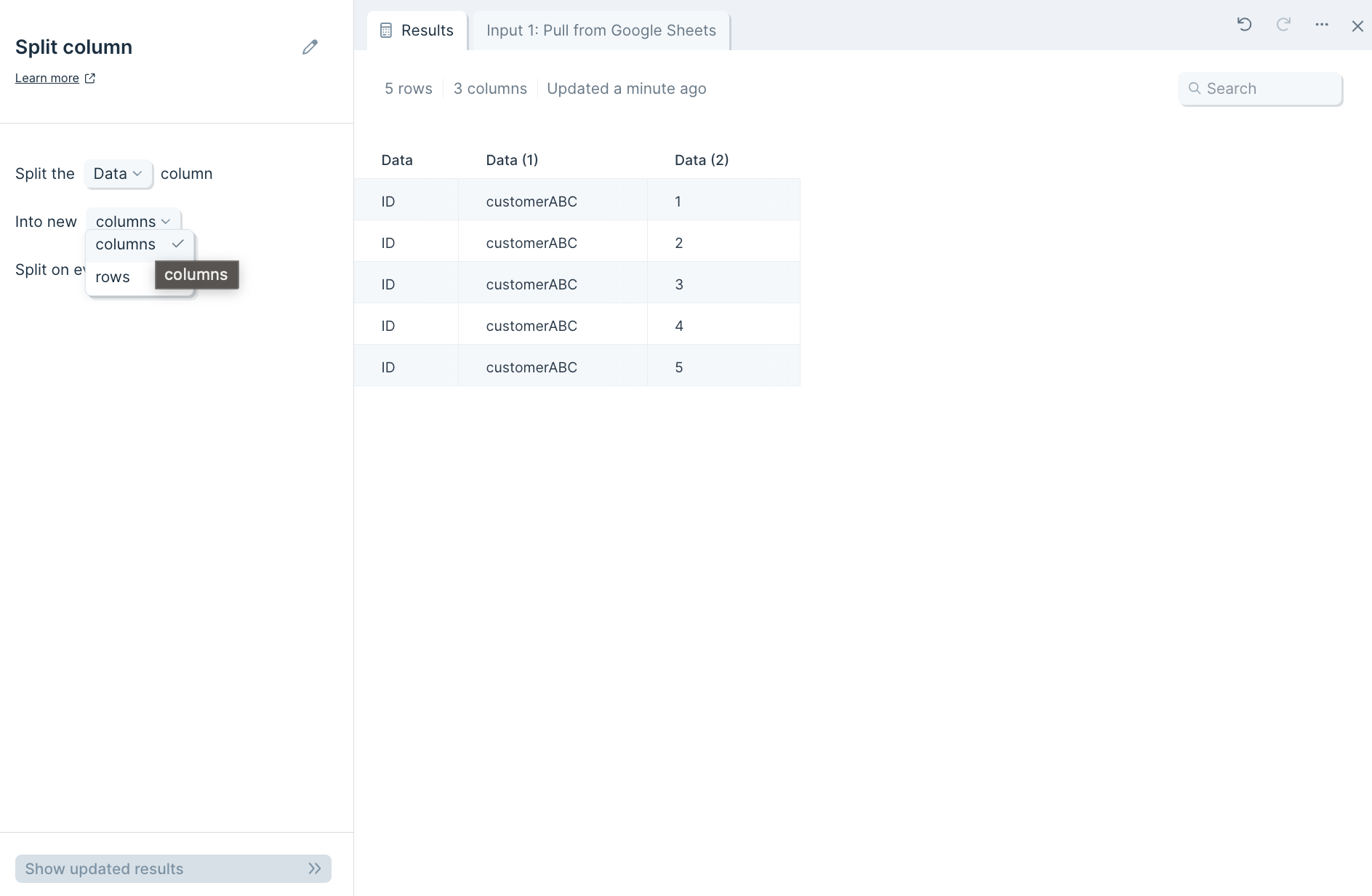
Next, decide if you'd like your data split into new columns or rows by clicking into the linked dropdown menu columns.
You can separate a column's value based on any delimiter by typing into the section type value... whether it be a comma, semi-colon, dash, space, number, letter, or special character. In our screenshot examples, the "Data" column is split into three columns based on a dash mark -.
Helpful tips
- If you'd like to join a dataset using this step to another one based on the step's newly-generated column output and choose to separate values by a comma, be sure to include the space after the comma in order for values to start with the letter or number. For example, splitting apart a column of orders like "shirt, pants, hat" by the comma without a space — like (,) versus (, ) — will create the output of rows "shirt", " pants", and " hat".